This article applies to Volume Discount offers in the Functions version of the app.
Once you set up the offer, the Conditions tab lets you control exactly when a Volume Discount offer is shown to customers — and when it should be suppressed, even if it would otherwise qualify. This gives you fine-grained targeting without needing separate offers for every audience.
You'll find the Conditions tab when creating or editing an offer, next to Offer setup.
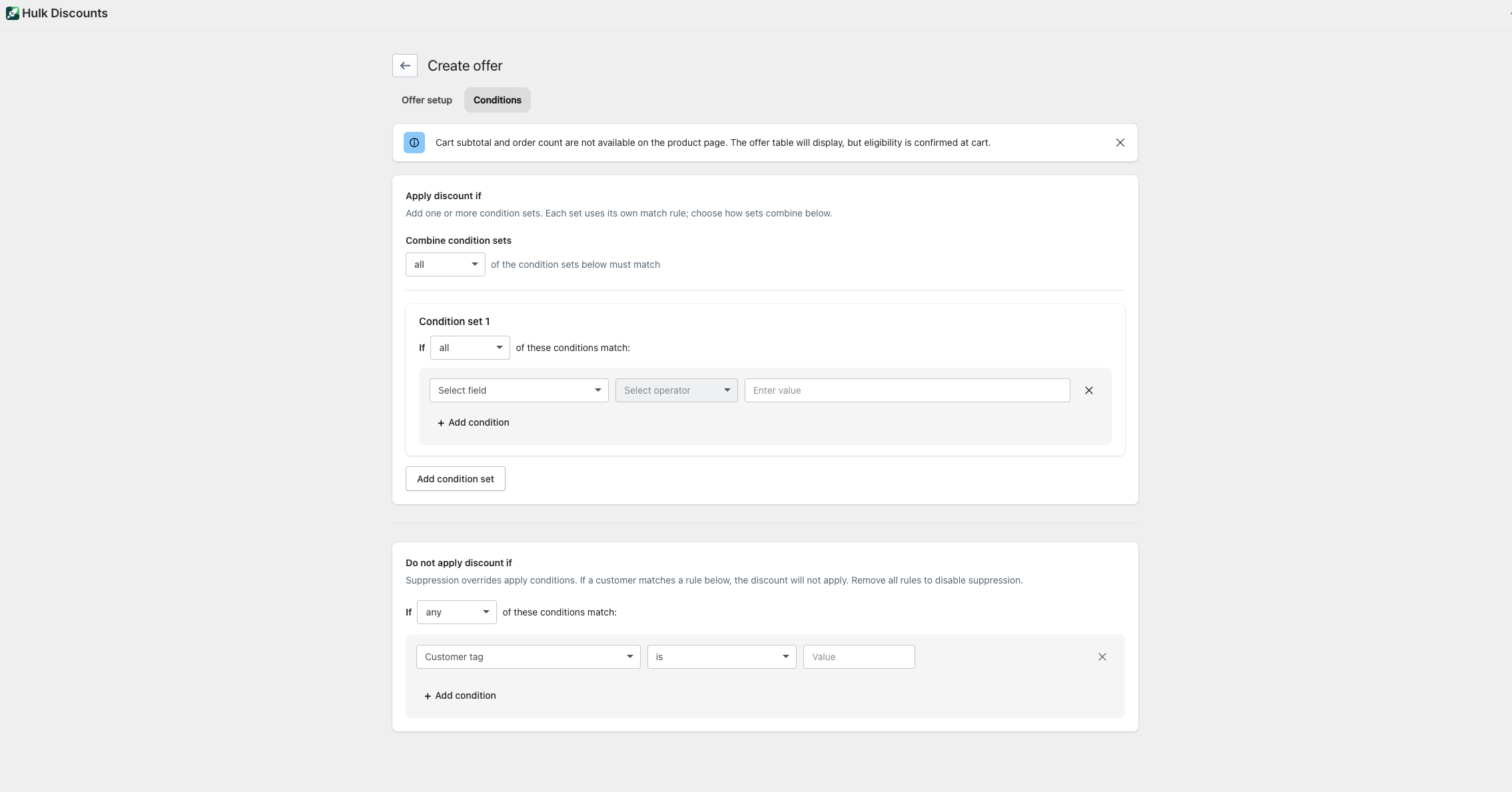
Apply conditions: choosing who sees the offer
Under Apply discount if, you can build one or more condition sets that determine when your offer is eligible to display.
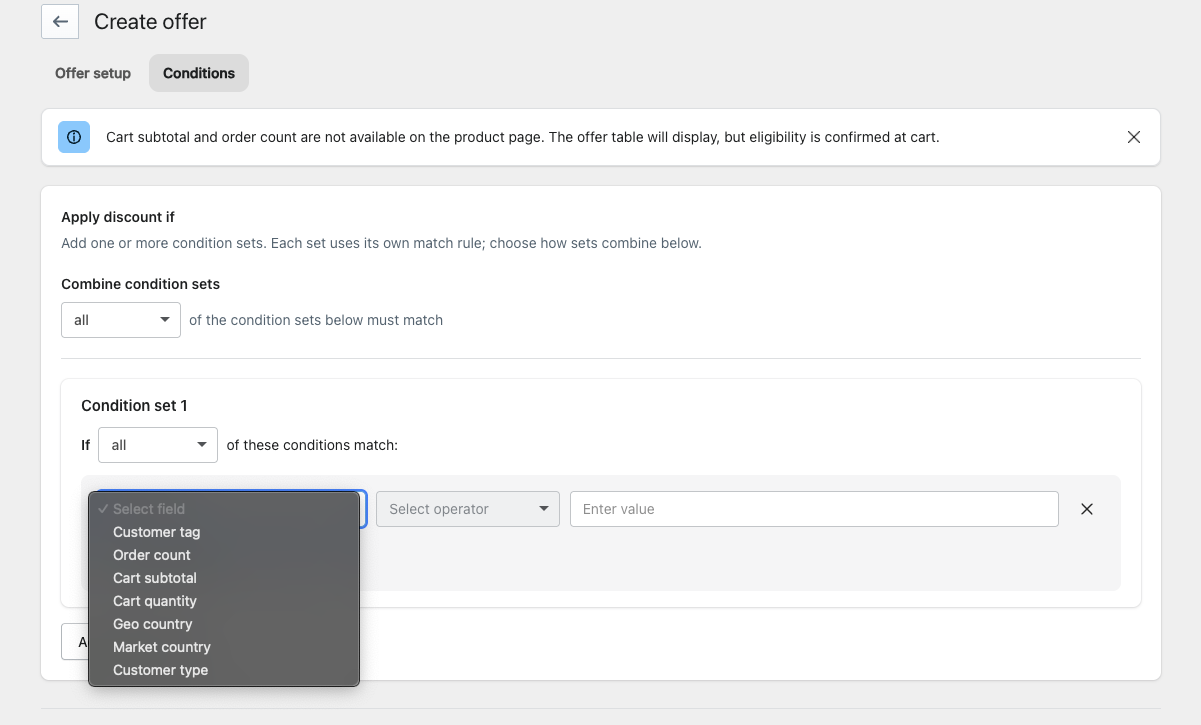
Available condition fields
You can base your conditions on:
- Customer tag
- Order count
- Cart subtotal
- Cart quantity
- Geo country
- Market country
- Customer type
How condition sets work
- Each condition set can require all or any of its conditions to match.
- You can add multiple condition sets using Add condition set.
- Use Combine condition sets to decide whether all or any of your condition sets must match for the offer to apply.
This structure lets you build both simple rules ("customer tag is VIP") and more advanced logic ("cart subtotal is over $100 AND customer type is returning" OR "customer tag is VIP").
A note on product page availability
Cart subtotal and order count rely on information that isn't available while a customer is browsing a product page — that data is only known once a cart exists. Because of this:
- The offer table will still display on the product page.
- Final eligibility for the discount is confirmed once the customer reaches the cart.
If your conditions rely on cart subtotal or order count, customers may see the offer on the product page but the discount will only be applied at cart if they actually meet the criteria.
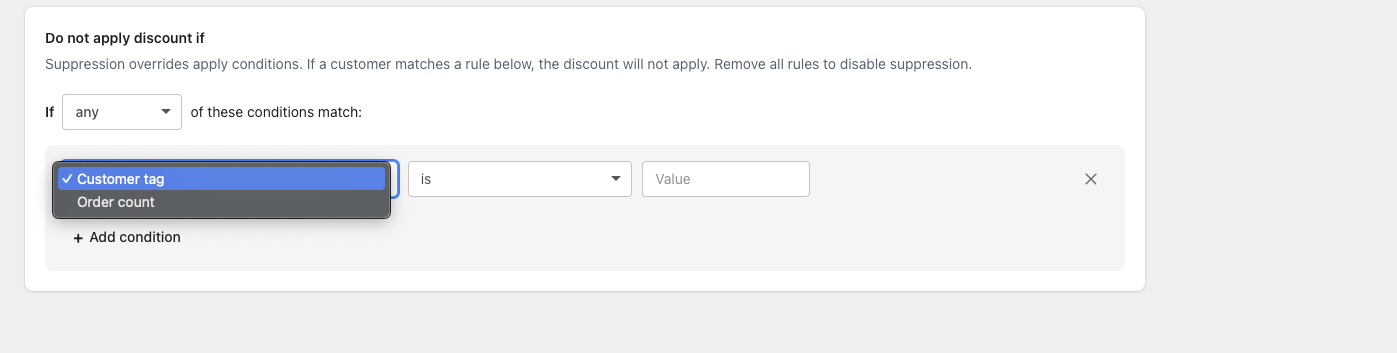
Suppression rules: choosing who should never see the offer
Under Do not apply discount if, you can set up suppression rules. These act as an override: if a customer matches a suppression rule, the offer will not apply — regardless of whether they also match your apply conditions.
Suppression can currently be based on:
- Customer tag
- Order count
Like apply conditions, you can choose whether any or all of the suppression rules must match to block the offer.
To turn suppression off entirely, remove all suppression rules. If no rules are present, suppression has no effect and the offer applies normally to anyone who meets your apply conditions.
Migration note for existing merchants
If you had previously configured Geo Location or Customer Tag rules under Other Settings, these have been automatically migrated to the new Conditions tab.
- No configuration or settings have been lost.
- Only the location of these settings has changed — they now live under Apply discount if on the Conditions tab.
Quick reference
| Section | Purpose | Available fields |
|---|---|---|
| Apply discount if | Defines who is eligible to see/receive the offer | Customer tag, Order count, Cart subtotal, Cart quantity, Geo country, Market country, Customer type |
| Do not apply discount if | Overrides apply conditions to exclude specific customers | Customer tag, Order count |
If you run into unexpected behavior with your conditions, double-check whether a suppression rule might be overriding your apply conditions — suppression always takes priority.
Was this article helpful?
That’s Great!
Thank you for your feedback
Sorry! We couldn't be helpful
Thank you for your feedback
Feedback sent
We appreciate your effort and will try to fix the article