Grid Customization
If you selected Grid as your display type, you can further customize how the discount table appears.
Grid Types Available
You can choose between four grid variations:
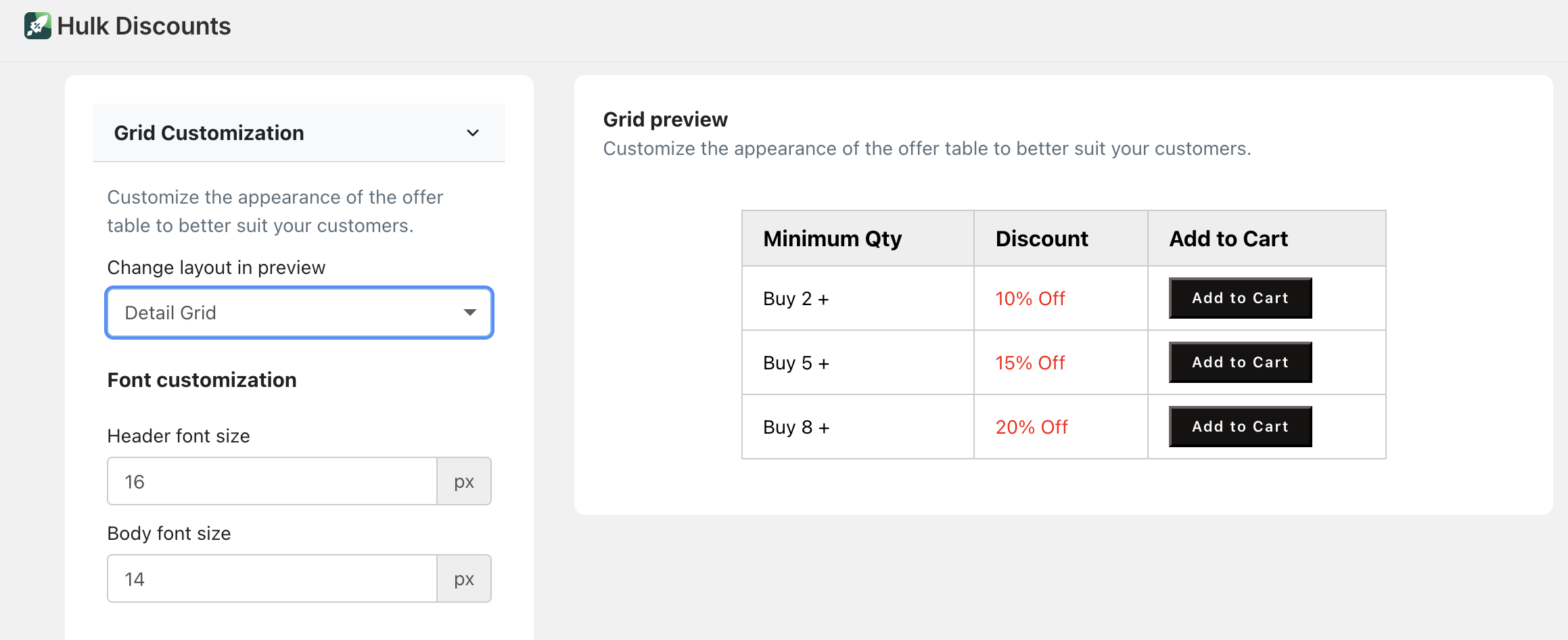
Detailed Grid
Shows:Minimum quantity column
Discount column
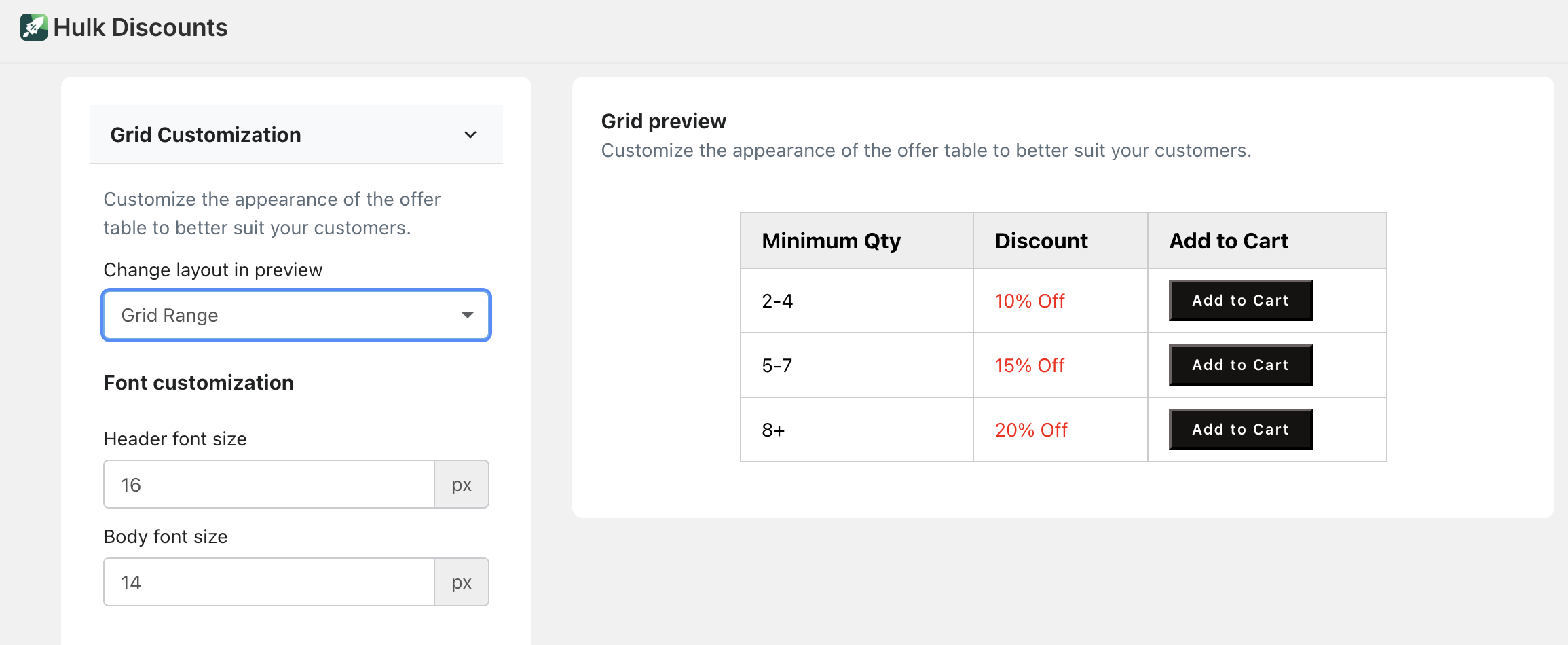
Grid Range
Shows:Quantity range (e.g., 5–10)
Discount column
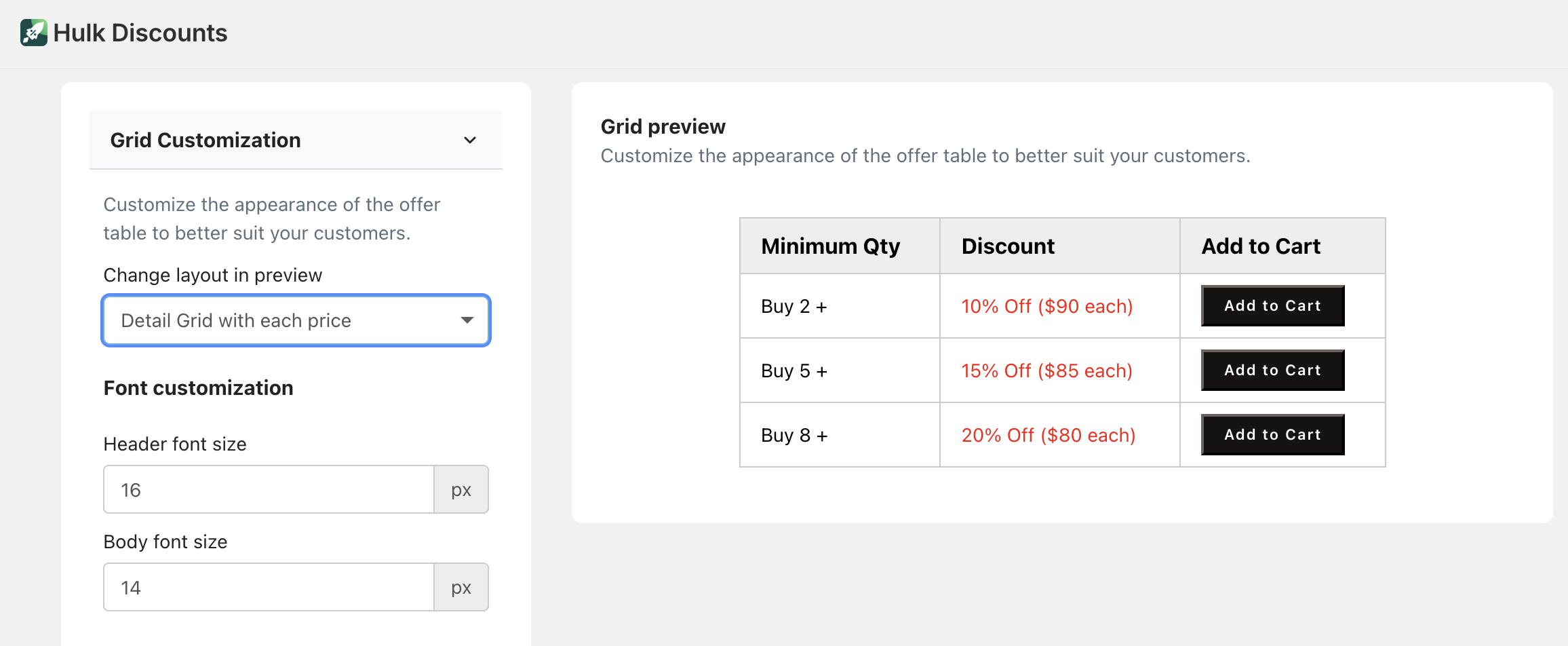
Detailed Grid with Each Price
Shows:Minimum quantity
Discount percentage
Individual product price after discount
Grid Range with Each Price
Shows:Quantity range
Discount percentage
Individual product price after discount
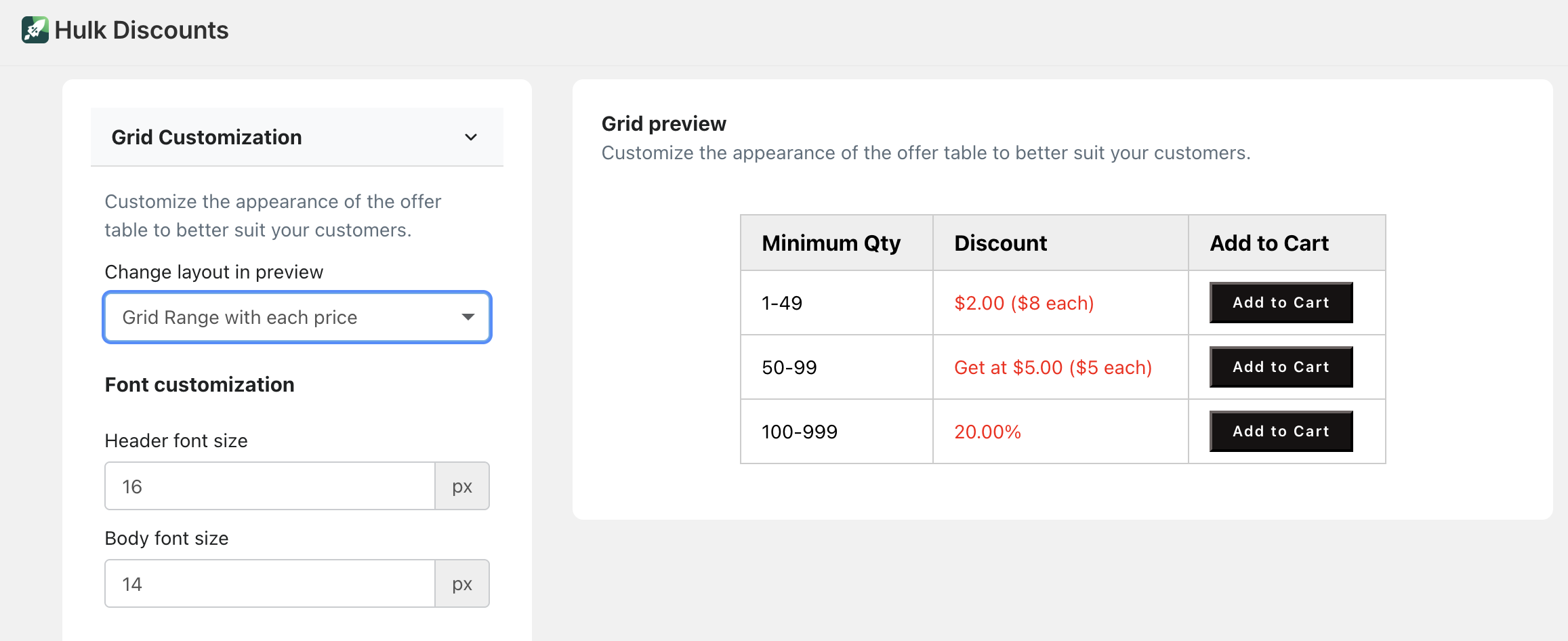
This allows you to clearly show customers both the percentage discount and what that means in actual price per item.
Grid Design Customization
For all grid types, you can customize:
Font style
Table header color
Table body color
Padding and spacing
Border style
Add to Cart Button (Grid Only)
You can also enable an Add to Cart button for each row in the grid.
This allows customers to add products directly from the discount table.
You can customize:
Button text
Button style
Button colors
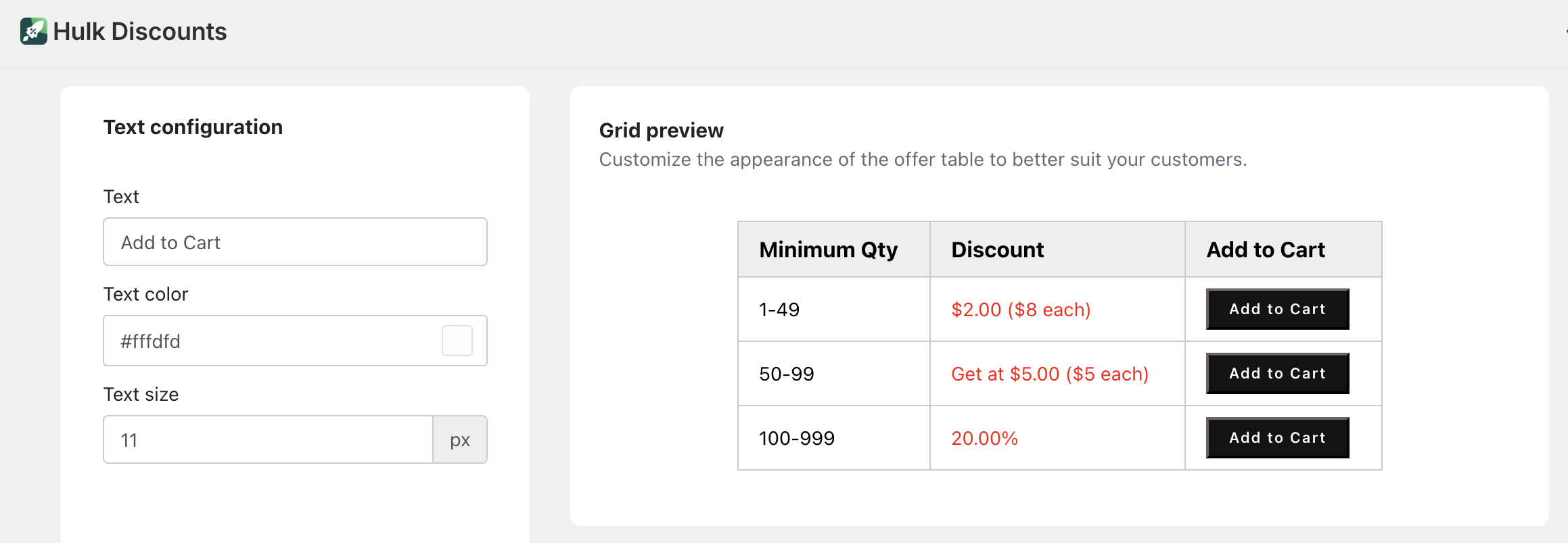
This is especially useful for increasing conversions by reducing extra clicks.
List Display Settings
Instead of a grid, you can display your offer as a List.
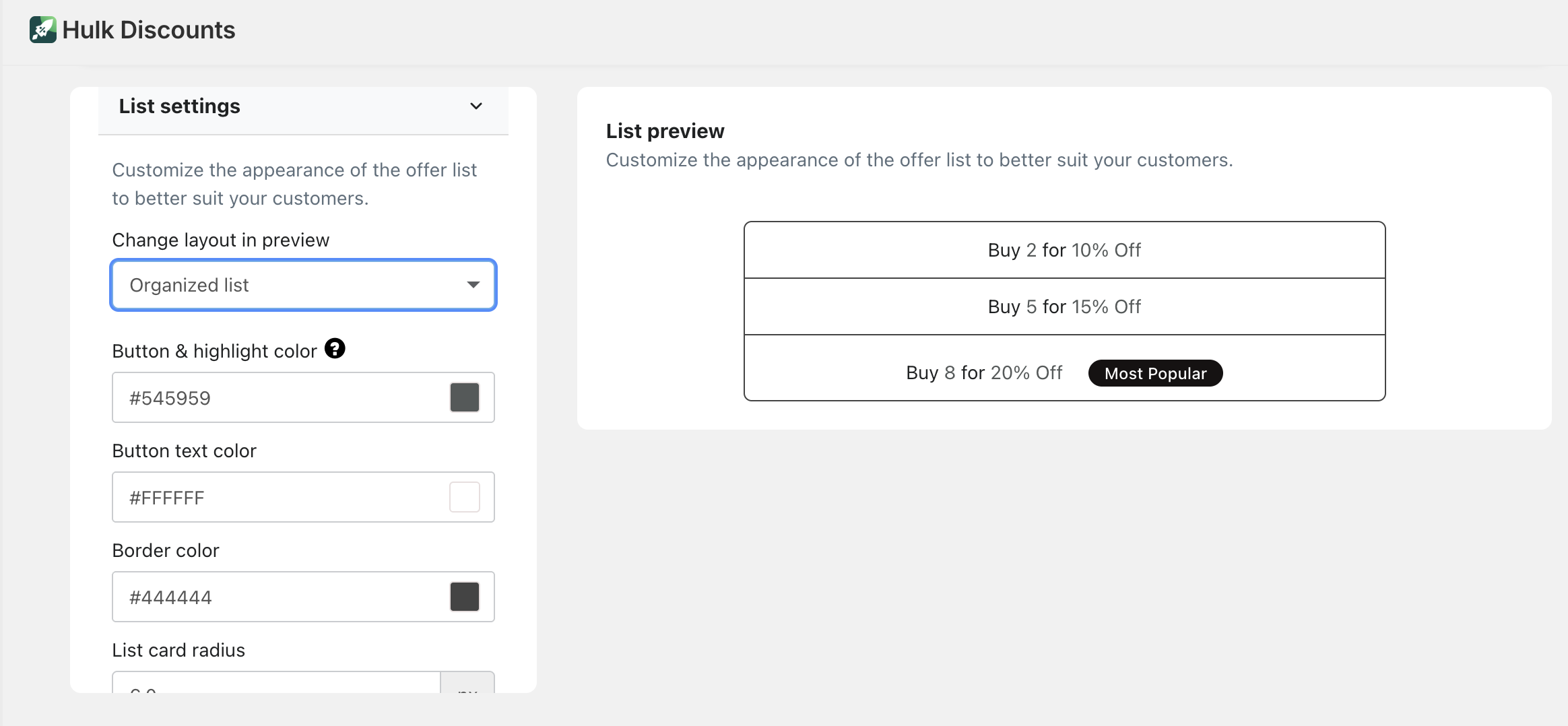
There are two list styles available:
Card List
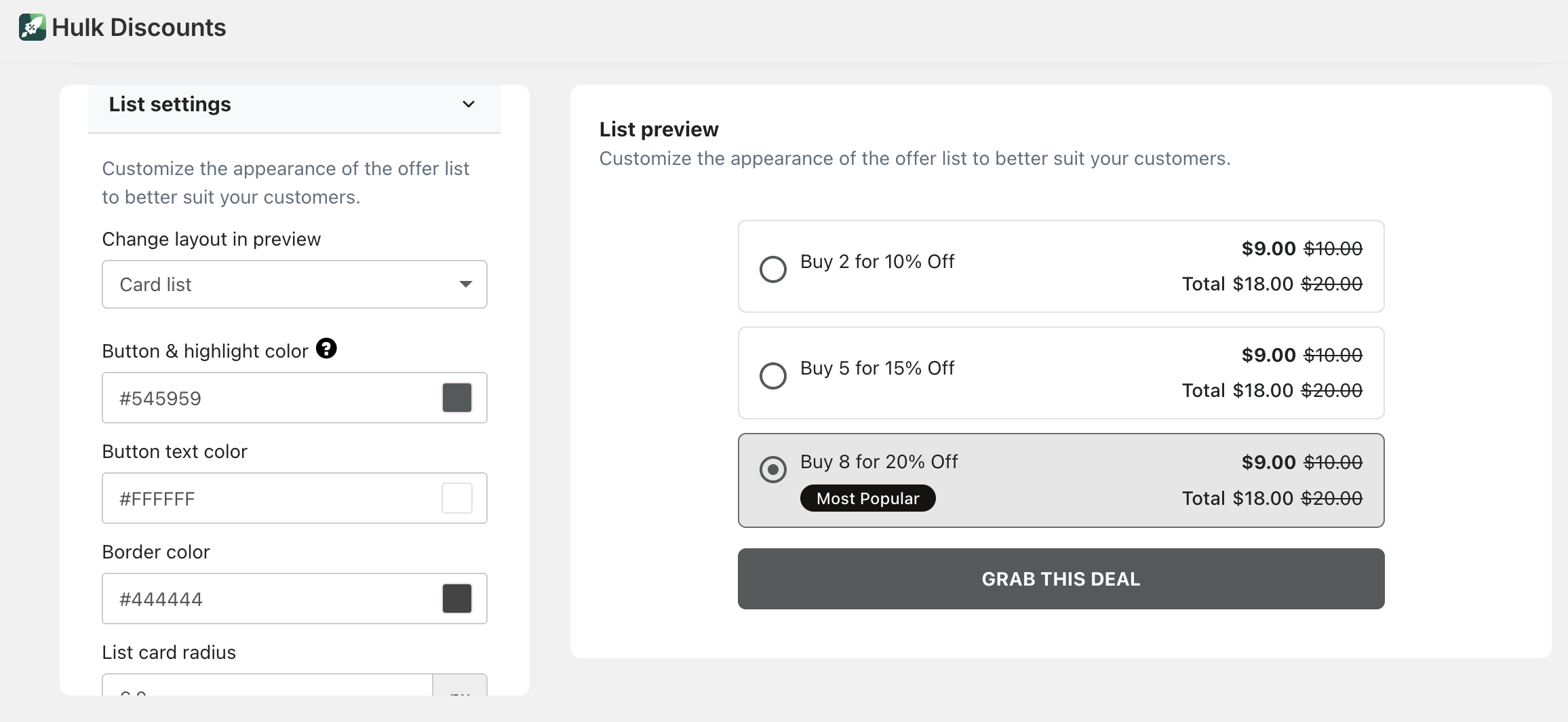
Organized List
Highlight an Offer (Sticker / Promo Badge)
If you choose any list display type, you can highlight one of the offers.
You can add a promotional badge such as:
“Most Popular”
“Best Value”
“Limited Offer”
Or any custom wording
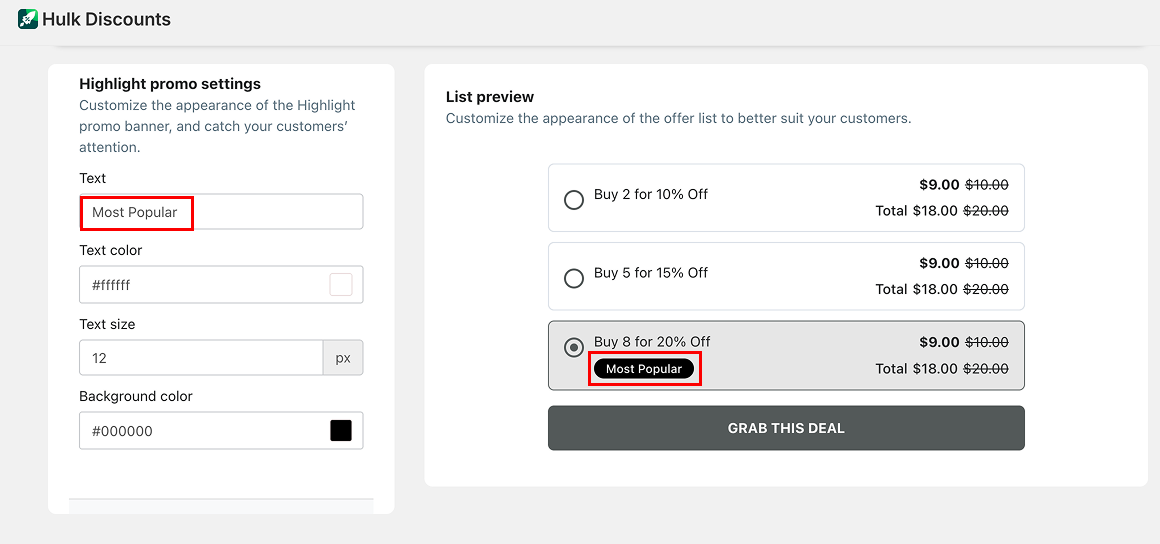
You can fully customize:
Badge text
Badge color
Appearance
This helps draw attention to the offer you want customers to choose.
Was this article helpful?
That’s Great!
Thank you for your feedback
Sorry! We couldn't be helpful
Thank you for your feedback
Feedback sent
We appreciate your effort and will try to fix the article