Bundle discounts are an effective way to increase average order value by encouraging customers to purchase specific product combinations together. With bundle offers, you can apply discounts or include free products when customers buy a defined group of items.
This guide walks you through creating a Bundle Discount Offer step by step in the Volume Discount Functions app.
1. Create a New Offer
To get started:
Go to the Offers page in the app
Click Add new
Choose Bundle Discount
You’ll be taken to the bundle offer setup screen, where you can begin configuring your discount.
2. Enter Basic Offer Details
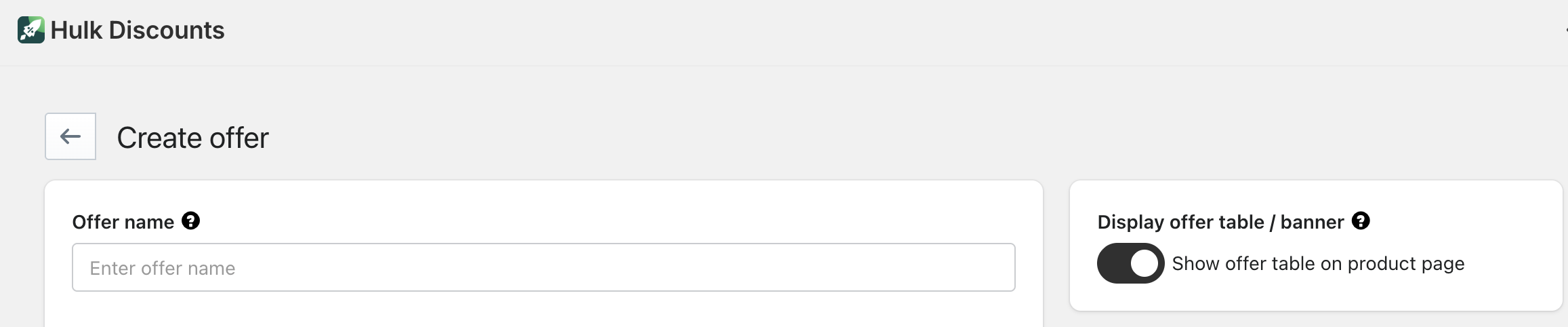
Start by setting up the core details of your bundle offer:
Offer name – A clear, descriptive name (e.g., Complete the Look – Bundle Deal)
Offer unique name – A system identifier used internally
Offer status – Keep the offer inactive until you’re ready to launch
Display offer table / banner – Enable this to show the bundle offer on product pages
Offer priority – Set priority if multiple offers could apply
Offer title & description – Customer-facing text explaining the bundle
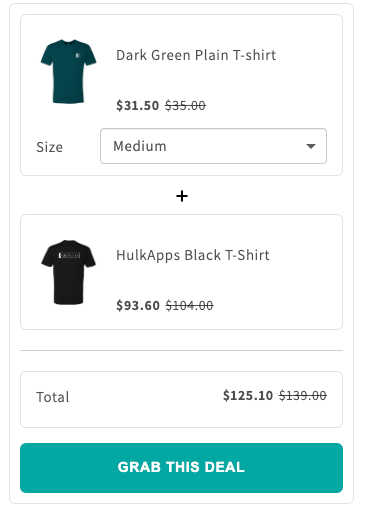
Example: Buy a shirt, jeans, and a shrug together and save 25%
 Clear and concise copy helps customers quickly understand the value of the bundle.
3. Select Products for the Bundle
In the Bundle products section, choose the items that must be purchased together to qualify for the offer.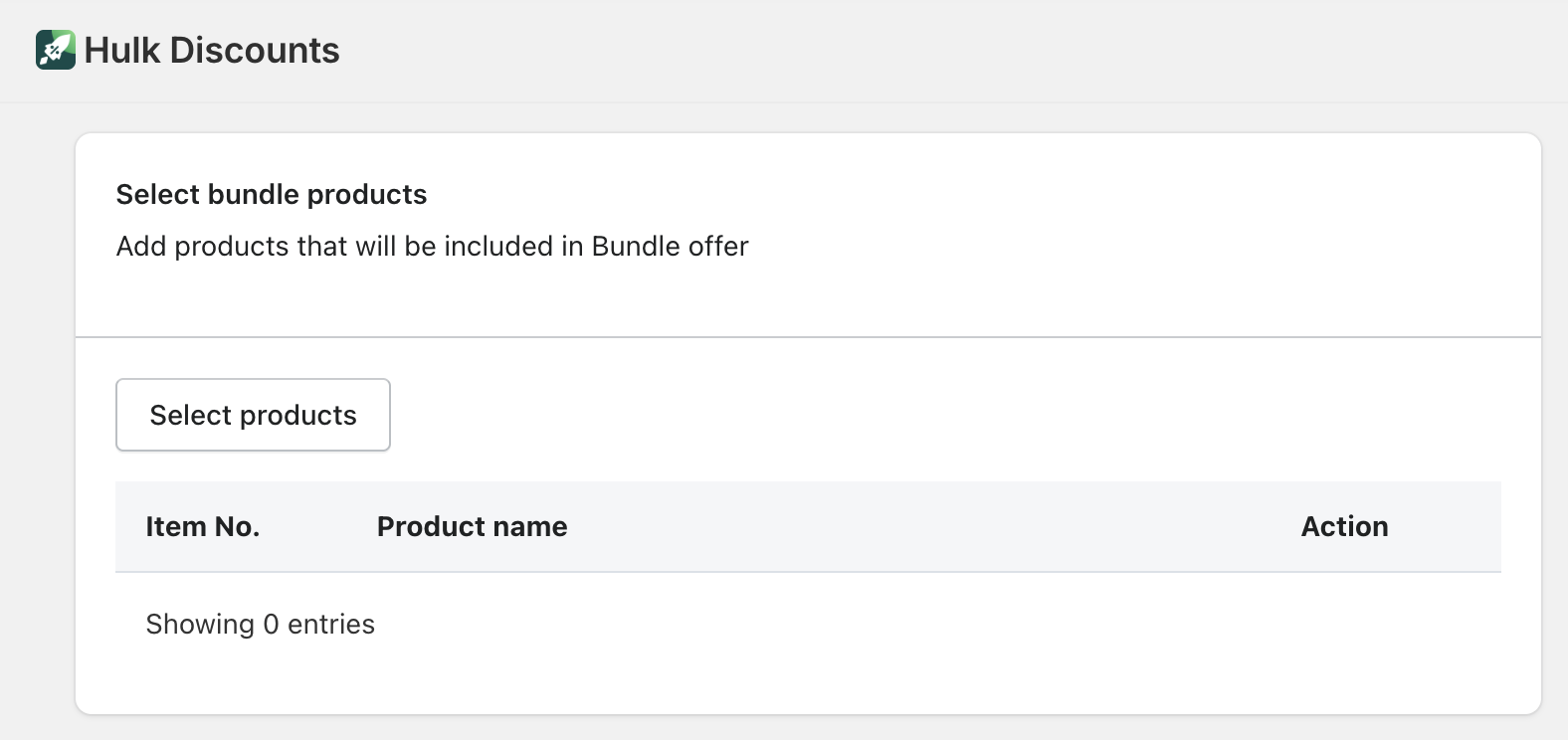
You can:
Select individual products
Select specific variants (if applicable)
Add multiple products to form a required combination
Examples:
Buy Shirt + Jeans + Shrug
Buy 2 Lipsticks to qualify for a free item
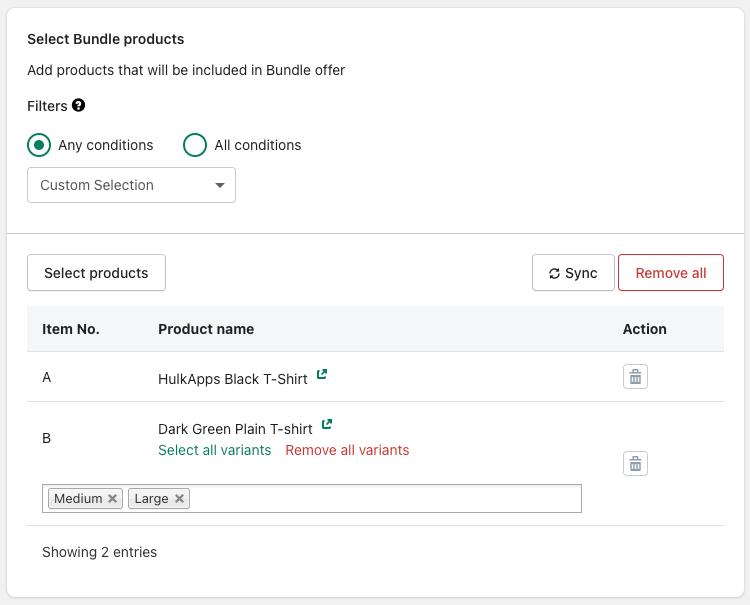
Only when all required products are added to the cart will the bundle discount apply.
4. Choose the Bundle Discount Type
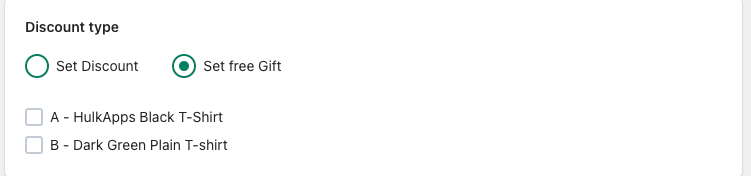
Next, decide how the bundle discount should be applied. Available options include:
Percentage Discount
Apply a percentage discount to the total bundle price.
Example: Get 25% off when all bundle products are added to the cart.
Fixed Price Discount
Apply a fixed amount discount to the total bundle value.
Example: Get $10 off the bundle price.
Free Product
Offer one product in the bundle for free.
Example: Buy 2 lipsticks and get an eyeliner free.
Choose the option that best aligns with your promotion strategy.
5. Configure Bundle Conditions
Define how the bundle should behave:
Required quantity per product – Specify how many units of each product are needed
Allow multiple bundles per cart – Decide whether customers can redeem the bundle more than once
Limit discount quantity – Cap how many times the bundle can be applied per order
These settings help control how the bundle is applied at checkout.
6. Customize Additional Settings
You can further refine your bundle offer using optional settings:
Customer tags – Show or hide the bundle for specific customer groups
Schedule offer – Set start and end dates for time-limited promotions
Country selection – Restrict the bundle to specific regions
Display settings – Control how and where the bundle appears on product pages
Rounding rules – Round discounted prices for cleaner display
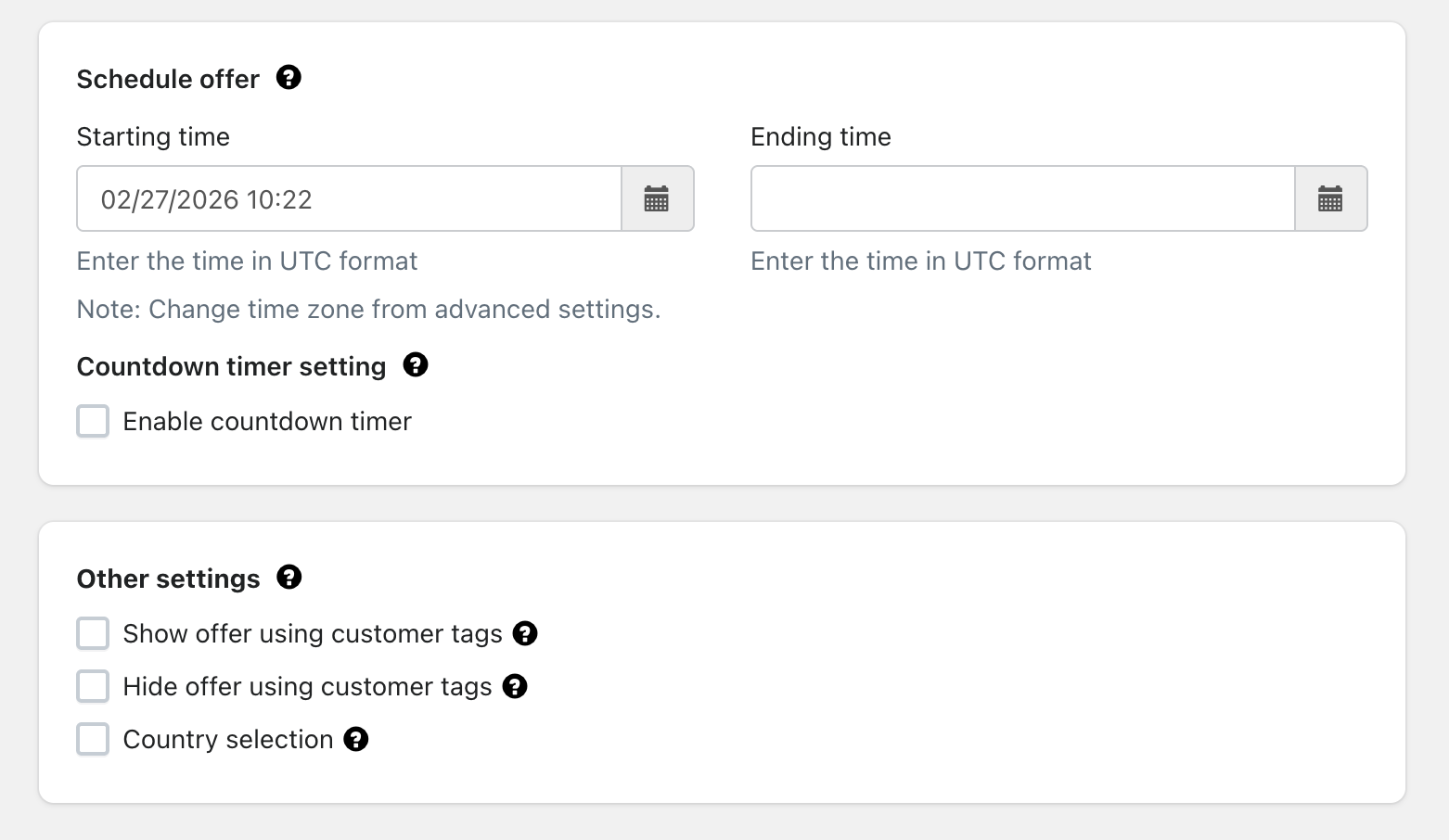
These options give you flexibility and precise control over your promotion.
7. Review & Activate
Before launching your bundle offer:
Review selected products and discount logic
Confirm pricing and free product behavior
Preview the offer on product pages (if enabled)
Set the Offer status to Active
Save your changes
Once active, the bundle discount will automatically apply when customers add the required products to their cart.
Tips for Best Performance
- Bundle complementary products that naturally go together
- Use clear titles and descriptions so customers understand the savings
- Test percentage vs. free product bundles to see what converts best
- Promote bundles during seasonal sales or campaigns
Was this article helpful?
That’s Great!
Thank you for your feedback
Sorry! We couldn't be helpful
Thank you for your feedback
Feedback sent
We appreciate your effort and will try to fix the article