Shipping costs are one of the most common reasons customers abandon their carts. By offering shipping discounts, you can encourage shoppers to complete their purchases while improving overall customer satisfaction and loyalty.
With our app, you can easily create flexible shipping discount offers based on cart value or product quantity.
How to Set Up a Shipping Discount
1. Create a New Offer
Go to the Offers page
Click Add New
Select Shipping Discount
You’ll be taken to the shipping discount setup screen.
2. Enter Offer Details
Start by defining the basic information for your offer:
Offer name – Add a unique and descriptive internal name (e.g., Free Shipping Over $100)
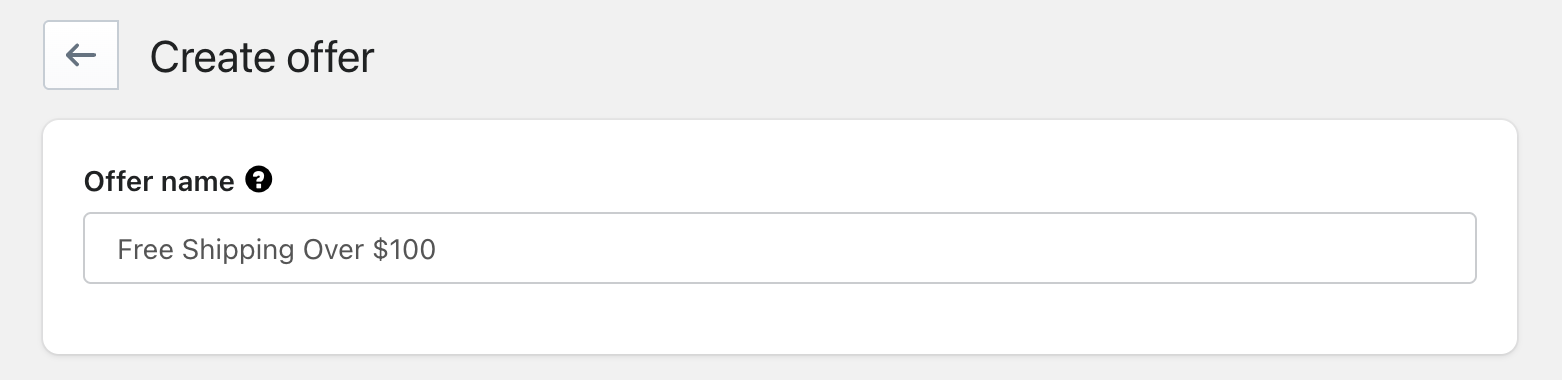
Offer status – Activate when ready
3. Add Shipping Method Name
Specify the shipping method the discount should apply to.
To make setup easier and more precise, you can use the available filters:
Exact – Matches the shipping method name exactly
Contains – Applies the discount if the shipping method name contains the entered text
This helps ensure the discount is applied only to the intended shipping options at checkout.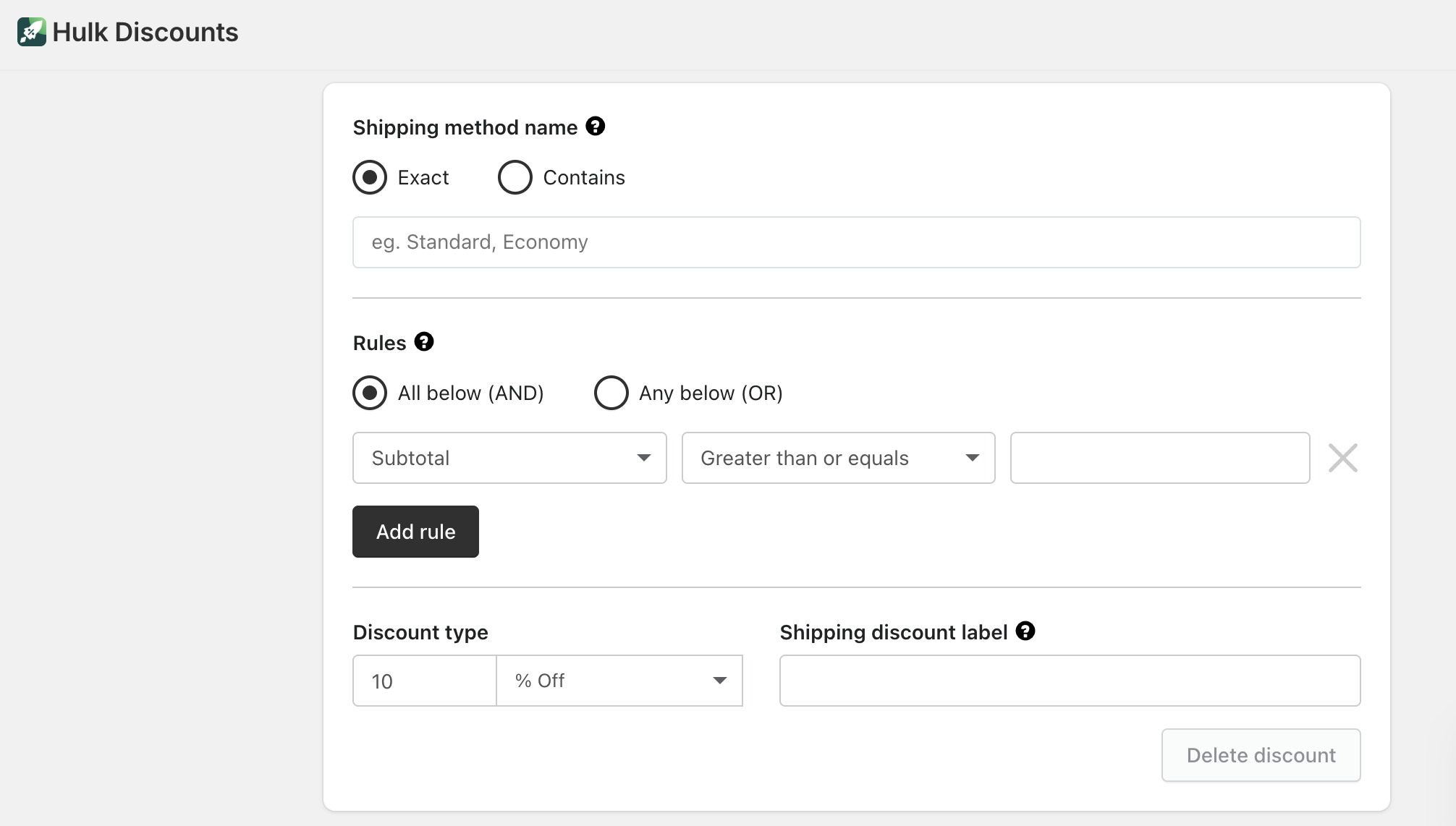
4. Create Discount Rules
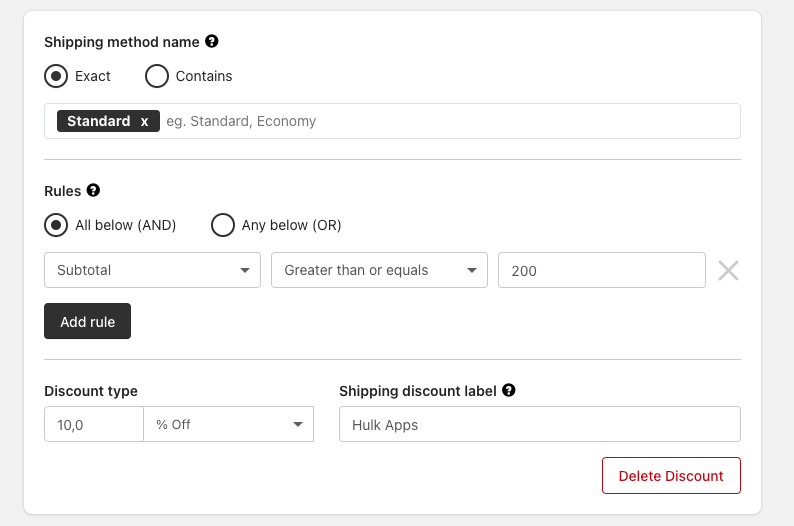
Shipping discounts are triggered by rules. You can add multiple rules to a single shipping discount offer.
Available rule conditions:
Subtotal
The discount applies when the customer’s cart subtotal reaches a specified amount.
Example: Free shipping on orders over $75
Total Quantity
The discount applies when the customer adds a certain number of products to their cart.
Example: Discounted shipping when 3 or more items are added
You can use one or both conditions depending on your promotion strategy.
5. Set the Discount Type
Choose how the shipping discount should be applied:
Percentage discount – Reduce shipping cost by a percentage
Fixed price – Set a specific shipping price
Price discount – Deduct a fixed amount from the shipping cost
Optional:
Shipping discount label – Add a label that will be visible to customers on the checkout page (e.g., Shipping Discount Applied)
6. Schedule the Offer (Optional)
If your shipping discount is time-sensitive, you can:
Set a start date and time
Set an end date and time
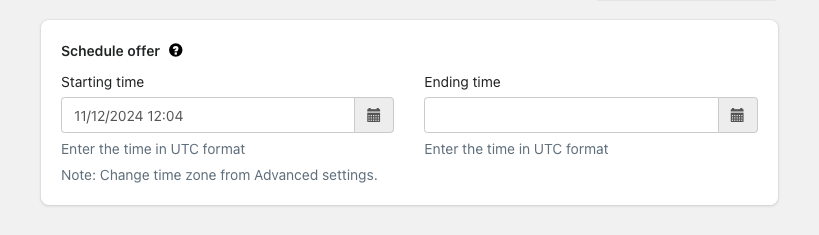
The offer will only be active during the selected period.
7. Review & Activate
Before activating the offer:
Review shipping method matching
Confirm rule conditions and discount values
Set the offer status to Active
Save your changes
Once active, the shipping discount will automatically apply at checkout when the conditions are met.
How the Discount Appears to Customers
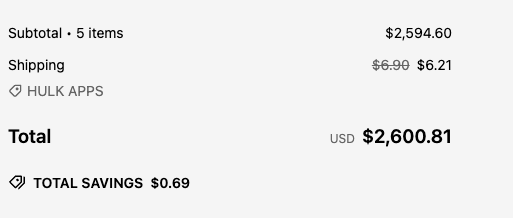
On the storefront and checkout page, customers will see the shipping discount clearly applied to their order total, including any custom label you’ve added.
Combining Shipping Discounts with Other Offers
Shipping discounts can be combined with other offer types in the app, including:
Buy X Get Y (BXGY)
Bundle discounts
Volume discounts
Cart-based offers
This allows you to create powerful, layered promotions without conflict.
Adding Multiple Shipping Discounts
If you want to create more than one shipping discount:
You do not need to create a new offer
Simply click Add Shipping Discount within the same offer
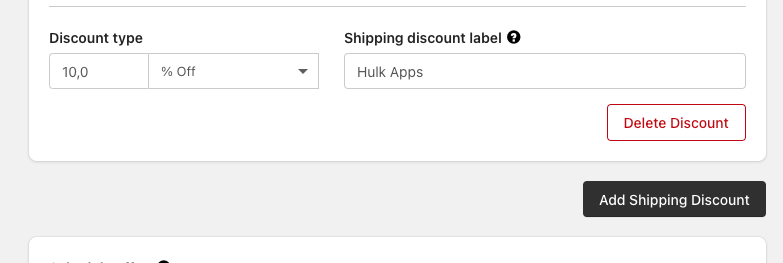
This makes it easy to manage multiple shipping conditions under one offer setup.
Tips for Best Performance
- Offer free or discounted shipping at strategic cart thresholds
- Combine shipping discounts with product offers to boost conversion
- Use clear labels so customers understand the benefit instantly
- Test subtotal vs. quantity-based rules to see what performs best
Was this article helpful?
That’s Great!
Thank you for your feedback
Sorry! We couldn't be helpful
Thank you for your feedback
Feedback sent
We appreciate your effort and will try to fix the article