Running limited-time promotions is a proven way to increase urgency and drive conversions. With the Schedule Offer feature and built-in Countdown Timer, you can plan seasonal campaigns, flash sales, or time-bound discounts in advance and visually reinforce urgency on your storefront.
This guide explains how to schedule an offer and enable a countdown timer step by step.

What Is the Schedule Offer Feature?
The Schedule Offer feature allows you to define exactly when an offer should start and end. Once enabled, the discount will automatically activate and deactivate based on the selected time range—no manual intervention required.
You can also enable a countdown timer that shows customers how much time is left before the offer expires.
How to Schedule an Offer
Open your offer in the app
Scroll to the Schedule offer section
Set the Start date & time
Set the End date & time
⏱ Important:
Dates and times are set in UTC format
Time zone adjustments can be managed in the Advanced settings of the app
Once saved, the offer will only be active during the defined time window.
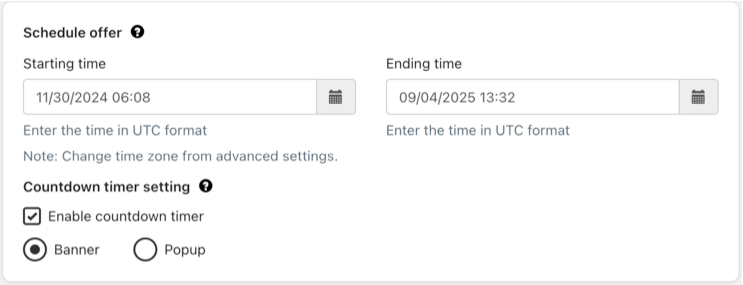
Enable the Countdown Timer
After scheduling your offer, you can enable the Countdown Timer to create urgency and encourage faster purchase decisions.
Available display options:
Banner – Appears inline on the storefront
Popup – Displays as an attention-grabbing popup
You can choose the format that best fits your store design and promotion style.
Important Note
⚠️ An End date is required to save and activate the countdown timer.
Without an offer end date, the countdown timer cannot be enabled.
Countdown Timer Customization
You can fully customize the look, behavior, and language of your countdown timer.
Where to Customize
Go to:
App Settings → Display Settings → Countdown Timer Style Settings
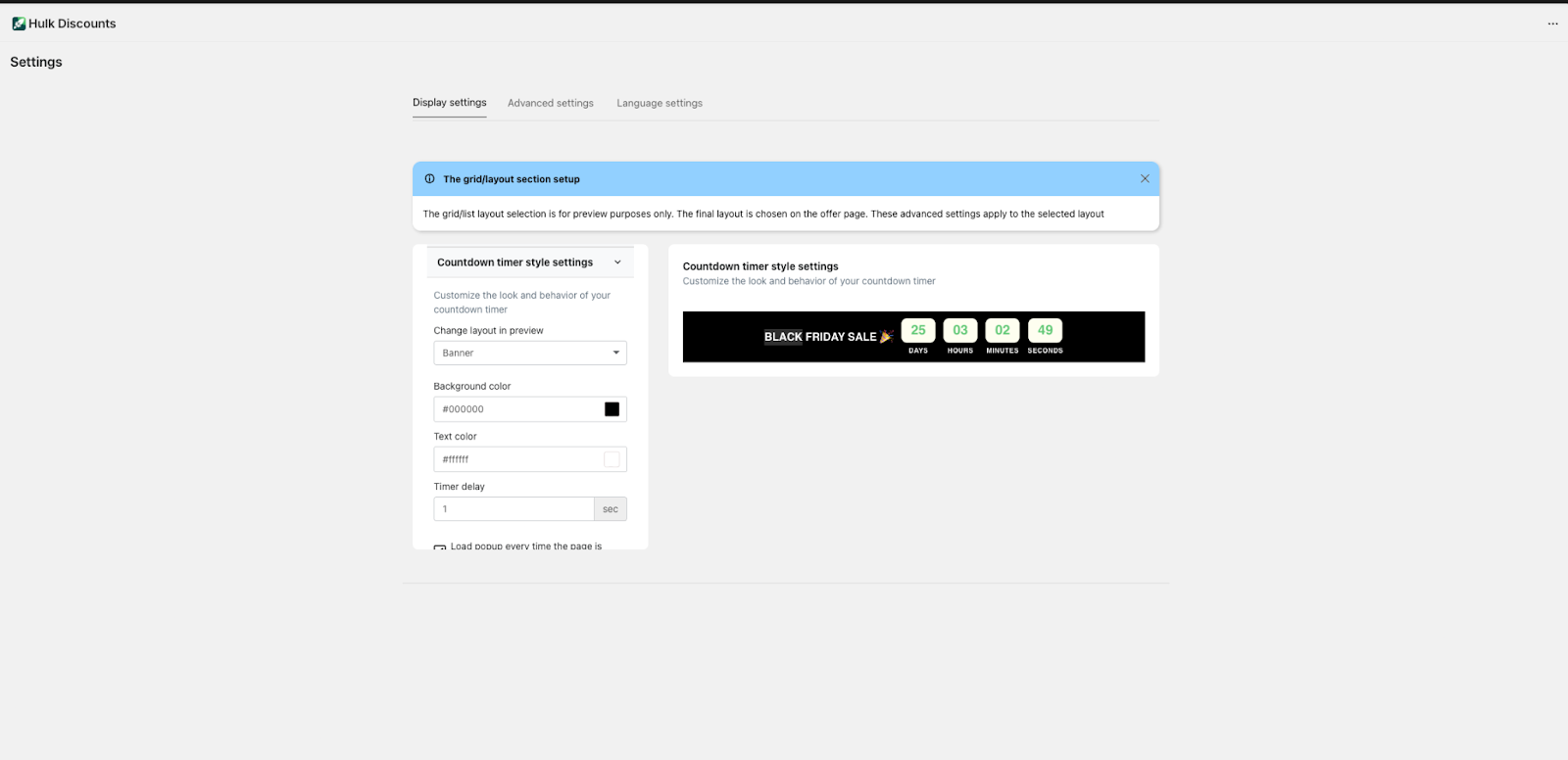
Layout & Behavior Settings
Customize how the countdown timer appears and behaves:
Layout preview – Switch between banner and popup
Background color – e.g. #000000
Text color – e.g. #ffffff
Timer delay – Delay before the popup appears (in seconds)
Load popup on every page load – Enable or disable repeat display
Sticky banner – Keep the banner fixed while scrolling
Countdown Timer Language Settings
Tailor the messaging to match your campaign tone and audience.
Popup Language Settings
Heading – e.g. BLACK FRIDAY SALE
Subheading – e.g. Get 25% off all products until midnight ?
Banner Language Settings
Banner message – e.g. BLACK FRIDAY SALE ?
Time Labels
Customize how time units are displayed:
Days
Hours
Minutes
Seconds
This allows you to localize or simplify messaging for your customers.
Best Use Cases
The Schedule Offer and Countdown Timer feature is ideal for:
Flash sales
Seasonal promotions (Black Friday, Cyber Monday, Holiday sales)
Limited-time discounts
Product launches or short-term campaigns
Tips for Best Performance
- Always pair the countdown timer with a clear end date
- Use bold, concise messaging to highlight urgency
- Match timer colors to your store branding
- Avoid overusing popups to prevent banner fatigue
Was this article helpful?
That’s Great!
Thank you for your feedback
Sorry! We couldn't be helpful
Thank you for your feedback
Feedback sent
We appreciate your effort and will try to fix the article