You can quickly create multiple discount offers in the app by importing a spreadsheet. This is useful if you want to set up product, collection, or variant offers in bulk, or update existing offers at scale.
Make sure you know what type of offer you want to create before importing:
Product Offer (Apply a discount when a customer adds multiple quantities of the same product to their cart.)
Collection Offer (Apply a discount when customers add multiple products—either the same or different—from the same collection to their cart.)
Variant Offer (Apply a discount when multiple units of the same product variant are added to the cart.)
Based on the type of offer, your import sheet will differ.
Note: The Excluding Products option works only for Collection offers, not Variant offers.
What You Can Do with Import
Import multiple offers at once
Use the import feature to bulk update existing offers
How to Import a Sheet
Go to the Offer List page in the app.
Click Import in the top-right corner.
Download the sample XLS sheet from the popup modal, or use sample sheets from the bottom of this help article as a reference on how to populate the sheet you will upload
Open the XLS file and update each column with your offer data.
Upload the sheet:
Make sure the file format is .xls
Check “Overwrite the current offers” if you want to update existing offers
Check Activity Logs to monitor progress.
Wait for the import to finish.
If the sheet is large, you may also receive a notification email once the import is complete. Also, if something in the sheet is not populated correctly, and import was not able to be done due to it, you will receive notification via email.
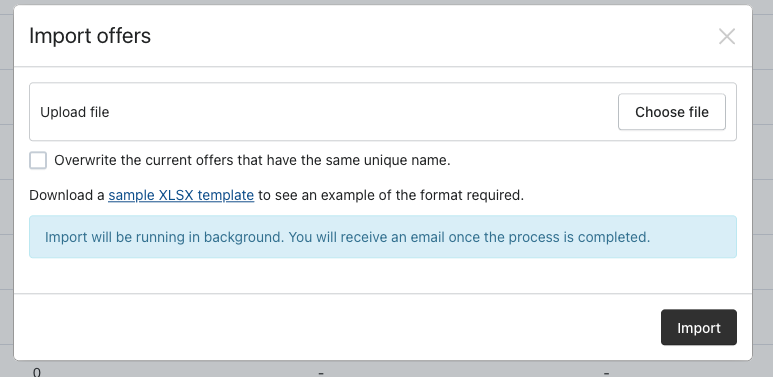
The app will create or update offers based on the data in your sheet.
✅ Tip: Make sure each column in your sheet matches the required fields for that offer type. Improper formatting may prevent the import from working correctly.
Sample Sheets
We’ve provided three sample sheets to help you get started:
Product Offer Sample Sheet
Collection Offer Sample Sheet
Variant Offer Sample Sheet
Scroll to the end of this guide to find the downloadable CSV data samples.
Use these as references to structure your own import sheets.
Import Sheet Requirements
When preparing your XLS file, make sure the following rules are followed:
Column headers must not contain leading or trailing spaces
Integer fields must not contain strings or values wrapped in quotes
Selected objects should be set to 1 if the offer applies to all objects
Offer Type must be one of:
product
variant
collection
cart
Offer Layout must be one of:
Card list
Organized list
Detail Grid
Basic Grid
Discount Type must be one of:
each (default)
bulk fix
bulk
Price Level Discount Type must be one of:
price_discount
fix_price
% Off
Round value must be one of:
0, 0.0, 0.00
0.5, 0.49, 0.50
0.95, 0.99
Country Selection must use a 2-letter Alpha-2 country code
Exclude Products is only valid when the Offer Type is Collection
Important Notes
SKU-based importing is not supported.
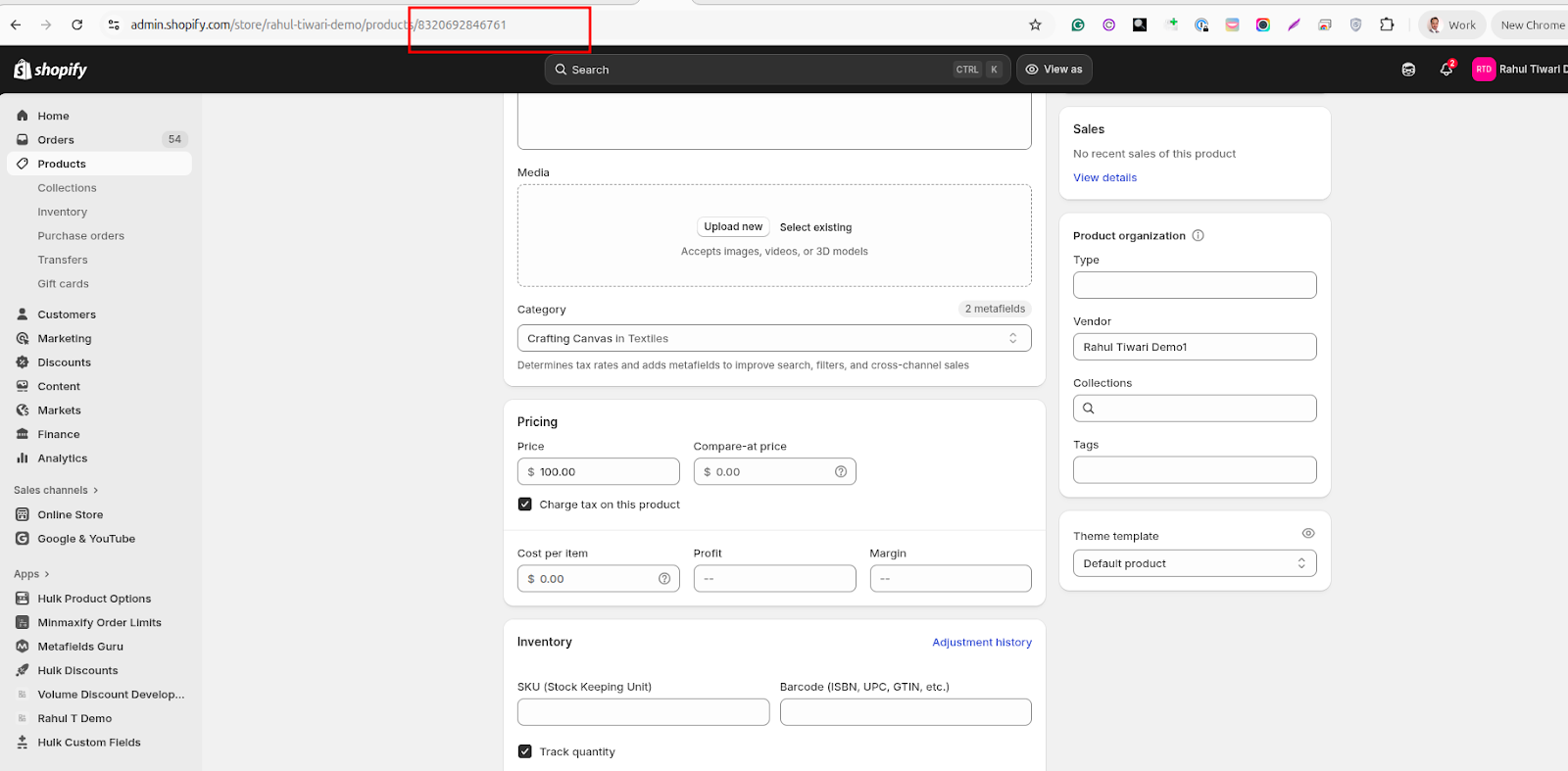
Your sheet must include either:Product IDs (for Product or Collection offers)
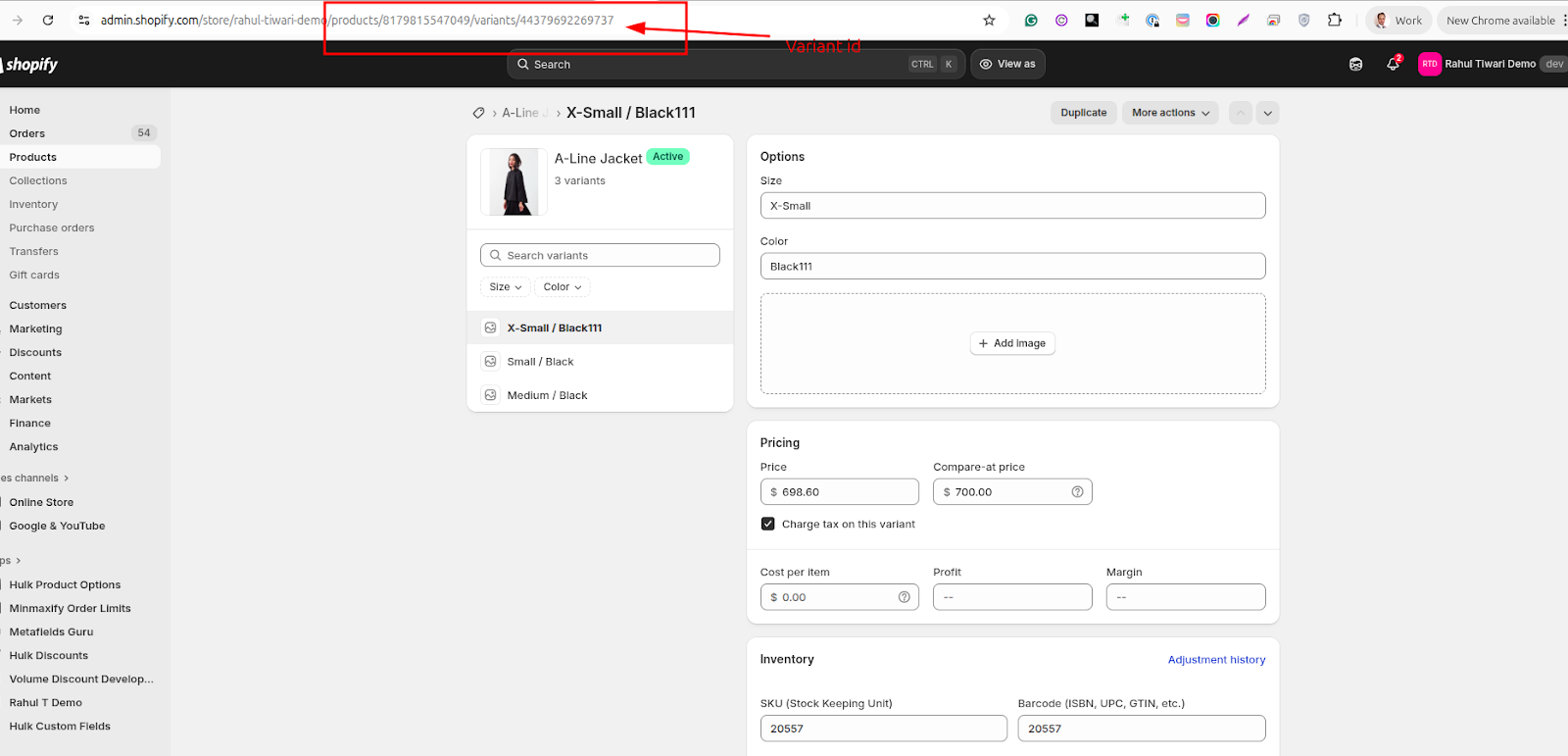
Variant IDs (for Variant offers)
To find a Variant ID for example:
Go to Shopify Admin > Products
Click on the product
Look at the URL — the variant ID is included there
Was this article helpful?
That’s Great!
Thank you for your feedback
Sorry! We couldn't be helpful
Thank you for your feedback
Feedback sent
We appreciate your effort and will try to fix the article