The Order Discount Type Offer allows merchants to apply discounts based on the cart total value instead of individual products, variants, or collections. This is ideal for encouraging customers to spend more by unlocking better discounts as their order value increases.
When to Use Order Discount Offers
Use this offer type if you want to:
Encourage higher average order value (AOV)
Reward customers for spending more
Apply discounts across the entire cart
Run simple, value-based promotions (e.g. Spend 100, get 10% off)
How It Works
Customers receive a discount once their cart total reaches a defined amount. You can configure multiple price levels so that higher cart values unlock larger discounts.
Example:
Spend 100 → Get 10% off
Spend 150 → Get 15% off
Spend 200 → Get 20% off
The discount is applied automatically when the condition is met.
Step-by-Step: Creating an Order Discount Offer
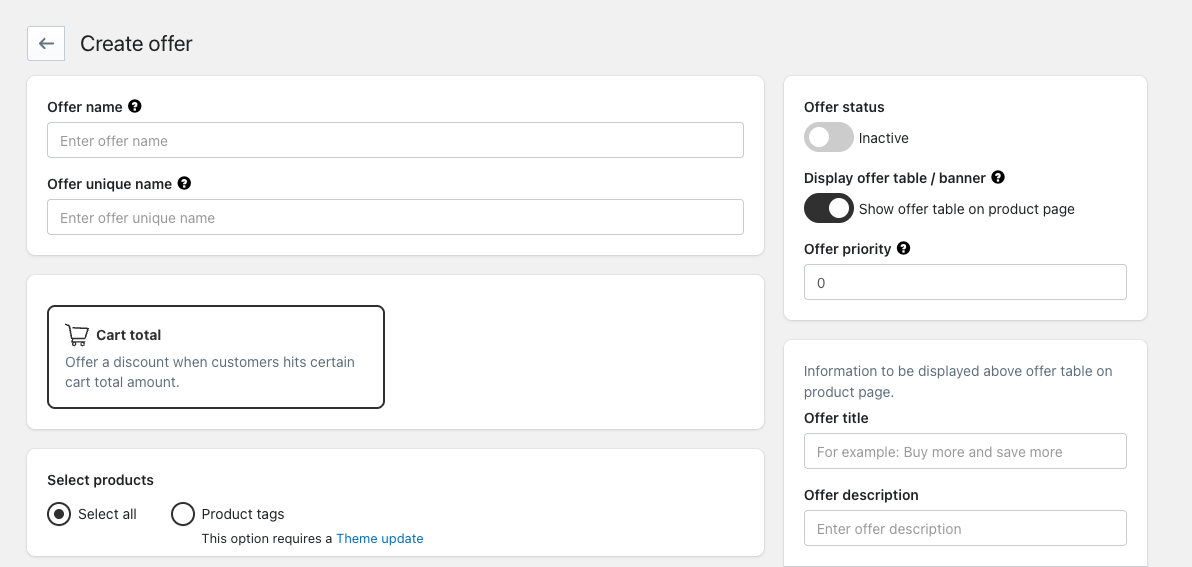
1. Create a New Offer
Go to Create Offer
Enter an Offer name (internal reference)
Enter an Offer unique name (used internally, must be unique)
2. Select Offer Type
Choose Cart total as the offer type
This enables discounts based on the total value of the cart
3. Select Products
Choose which products the order discount applies to:
Select all – discount applies to all products
Product tags – discount applies only to products with selected tags
4. Configure Price Levels
Price levels define when and how the discount is applied.
For each price level, set:
Cart total – minimum order value required
Discount – percentage or fixed amount
Offer help text – message shown to customers (e.g. Get 10% off your order)
Highlight popular offer – visually emphasize the most attractive deal
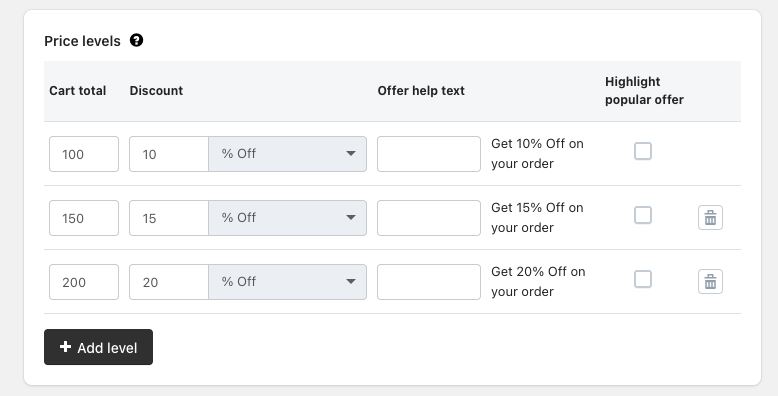
You can add multiple price levels using + Add level.
5. Display Settings
Offer Title
Displayed above the offer table on the product page.
Example:
Buy more, save more
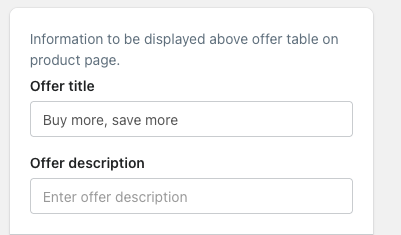
Offer Description
Optional supporting text explaining the offer to customers.
6. Display Offer Type
Choose how the offer appears on the storefront:
List
Organized list
A live preview will show how the offer looks to customers.
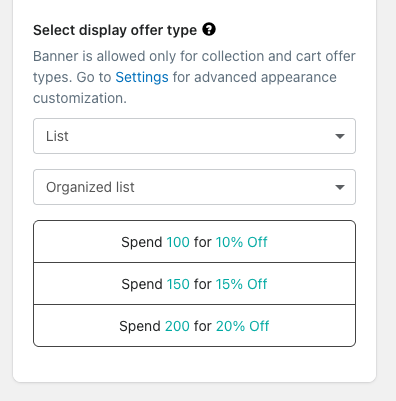
Note: Banner display is supported only for collection and cart offer types.
7. Offer Status & Priority
Offer status: Enable or disable the offer
Offer priority: Define which offer takes precedence if multiple offers are active (lower number = higher priority)
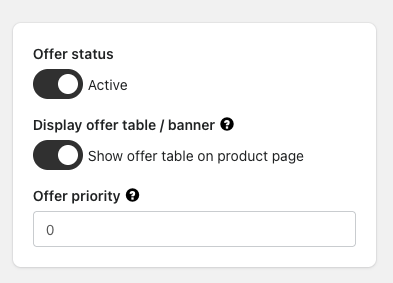
8. Additional Settings
Optional advanced controls include:
Show offer using customer tags
Hide offer using customer tags
Schedule offer (start and end date)
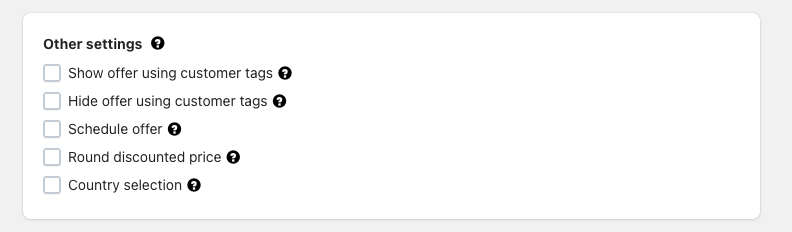
These settings allow more targeted and time-based promotions.
Best Practices
Keep price levels simple (3–4 tiers work best)
Clearly highlight the best value tier
Use short, benefit-driven help text
Test the offer on the storefront before enabling it
Example Use Case
A store wants to increase order value:
100 → 10% off
150 → 15% off
200 → 20% off
Customers are motivated to add more items to unlock better savings.
Summary
The Order Discount Type Offer is a powerful way to boost revenue by rewarding customers for higher spending. With flexible price levels, display options, and advanced settings, it’s easy to create clear and effective cart-based promotions.
Was this article helpful?
That’s Great!
Thank you for your feedback
Sorry! We couldn't be helpful
Thank you for your feedback
Feedback sent
We appreciate your effort and will try to fix the article