You can embed a custom form directly into any page on your Shopify storefront using Hulk Form Builder. There are two standard inline embedding methods depending on your theme and workflow preferences: Automatic Shortcode Insertion or Shopify Theme Customizer (App Block).
Method 1: Automatic Page Insertion (Shortcode Method)
This method automatically appends your form to an existing Shopify page without opening the Theme Editor.
In the app, go to the Forms page.
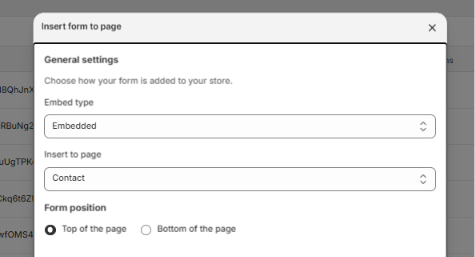
Locate the form you want to display and click the Insert Shortcode button.
Select the target Shopify page where you want the form to appear.
Choose the form placement position: Top of the page or Bottom of the page.
Save your changes and visit your storefront page to verify the form placement.
Method 2: Theme Customizer Insertion (OS 2.0 App Block Method)
This method gives you precise visual control over where the form appears on your page layout using Shopify’s native Online Store 2.0 Theme Editor.
Step 1: Copy Your Form ID
In the app, go to the Forms page.
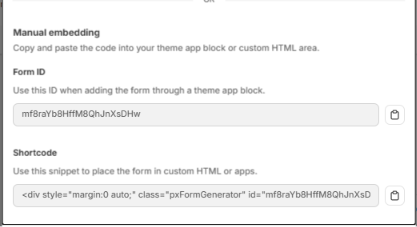
Retrieve your unique Form ID using either option:
Click the link in the Form ID column.
Click Grab your embed code in the Copy column to copy the Form ID (or shortcode for vintage themes).
Step 2: Add the Form App Block in Theme Customizer
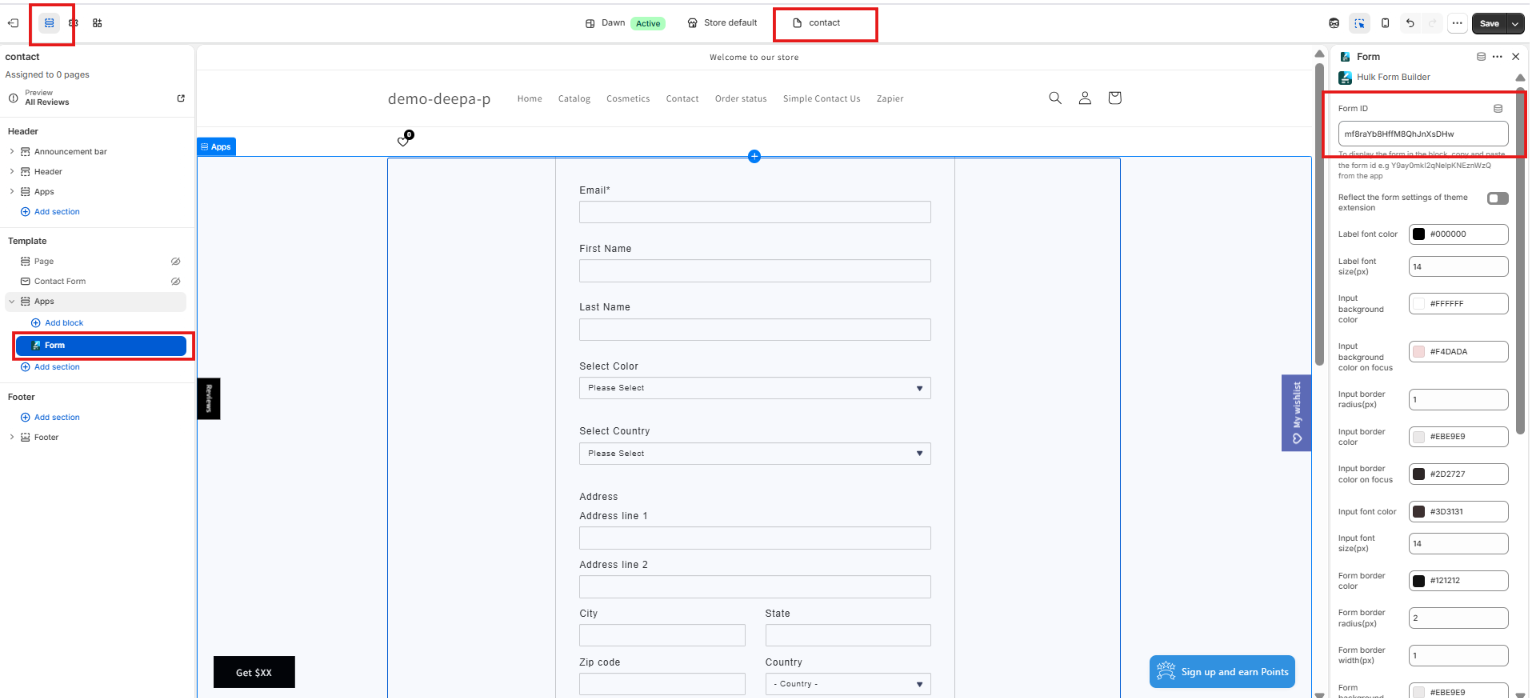
In your Shopify Admin, go to Online Store → Themes → Customize.
Navigate to the specific page where you want the form to display.
In the left sidebar, click Add Section or Add Block at your preferred section layout.
Select Form Builder App from the list of available app elements.
Paste your copied Form ID into the designated field in the block settings.
Click Save in the top right corner to publish your form.
Theme Compatibility Note
Online Store 2.0 Themes: Use Method 2 with your Form ID for maximum layout flexibility via App Blocks.
Vintage / Classic Themes: Use Method 1 or copy the raw HTML shortcode directly into your theme page templates (
page.liquid).
Was this article helpful?
That’s Great!
Thank you for your feedback
Sorry! We couldn't be helpful
Thank you for your feedback
Feedback sent
We appreciate your effort and will try to fix the article
