The Forms dashboard is your central hub for creating, managing, and deploying customer-facing forms on your storefront. Whether you need to collect feedback, manage product choices, or gather user information, the tools below will help you customize your workflow.
Navigating the Forms Dashboard
The Forms page offers a streamlined experience to help you find and manage your forms efficiently.
Filter by Status: Quickly switch between All, Active, and Inactive forms using the top tabs.
Search Instantly: Use the search bar to locate specific forms by their Form Title or their unique UUID string.
Sort and Organize: Click the sorting icon to reorder your forms list based on:
Title (Alphabetical)
Creation Date
Last Updated
Number of Responses

Understanding Form Status (Active vs. Inactive)
Controlling the visibility of your forms on your storefront is instantaneous and does not require editing your theme code.
Active Status: Forms are set to Active by default upon creation and will display normally wherever they are embedded or triggered.
Inactive Status: Setting a form to Inactive will automatically hide it from your storefront, even if the shortcode or embed link is still present on the page.
? Pro-Tip: Use the Inactive status to quickly pause submissions or temporarily take down a seasonal form without needing to manually delete code from your live pages. You can toggle this status for multiple forms at once using the bulk actions dropdown (...).

Publishing and Previewing Your Forms
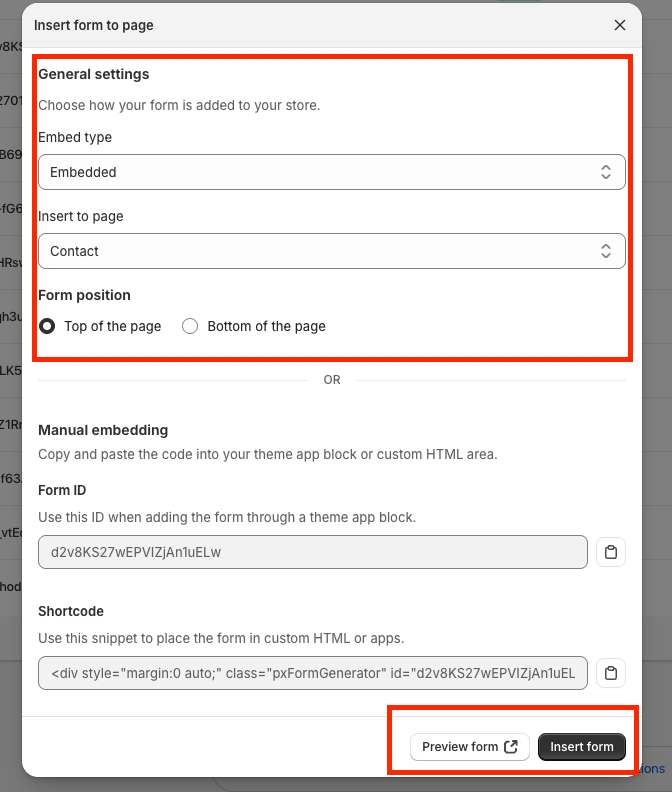
When you are ready to add a form to your website, you can handle the placement and styling directly from the deployment modal.
Choosing Your Layout
When deploying a form to a page, you have two primary options under the Insert to Page settings:
Embed: Integrates the form directly into the body content of your page.
Pop-up: Triggers the form as an overlay on top of your page content. If you select the Pop-up option, you can configure its Appearance Settings (such as timing, triggers, and style) directly within this view.
Previewing Live Changes
To ensure your form looks perfect before your customers see it, use the Preview Form button located directly inside the insert shortcode modal.
Clicking this button opens your storefront in a new tab, showing you exactly how the embedded form or pop-up behaves live on the page.
Was this article helpful?
That’s Great!
Thank you for your feedback
Sorry! We couldn't be helpful
Thank you for your feedback
Feedback sent
We appreciate your effort and will try to fix the article