The Notification Email Addresses feature sends instant email alerts to your team whenever a customer submits a form. This keeps your team updated in real time without needing to manually check the admin panel for new submissions.
1. How to Set Up Standard Admin Notifications
To send notifications to one or more team members:
Open Hulk Form Builder in your Shopify admin.
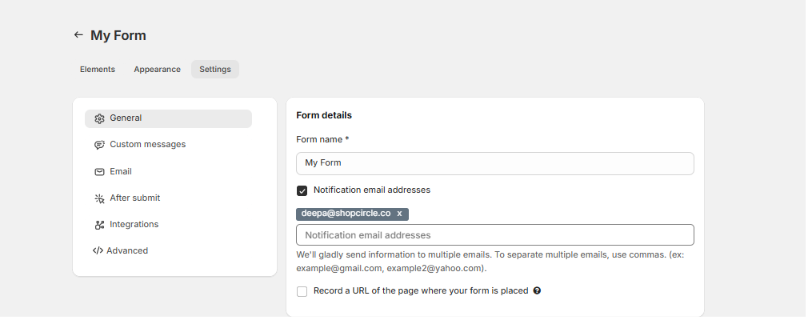
Select your desired form and go to Settings → General.
Enable the checkbox for Notification email addresses.
Enter the email addresses that should receive the notification alerts.
Multiple Recipients: Separate multiple email addresses using commas (e.g.,
support@yourstore.com, sales@yourstore.com).
Click Save.
2. Dynamic Email Routing (Send Emails Based on Dropdown Selection)
You can route notifications to specific department emails depending on what the user selects in the form (e.g., directing "Sales" inquiries to the sales team and "Technical Support" to the IT team).
How to Configure Conditional Admin Emails:
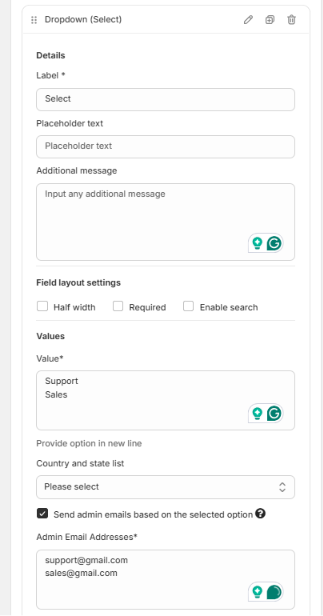
Add a Dropdown element to your form.
Add your choice values/options to the dropdown (e.g., Option 1: Sales, Option 2: Support).
In the admin email settings, enter the corresponding destination email addresses on a new line for each dropdown option:
Line 1 email maps to Dropdown Option 1
Line 2 email maps to Dropdown Option 2
Line 3 email maps to Dropdown Option 3
3. Key Notes & Behavior
Internal Only: Notification emails are purely for internal team communication and are never visible to the customer.
Database Backup: All form responses are permanently saved in your Hulk Form Builder admin panel entries log, regardless of notification email status.
Was this article helpful?
That’s Great!
Thank you for your feedback
Sorry! We couldn't be helpful
Thank you for your feedback
Feedback sent
We appreciate your effort and will try to fix the article