The Advanced Wishlist app allows you to send personalized emails directly from your own custom domain instead of a generic address.
By default, the app uses a private mailing service to send notifications to your customers on behalf of your store from the following address: no-reply@advanced-wishlist.hulkapps.com
Once you complete the configuration steps below, your automated notifications will come directly from the custom address you input into the From Email field.
See the example below:
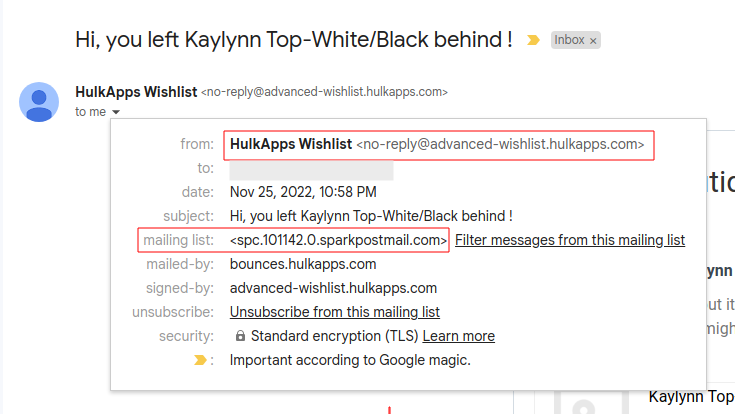
Once you've completed the configuration, your email will come from the address you put into the "From Email" field.
Supported Email Notification Types
Configuring your custom domain applies to all four types of automated app notifications:
Auto Reminder
Low stock Reminder
Restock Reminder
- Price drop Reminder
Domain Provider Documentation Reference
To find the specific account values required for this setup, you can refer to the documentation of these popular domain and hosting providers:
Step-by-Step Configuration Steps
This feature is located in the Settings -> Email notifications section of the app.
Step 1: Gather Your Credentials
Keep the following SMTP details from your choice of hosting platform handy:
Username
Password
Host
Port
Step 2: Enter the Details
Navigate to the fields inside the Email notifications settings.
Enter your platform's specific credentials into the matching fields. (Note: Do not use example values; make sure to use the live values listed inside your actual hosting account.
Step 3: Test and Save
Click on the Test Connection button to verify your inserted information.
A connection success or failure message will display to let you know if it is correct.
Summary of Changes
If the credentials are correct, all further mail notifications will be routed away from the app's default server and sent directly from your custom SMTP details through your preferred platform.
If you need any further assistance during this setup, please contact us!
Was this article helpful?
That’s Great!
Thank you for your feedback
Sorry! We couldn't be helpful
Thank you for your feedback
Feedback sent
We appreciate your effort and will try to fix the article