How to Configure a Custom Sending Domain for Email Notifications
The Order Status Tracker app allows you to automatically send shipment status email notifications to your customers at every key stage of the order journey:
Order Placed
Ready to Ship
In Transit
Out for Delivery
Delivered
Default Email Sending Behavior
By default, the app uses HulkApps’ private mailing service to send notifications on behalf of your store.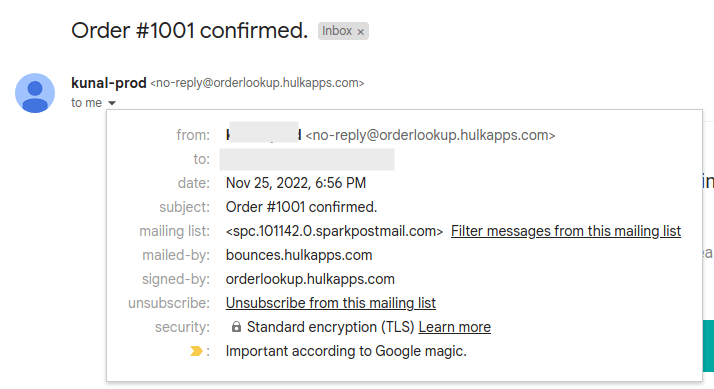 Emails are sent from: no-reply@orderlookup.hulkapps.com
This ensures reliable delivery without requiring any setup from your end.
Why Configure a Custom Sending Domain?
With Custom SMTP Domain Settings, you can:
Send emails from your own domain (e.g., support@yourstore.com)
Use your preferred SMTP provider
Maintain brand consistency
Improve email deliverability and trust
Align with your domain authentication (SPF, DKIM, DMARC)
Where to Find This Setting
Go to: Hulk Order Status Tracker app → Notifications → SMTP email connection
Before You Begin
Keep the following SMTP credentials ready from your email hosting provider:
SMTP Username
SMTP Password
SMTP Host
SMTP Port
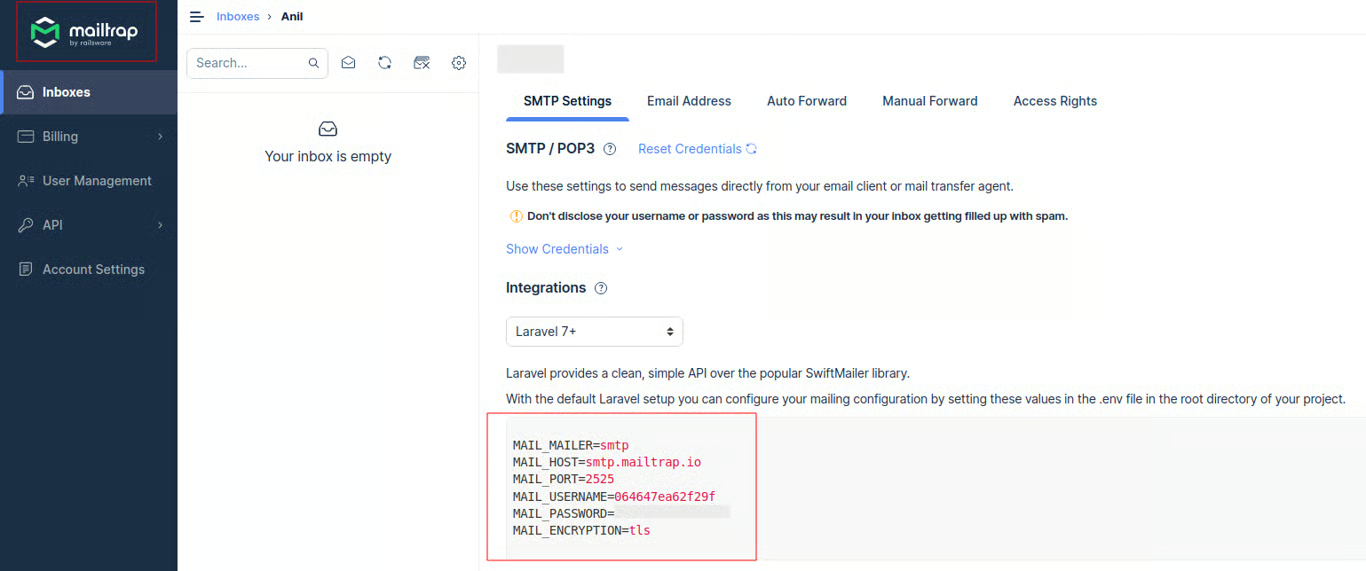
If you're unsure where to find these details, refer to your hosting provider’s documentation.
Helpful documentation links:
Bluehost
GoDaddy
Google Cloud DNS
Namecheap
Rackspace
DigitalOcean
Step-by-Step Setup Guide
Step 1: Enter SMTP Details
In the Custom SMTP section, enter:
Host
Port
Username
Password
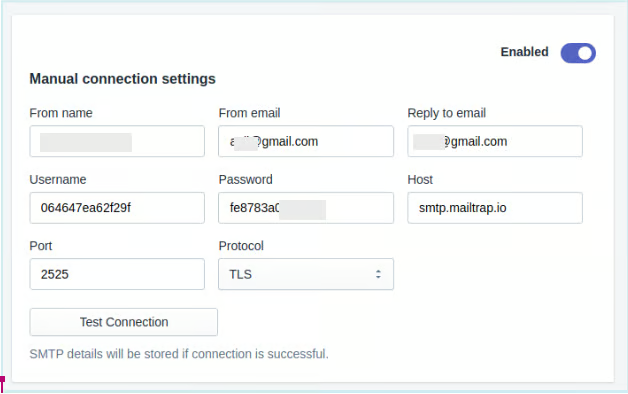 Make sure all details are entered exactly as provided by your email service provider.
Step 2: Test the Connection
Click “Test Connection” to verify your configuration.
 You will receive a success or failure message confirming whether the connection is properly established.
Step 3: Start Sending from Your Domain
Once the connection is successful:
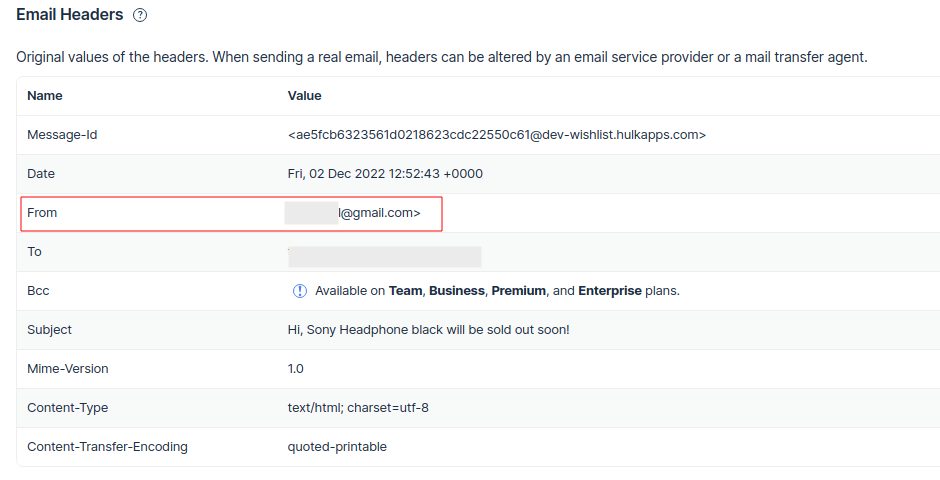
All future shipment notification emails
Will be sent via your selected SMTP provider
Using your custom "From" email address
Your customers will now receive branded emails directly from your store’s domain.
Need Help?
If you face any issues while configuring your SMTP domain, contact our support team for quick assistance.
Simply reach out to us, and we’ll help you get everything set up quickly.
Was this article helpful?
That’s Great!
Thank you for your feedback
Sorry! We couldn't be helpful
Thank you for your feedback
Feedback sent
We appreciate your effort and will try to fix the article