Sending automated email notifications to customers who have saved products for later is a powerful way to recover abandoned carts and bring shoppers back to your store.
With Hulk Advanced Wishlist, you can automatically trigger emails based on specific customer actions and inventory changes.
Available Wishlist Email Triggers
You can enable or disable any of the following four automated email events depending on your store's needs:
General Wishlist Item Reminder: Automatically nudges customers about items that have been sitting in their wishlist for a specific period.
Price Drop Reminder: Notifies customers the moment an item on their wishlist goes on sale or drops in price.
Product Restock Reminder: Automatically alerts customers when a previously sold-out item on their wishlist is back in stock.
Low Stock Reminder: Sends a high-urgency alert when an item on a customer's wishlist is running low on inventory.
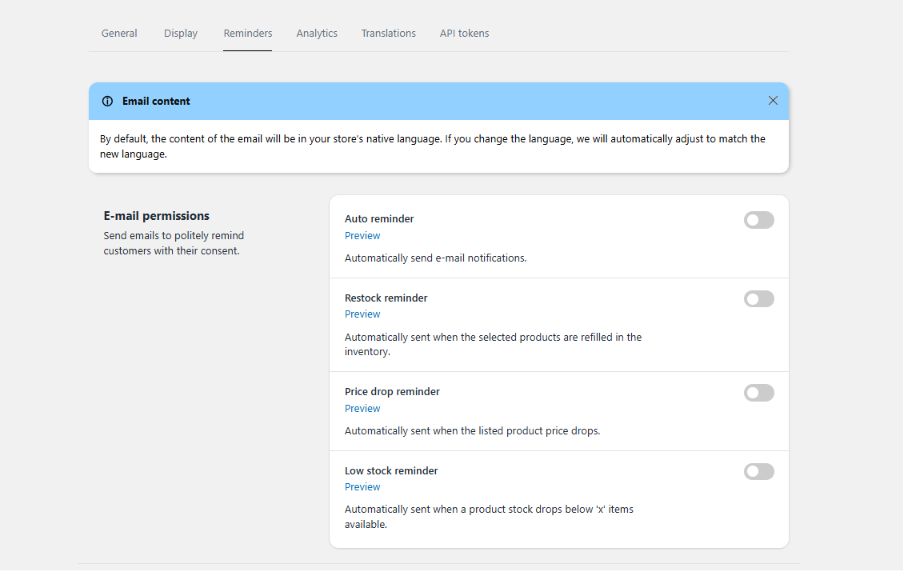
How to Configure Your Email Reminders
Step 1: Enable the Email Events
From your Shopify Admin, open the Hulk Advanced Wishlist app.
Navigate to the Email Notifications or Reminders section from the dashboard menu.
Use the toggle switches next to each reminder type to turn them ON or OFF.
Step 2: Customize the Email Content
Click Edit or Configure next to the specific email template you want to customize.
You can personalize the email subject line and body text directly within the app's backend editor.
To dynamically personalize your emails (e.g., adding the customer's name or the product title), insert any of the 5 dynamic Shopify variables provided next to the editor.
Step 3: Test and Publish
Before making your emails live, click the Send Test Email button.
Enter your email address to review the layout, design, and variable placement.
Once satisfied, click Save & Publish.
Key Settings & Admin Controls
Sender Email Address: By default, the app uses your standard Shopify Store Owner Email as the "Sent FROM" address.
Custom Price Drop Thresholds: Admins can choose to send wishlist alerts only when an item’s price reaches a specific value or drops by a certain percentage, rather than triggering an email for minor price changes.
Was this article helpful?
That’s Great!
Thank you for your feedback
Sorry! We couldn't be helpful
Thank you for your feedback
Feedback sent
We appreciate your effort and will try to fix the article