The Multi-Quantity Selector lets customers select quantities for individual option values on a product, not just the base product quantity.
For example, if you have options like “Extra Buttons,” “Gift Box,” or “Custom Design,” the customer can specify “2 Extra Buttons” + “1 Gift Box,” etc.
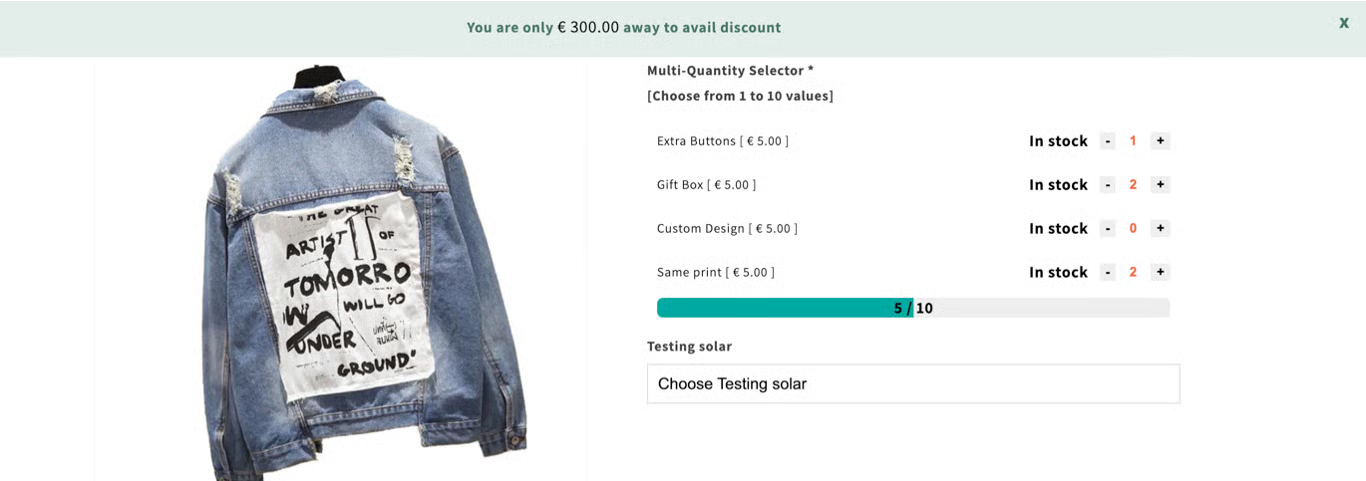
How It Works / How to Set It Up
Here are the configuration steps and requirements to enable the Multi-Quantity Selector in Hulk Product Options:
Create the option and option values
Go to the Option tab in your Hulk Product Options dashboard.
Add an option type Multi-Quantity selector.
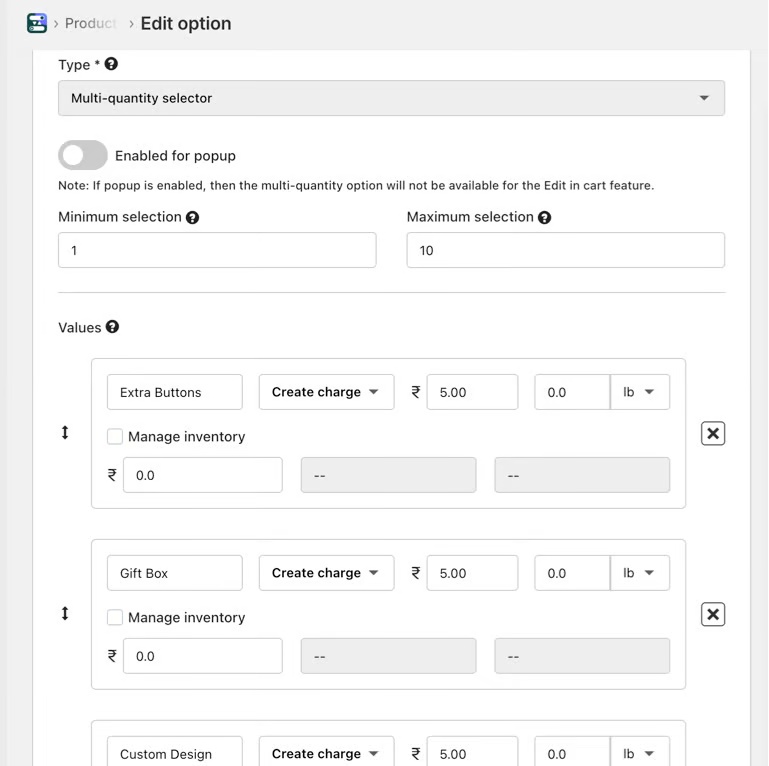
Min/Max Limits (Optional)
You can set minimum and maximum values for each option’s quantity to limit how much a customer can choose.
Also possible to set total combined quantity constraints in some cases (e.g., across multiple option values) to ensure the total doesn’t exceed certain limits.
Pricing Adjustments
Pricing adjusts based on the quantity chosen for those option values. So if “Extra Button” costs ₹5 each and quantity 2 is selected, that adds ₹10.
'Save' the option
The chosen quantities for custom option values are passed through with the order (in line item properties), so on the admin/order side, you can see how many of each custom option were selected.
Was this article helpful?
That’s Great!
Thank you for your feedback
Sorry! We couldn't be helpful
Thank you for your feedback
Feedback sent
We appreciate your effort and will try to fix the article