The Automated Export Wishlists feature allows you to schedule and receive regular data backups of your store's wishlist records automatically. This is highly useful for analyzing customer trends offline, syncing data with external marketing software, or maintaining offline customer profiles.
Step-by-Step Configuration Guide
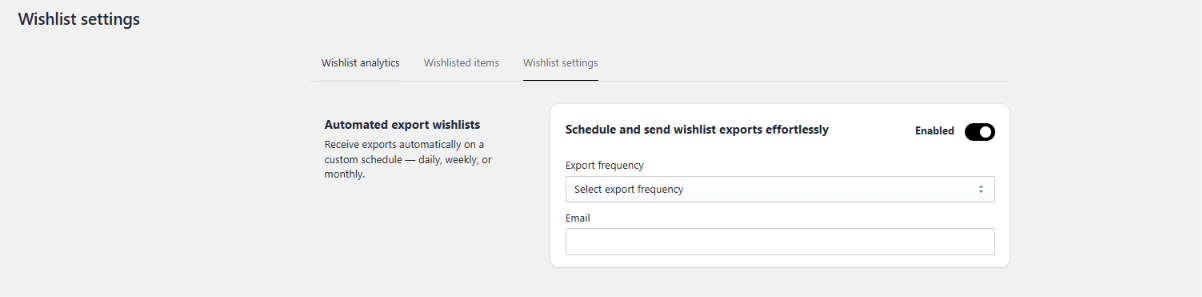
To schedule automated data deliveries to your inbox, follow these steps within your app admin (as shown in image_0cffdd.png):
Open the app dashboard and navigate to the Wishlist Settings tab (located next to Wishlist Items).
Find the Automated export wishlists card section.
Toggle the main status switch from Disabled to Enabled.
Click on the Export frequency dropdown menu and select your preferred schedule interval:
Daily
Weekly
Monthly
In the Email input field, type the exact destination email address where the data files should be delivered.
Click Save to activate your automated reporting schedule.
Managing and Editing Your Exports
Changing the Destination: You can update the recipient email address at any time by replacing the text in the Email field and saving your changes.
Pausing the Schedule: If you want to stop receiving automated emails without losing your configured email address or frequency settings, simply turn the main toggle switch back to Disabled.
Was this article helpful?
That’s Great!
Thank you for your feedback
Sorry! We couldn't be helpful
Thank you for your feedback
Feedback sent
We appreciate your effort and will try to fix the article