By default, your wishlist page uses a standard URL path provided by the app. If you want to customize this URL to match your store's branding, you can update the path using the App Proxy settings.
Step-by-Step Instructions
To successfully change your wishlist page URL, you must update the path in both the app backend and your Shopify store settings to ensure they match.
Step 1: Update the App Proxy Path
Open the app dashboard and navigate to Settings.
Click on General settings.
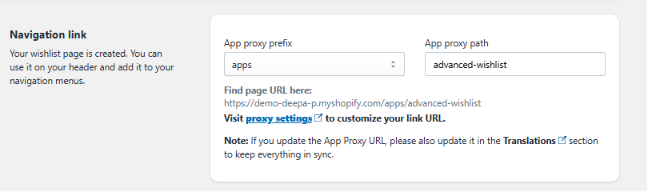
Locate the Navigation link section.
In the App proxy path field, enter the new URL path you would like to use.
Step 2: Sync with Shopify Proxy Settings
Copy the exact path you just entered in the app.
Navigate to your Shopify Admin settings under your App proxy configurations.
Add or update that identical path within your Shopify proxy settings so both systems point to the same location.
Note: Keep Data in Sync: If you update the App Proxy URL, you must also update the matching path inside the Translations section of the app. Failing to update this will prevent your page elements from syncing properly.
Was this article helpful?
That’s Great!
Thank you for your feedback
Sorry! We couldn't be helpful
Thank you for your feedback
Feedback sent
We appreciate your effort and will try to fix the article