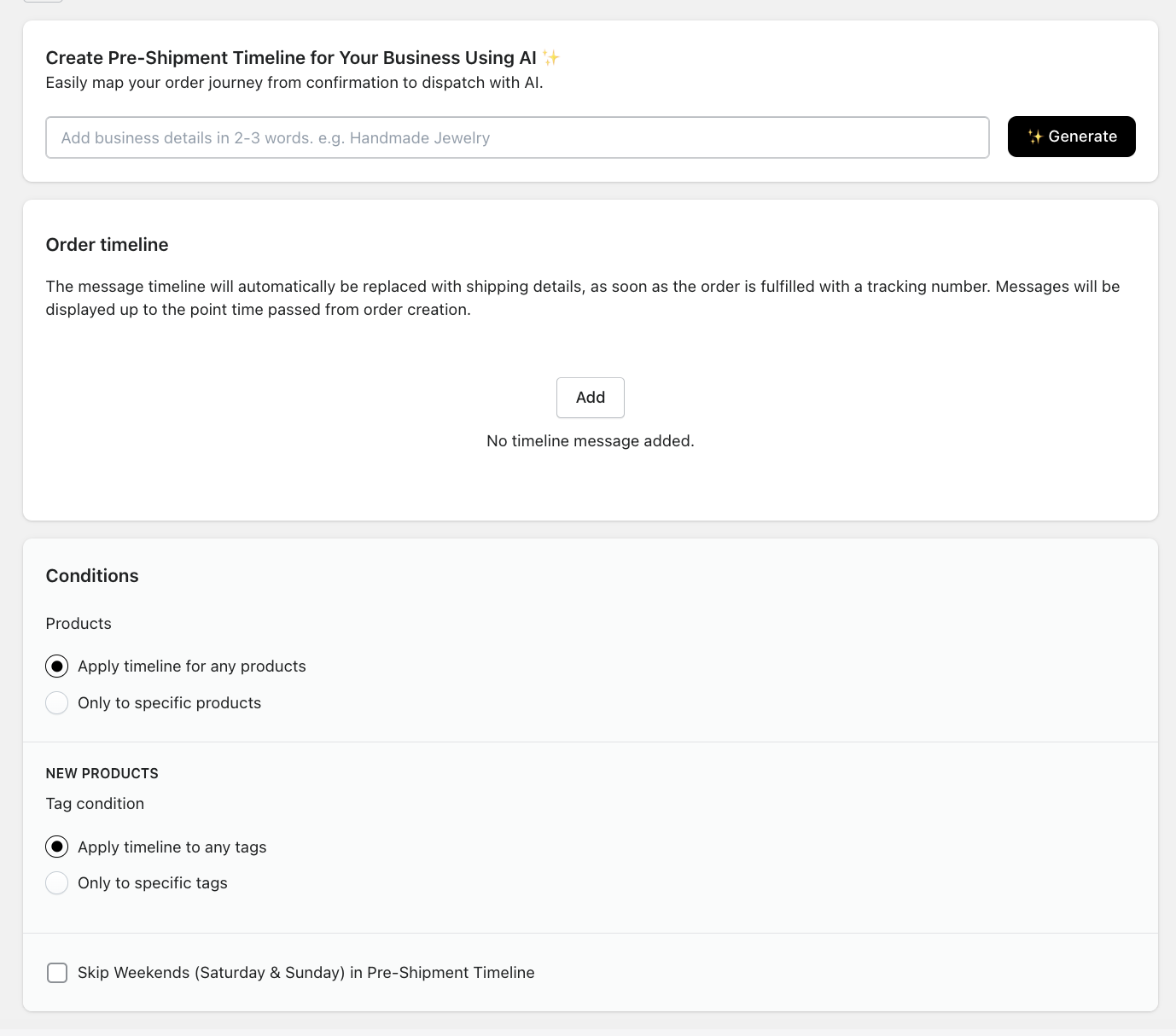
The Pre-Shipment Timeline feature allows you to display a dynamic order progress timeline from order confirmation to dispatch — even before a tracking number is generated.
This helps you:
Set clear customer expectations
Reduce “When will my order ship?” inquiries
Improve post-purchase transparency
Create a smoother pre-fulfillment experience
Once the order is fulfilled and a tracking number is added, the pre-shipment timeline is automatically replaced with real-time shipping updates.
AI Timeline Generator
At the top of the page, you can use the AI Generator to quickly create a customized timeline.
How it works:
Enter your business type in 2–3 words
Example: Handmade Jewelry, Print on Demand, Custom FurnitureClick Generate
The AI will create a suggested order journey from confirmation to dispatch
Review and edit the messages as needed
Save your timeline
This saves time and ensures your messaging matches your business model.
Order Timeline Section
This section allows you to manually add timeline messages.
Each message represents a stage in your order preparation process (for example):
Order confirmed
Processing
Quality check
Packaging
Ready for dispatch
Important Behavior
Messages are displayed progressively based on time passed since order creation.
Once the order is fulfilled with a tracking number, shipping details replace the pre-shipment timeline automatically.
Conditions
You can control where the timeline applies.
Product Conditions
Choose whether the timeline should apply:
To any products – Applies to all orders
Only to specific products – Select individual products
This is useful if:
Only certain products have longer processing times
Custom or made-to-order items require different messaging
Tag Conditions
You can also apply the timeline based on product tags.
Options:
Apply timeline to any tags
Only to specific tags
This allows more advanced targeting, such as:
“Preorder”
“Made-to-order”
“Limited edition”
“Custom”
Skip Weekends Option
You can enable:
Skip Weekends (Saturday & Sunday) in Pre-Shipment Timeline
When enabled:
Weekend days are excluded from timeline calculations
Processing time appears more accurate for businesses that don’t operate on weekends
This ensures realistic customer expectations.
How the Timeline Displays to Customers
The timeline appears on the order tracking page.
Customers see progress based on elapsed time.
Once shipping begins, carrier tracking updates take over automatically.
This creates a seamless transition from order confirmation to delivery.
Best Practices
Keep messaging clear and reassuring.
Avoid overly long processing stages unless necessary.
Be transparent about production times.
Use tags to apply different timelines for different product types.
Test the timeline using sample orders.
Why Use Pre-Shipment Timeline?
✔ Reduces support tickets
✔ Improves customer trust
✔ Sets realistic expectations
✔ Enhances branded post-purchase experience
✔ Works automatically once configured
Was this article helpful?
That’s Great!
Thank you for your feedback
Sorry! We couldn't be helpful
Thank you for your feedback
Feedback sent
We appreciate your effort and will try to fix the article