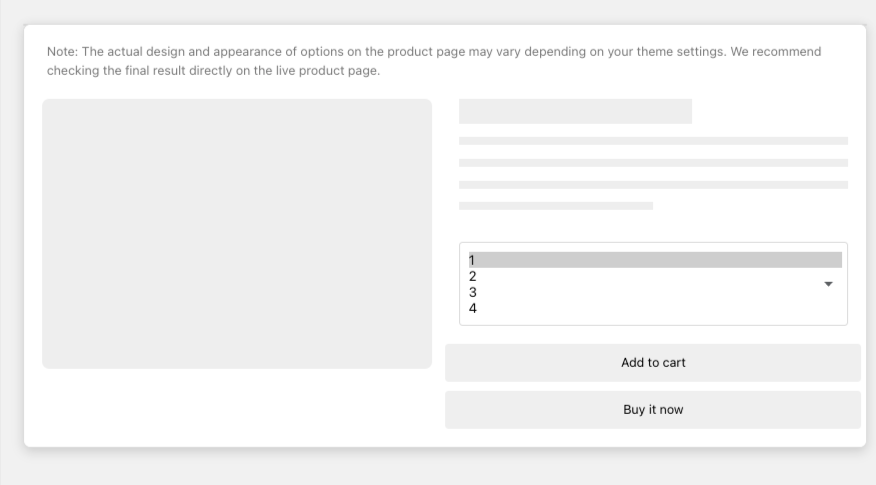
The Dropdown (multiple choice) option type shows your choices in a dropdown menu and lets the customer select more than one of them. It is the multi-select counterpart to the standard Dropdowns option type, which allows one selection only.
Selected values stay visible in the field, so the customer can see everything they have picked without reopening the menu. It keeps the product page tidy when there are a lot of choices to offer.
When to use it
- Add-ons that stack. Gift wrapping, engraving and a greeting card can all be chosen on the same order.
- Long lists of extras. When showing every choice as a checkbox would push the Add to cart button down the page.
- Toppings, ingredients or components the customer picks several of from a fixed menu.
Choosing between the option types
- Use Dropdowns when the customer should only ever pick one value.
- Use Checkboxes when the list is short enough to show in full — they are quicker to scan.
- Use Swatches (Multiple choice) when the choices are colors, materials or patterns that are better shown as images.
Set it up
- In the app, open Manage options and click Add new.
- Choose Dropdown (multiple choice) as the option type, then add a value for each choice. Set a price against any value that should add a charge when selected.
- Save the option.
- Open Option sets and add the option to the set used by the products it should appear on.
Was this article helpful?
That’s Great!
Thank you for your feedback
Sorry! We couldn't be helpful
Thank you for your feedback
Feedback sent
We appreciate your effort and will try to fix the article