A Formula-Based Option works out an extra price for you with a simple math formula. Your customer types in a number (for example, the width of a frame), the app does the math, and the result is added to the product price right on the product page. Nothing needs to be calculated by hand.
You can use all four math signs in a formula:
- + (Plus) – add a fee
- - (Minus) – take off a discount
- * (Multiple) – multiply, for example size × price
- / (Divide) – divide, for example to change units
The example we will build as below:
A store sells collage photo frames in any size. A bigger frame needs more material, so it should cost more. The customer enters the width and height, and the price is worked out like this:
Price = Width × Height ÷ 144 × $12 + $10 − $5
| Part of the formula | What it means |
|---|---|
| Width × Height | The frame size in square inches. The customer types both numbers. |
| ÷ 144 | Changes square inches into square feet (12 × 12 inches = 1 sq ft). |
| × $12 | Price per square foot of frame material. |
| + $10 | Glass and wall-mounting fee. |
| − $5 | Festive discount. |
For a 24 × 18 inch frame: 24 × 18 = 432 → 432 ÷ 144 = 3 sq ft → 3 × $12 = $36 → $36 + $10 = $46 → $46 − $5 = $41.
Two kinds of values
Every number in your formula is one row. Each row is one of two kinds:
| Row type | Use it when… | In our example |
|---|---|---|
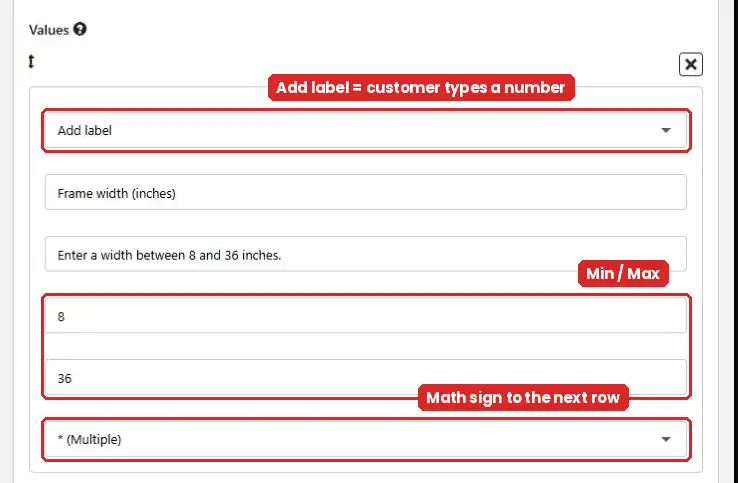
| Add label | The customer types the number. You can set a Min and Max so they can only enter values you allow. | Width, Height |
| Add default value | The number is fixed by you. Customers can see it but can't change it. | 144, $12, $10, $5 |
How to set it up
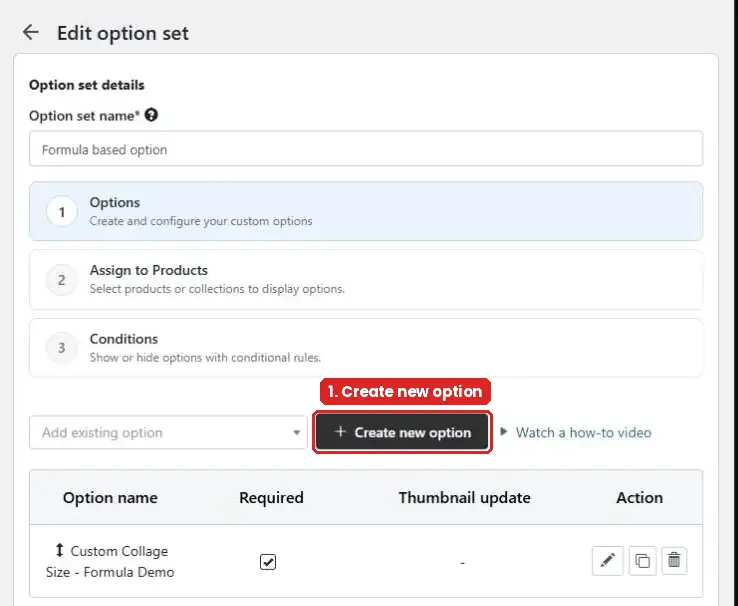
Step 1: Create a new option
Go to Option sets, open the option set you want to use (or click Add new to make one), and click Create new option.
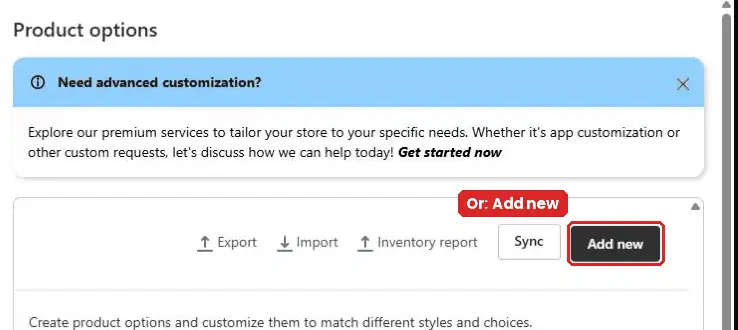
You can also create it from Manage options → Add new. If you do, remember to add it to an option set later (Step 6).
Step 2: Name the option and pick the type
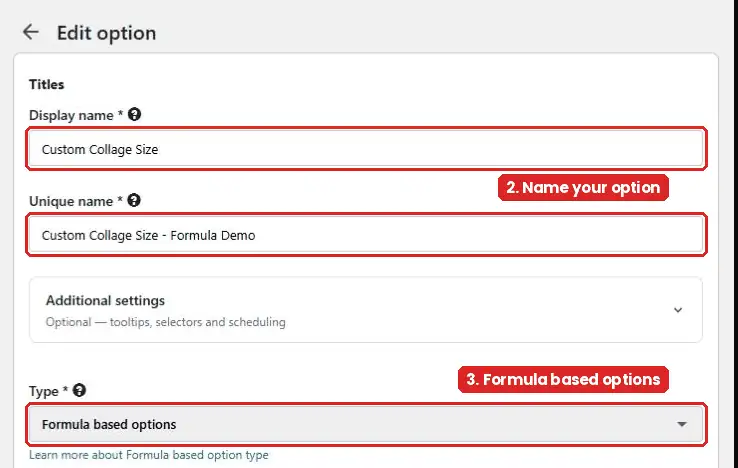
- Display name – what customers see, e.g. Custom Collage Size
- Unique name – an internal name only you see, e.g. Custom Collage Size - Formula Demo
- Type – choose Formula based options
Step 3: Add one row for each number
Click Add more to add rows. For our example, add these six rows in this order:
| # | Row type | Label | Value / Min–Max | Math sign |
|---|---|---|---|---|
| 1 | Add label | Frame width (inches) | Min 8, Max 36 | * (Multiple) |
| 2 | Add label | Frame height (inches) | Min 8, Max 36 | / (Divide) |
| 3 | Add default value | Inches per sq ft | 144 | * (Multiple) |
| 4 | Add default value | Price per sq ft ($) | 12 | + (Plus) |
| 5 | Add default value | Glass & mounting fee ($) | 10 | - (Minus) |
| 6 | Add default value | Festive discount ($) | 5 | (none – last row) |
This is what an Add label row looks like. The customer will type the width, and Min/Max keep it between 8 and 36 inches:
And this is an Add default value row. The number 144 is fixed:
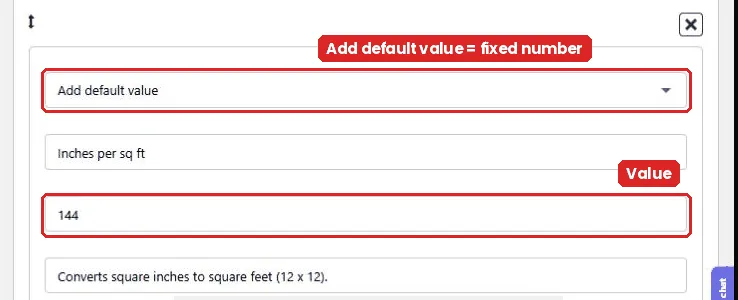
Each row also has a Tooltip box. Use it to explain the number in a few words, for example "Converts square inches to square feet (12 × 12)". Customers see it when they hover the i icon next to the field.
Step 4: Pick the math sign for each row
The math sign on a row joins it to the row below it. So row 1 "Width" with * (Multiple) followed by row 2 "Height" means Width × Height. The last row has no math sign.
Tip: put your multiply (*) and divide (/) rows first and your plus (+) and minus (-) rows last, like in the table above. Your price will then always come out the way you expect.
Step 5 (optional): Add a tooltip and help text for the whole option
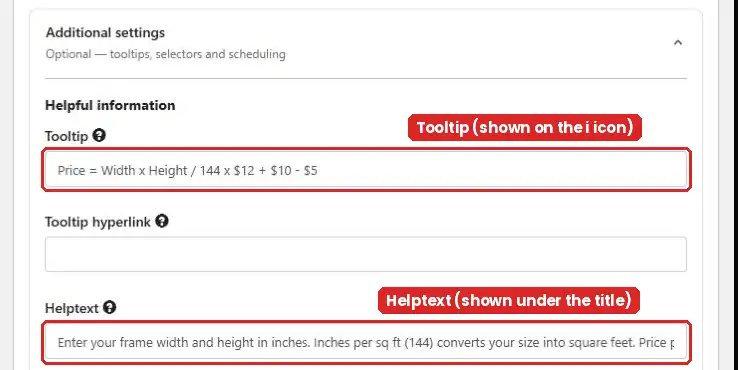
Open Additional settings:
- Helptext shows under the option title. Use it to explain what each number is for.
- Tooltip shows when customers hover the i icon next to the title. Keep it short, for example the formula itself.
Step 6: Save and make it live
- Click Save to save the option.
- If you created it inside an option set, it is already added. Click Save on the option set too.
- If you created it from Manage options, open your option set, choose it in Add existing option, and click Save.
- Make sure the option set is assigned to your product under Assign to Products.
What your customer sees
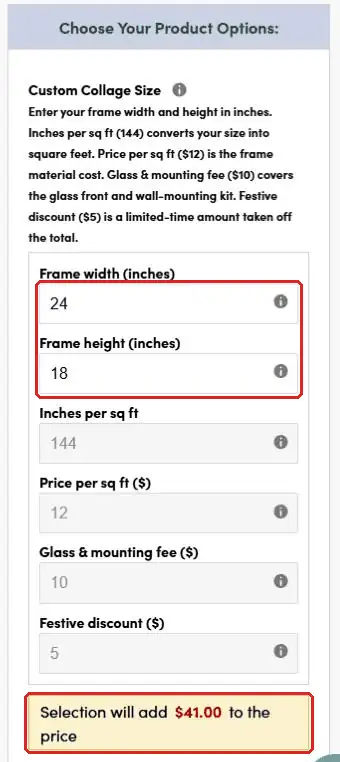
The customer types 24 and 18. The app does the math and shows "Selection will add $41.00 to the price". This amount is added on top of the product price.
More results from the same formula:
| Width × Height | Working | Added to price |
|---|---|---|
| 12 × 12 | 1 sq ft × $12 + $10 − $5 | $17 |
| 24 × 18 | 3 sq ft × $12 + $10 − $5 | $41 |
| 36 × 24 | 6 sq ft × $12 + $10 − $5 | $77 |
See it live on our demo store: Collage Photo Frame.
Other ideas
- Fabric or ribbon by length: Length × $8 + $3 cutting fee
- Engraving: Number of letters × $0.50
- Bulk labels: Number of labels ÷ 100 × $15 (price per 100 labels)
Was this article helpful?
That’s Great!
Thank you for your feedback
Sorry! We couldn't be helpful
Thank you for your feedback
Feedback sent
We appreciate your effort and will try to fix the article