1. Edit options in cart – Enable customers to edit product options directly from the cart page for a more flexible shopping experience.

Enable Edit in Cart: Allow customers to modify product options for items in their cart.
Code Integration: Copy and paste the provided code in the cart item list and update product ID, quantity, key, and variant ID as needed to enable the feature.
2. Express checkout buttons: Enable integration of Shopify’s Buy Now and Shop Pay buttons for faster checkout on the product page.

Enable Shopify and ShopPay Express Checkout Buttons: Turn on Shopify’s Buy Now and Shop Pay buttons on the product page.
3. Shopify discount code box: Enable the discount code box on the checkout page, with the option to restrict discounts on add-on charges.

Enable Discount Code Box on Checkout: Turn on the discount code box for customers on the checkout page. By default, the box is visible; uncheck this option if you do not want customers to apply discounts to add-on charges.
4. Enable automatic discount on checkout: Enable automatically apply eligible discounts to draft orders at checkout.

Enable Automatic Discount on Checkout: Turn on this feature to apply applicable discounts automatically for customers during checkout.
5. Additional order tag: Add custom tags to orders to improve organization of customer groups and products. By default, the app adds the tag hulkapps-po to orders with add-on charges.

Order Tag: Enable this option to add extra/additional tags to orders for better organization and tracking.
6. Scheduled options timezone: The default app time zone is UTC, and all options created will be set accordingly. You can always set the time zone to correspond to your store’s timezone.
Kindly enable the option to schedule in your store's time zone.
7. Inventory reporting: Receive inventory reports via your Shopify store admin email to keep track of stock levels.
Enable Inventory Reporting: Check this box to activate inventory reports.
Report Frequency: Choose how often to receive inventory reports (Weekly or Monthly).
8. App language: Turn on this option to use English as the default language for the app instead of automatically translating values on the product pages.
9. Monthly analysis: Check this to stop receiving monthly analysis reports via email.
10. Theme change/update notification: This email is triggered and sent to the store owner every time there is a change to your theme files.
For example, if customizations or setups from the app are applied to the live/published theme and another theme is published, an email will be sent to notify you.
11. Ignore min/max validation: In the event of a multiple-choice product option, the App will disregard the minimum/maximum selection limit and allow customers to add the product to their cart.
Enable this option to ignore min/max limits for multiple-choice product options.
12. Tax setup: Control how taxes are applied to product options in the store.

Tax Calculation Preferences:
Apply Tax to Options: Include taxes on option prices.
Exclude Tax from Options: Do not apply taxes to option prices.
Apply Tax Based on Associated Product: Calculate taxes according to the main product’s tax settings.
13. Shopify currency settings: Turn on this feature to display option prices according to the store’s currency.
To ensure this works correctly, please add the 'hpo-price' class to the properties value element.

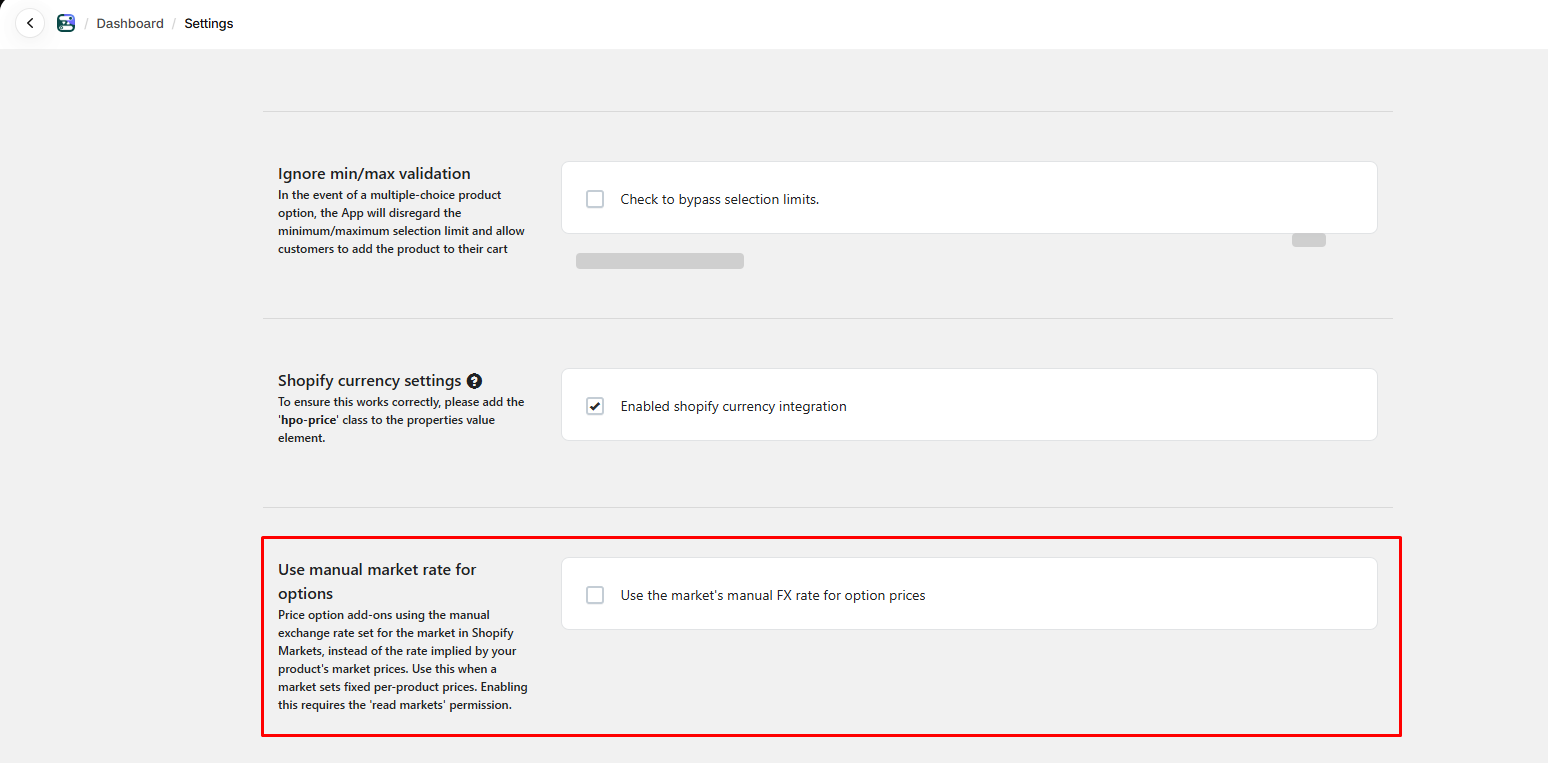
14. Use manual market rate for options: Turn on this feature to price option add-ons using the manual exchange rate set for the market in Shopify Markets, instead of the rate implied by your product’s market prices.
Use this when a market uses fixed per-product prices, so option add-ons are converted at the same flat rate that Shopify applies to the market. When this setting is off, option prices behave as before. If the manual rate cannot be read (for example, the market uses automatic exchange rates), the app falls back to the default behavior.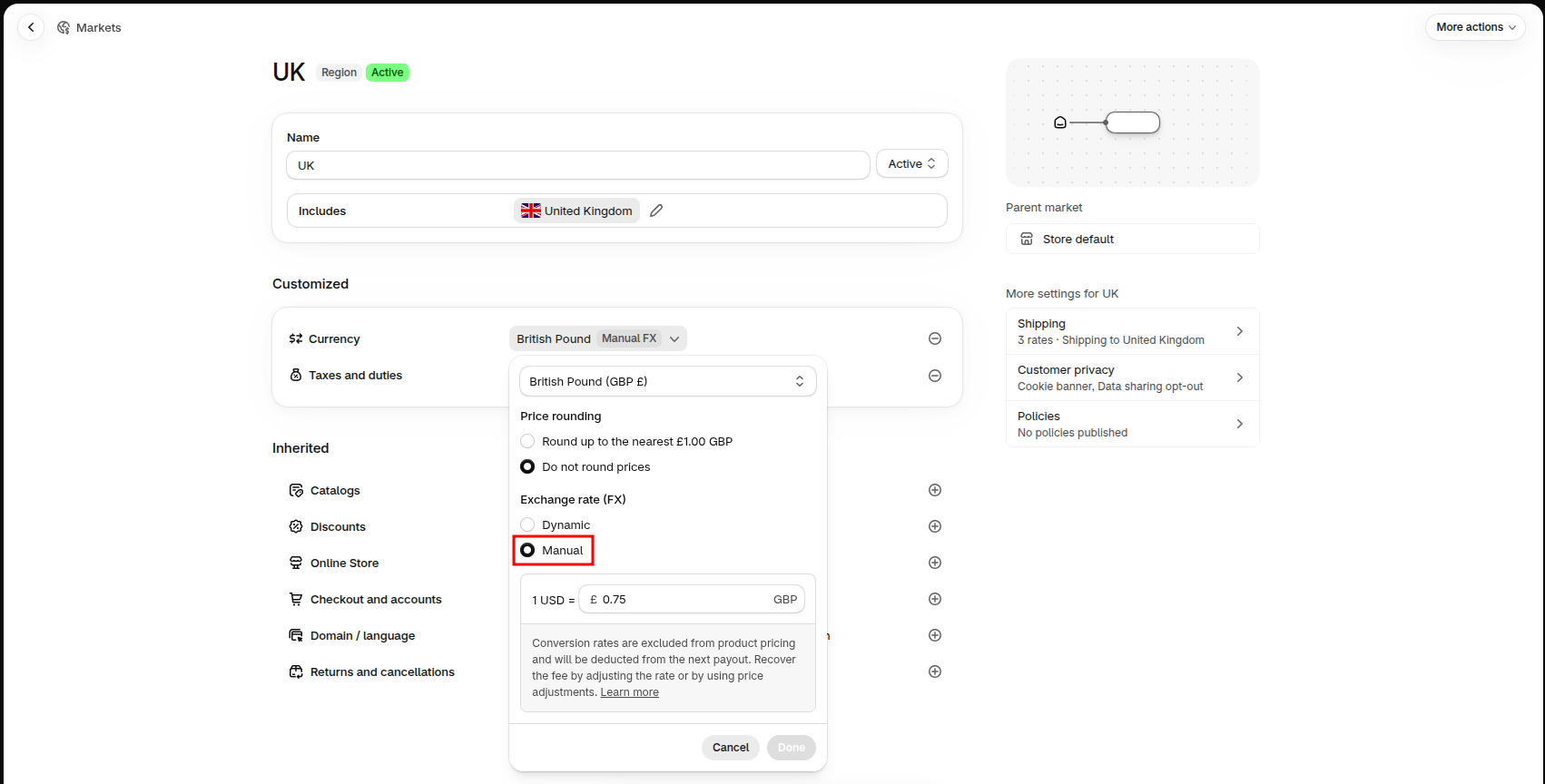
Enabling this option requires the “read markets” permission. You will be asked to approve this access (Update data access prompt) the first time you turn it on.
15. Use new draft order flow: Turn on this feature to simplify draft orders by attaching properties directly to the main product instead of creating separate line items.
Old Draft Order logic:
New Draft Order Logic:

16. Add custom product property: Add a custom line item property labeled “Custom Product” to each order, which is required for accurate revenue tracking and inventory management.
Enable this option to include the custom line item property in orders. Disabling it may affect revenue tracking and inventory management.
Was this article helpful?
That’s Great!
Thank you for your feedback
Sorry! We couldn't be helpful
Thank you for your feedback
Feedback sent
We appreciate your effort and will try to fix the article