Option sets let you bundle one or more product options together and assign them to specific products or collections in your Shopify store. This article walks you through creating an option set and linking it to your Active products or collections.
(Watch Video)
- Create an option set
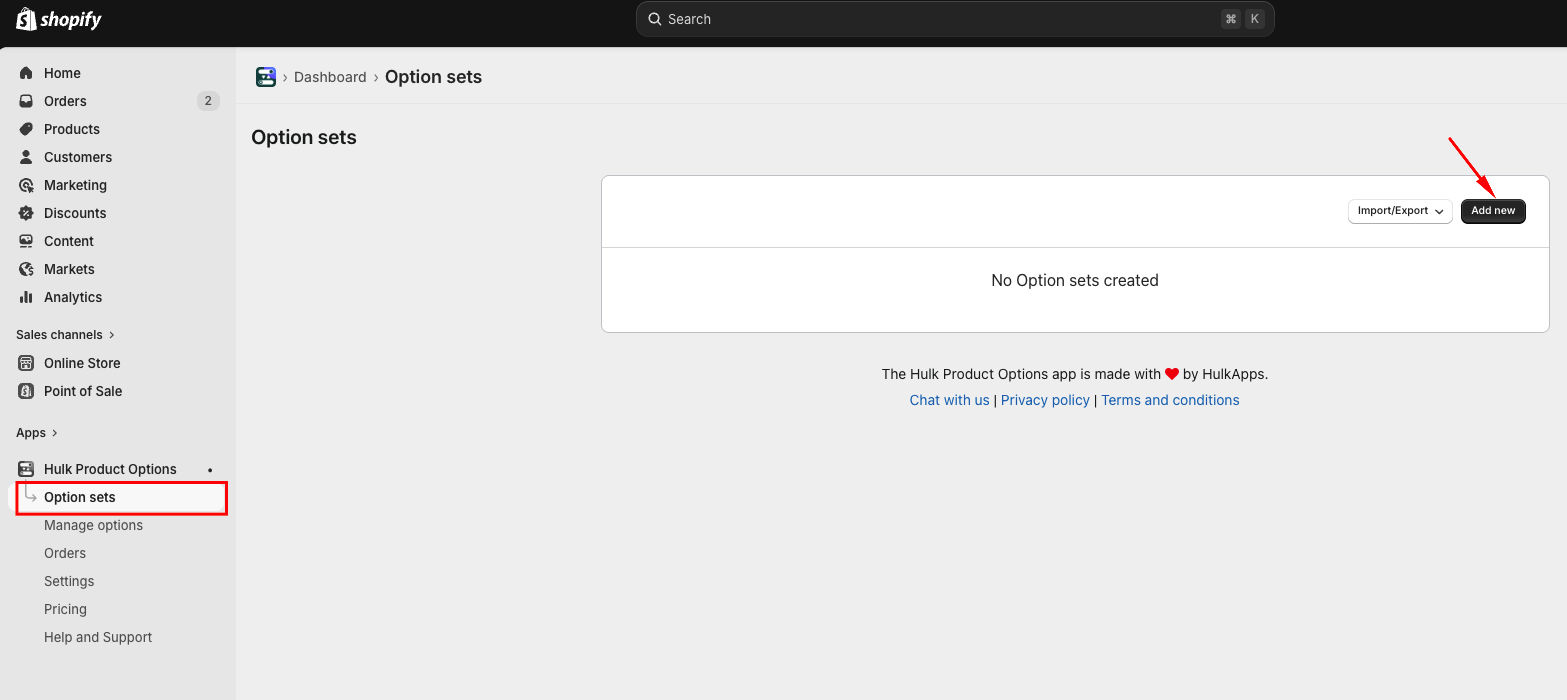
Navigate to Option Sets in the app and Click "Add new"
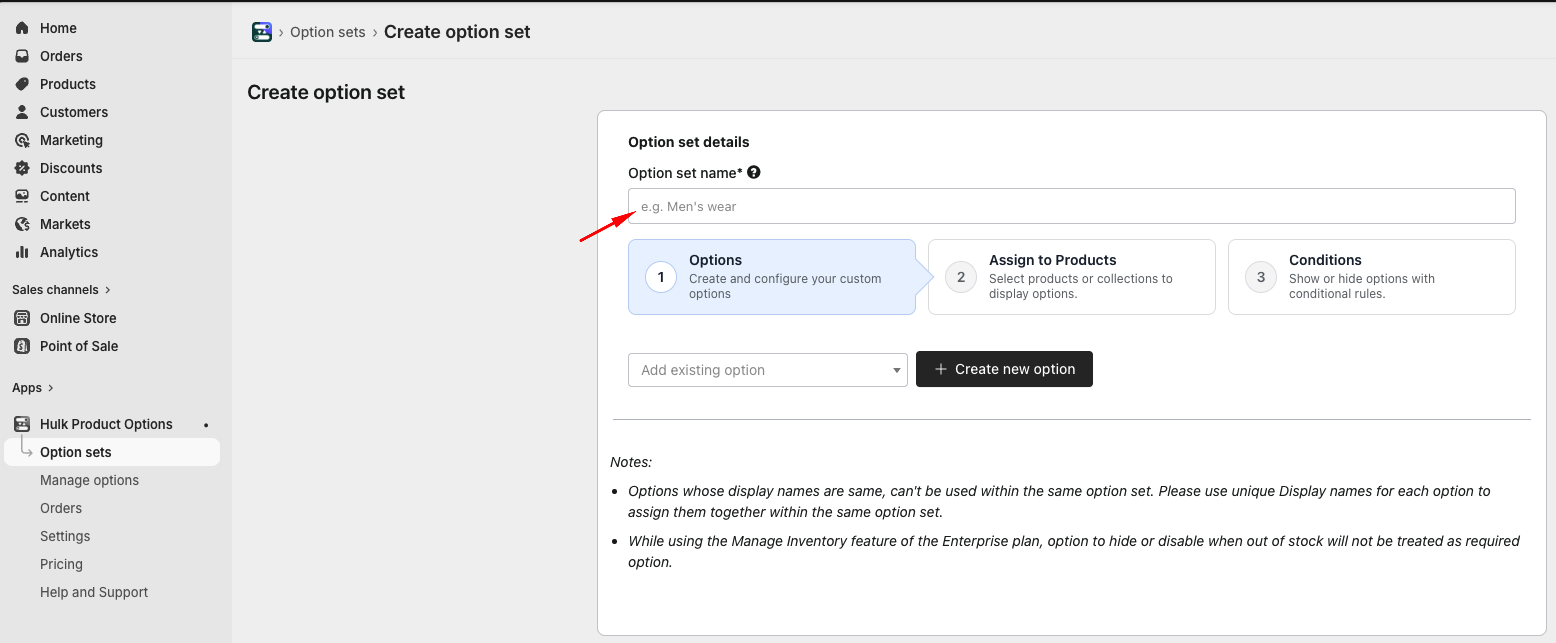
- Next, add an Option set name — this is for internal reference only and will not be visible to customers. Choose a descriptive name (e.g. "Men's wear", "T-Shirt Customization" or "Gift Options") so it's easy to identify later.
- Add options to the set:
You have two choices:
- Add existing option: Select a previously created option from the Manage Options tab.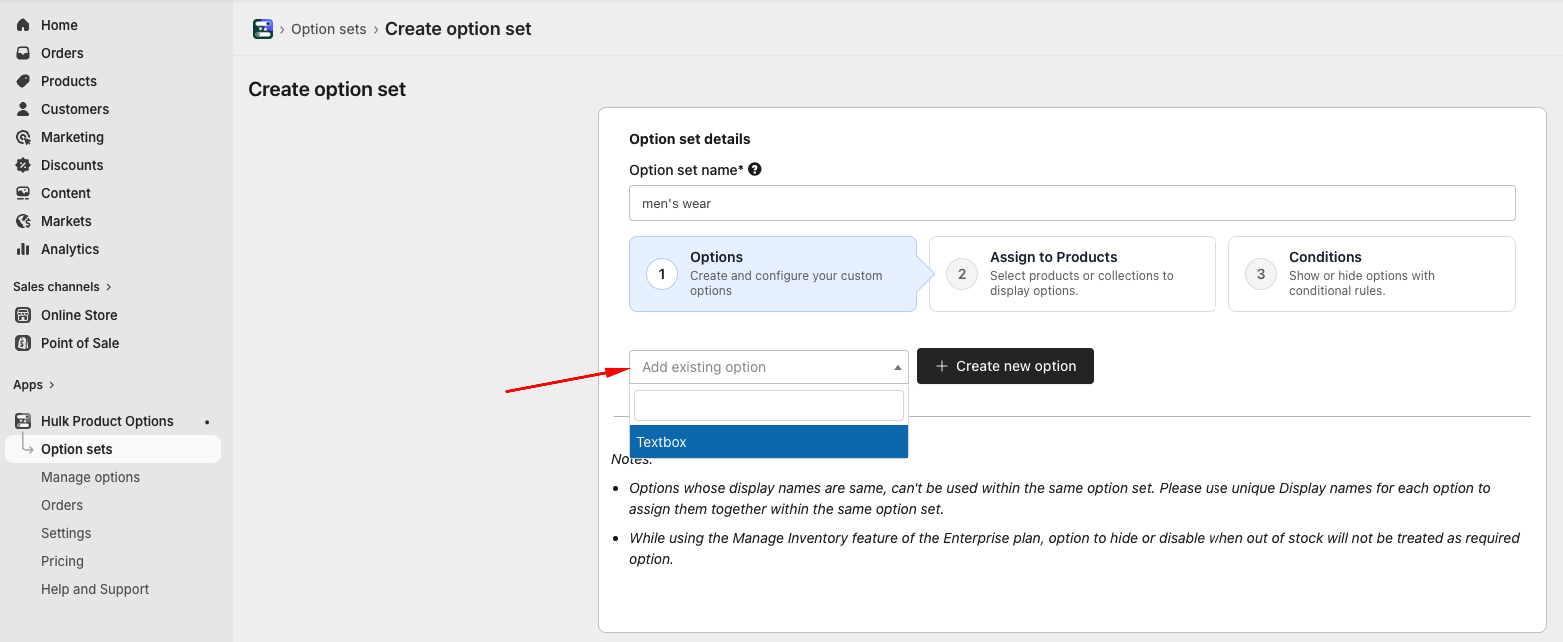
- Create new option: Use Create new option to build a brand-new option and add it directly to this set in one step.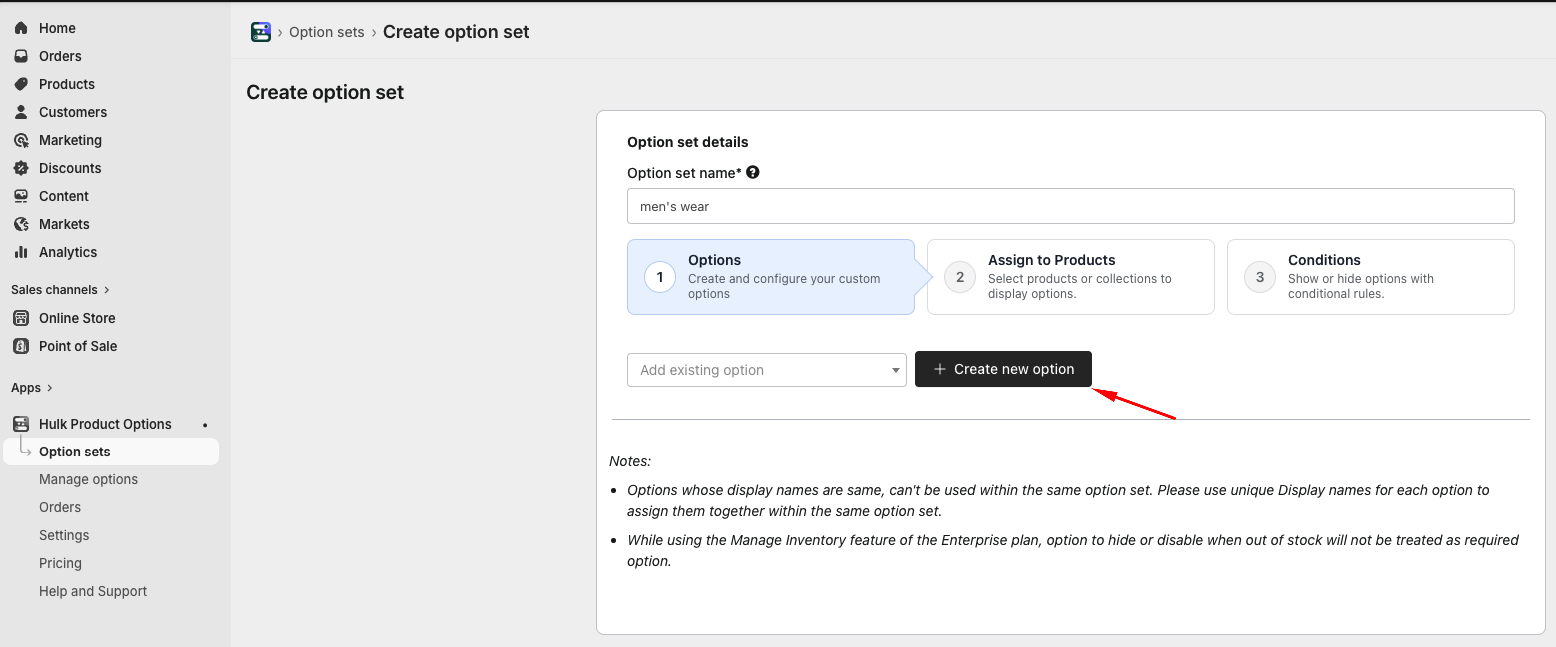
- Assign to products or collections:
Control which items in your store display these options. Search for specific products, or choose entire collections to apply the option set broadly.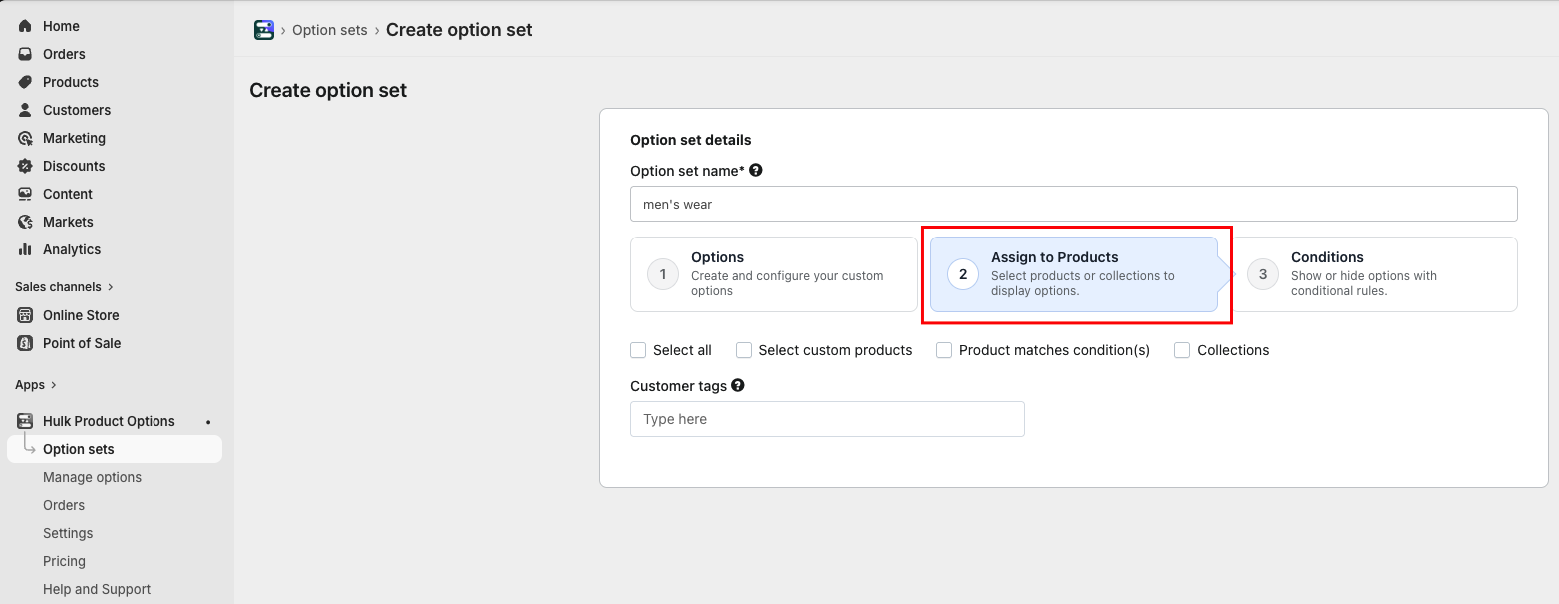
Save the option set:
Publish your configuration to the storefront
Click "Save"
The option set is now active. Assigned products will display the configured options on their storefront pages immediately if the app is enabled under Theme>>Cusomize>>App Embed section
Was this article helpful?
That’s Great!
Thank you for your feedback
Sorry! We couldn't be helpful
Thank you for your feedback
Feedback sent
We appreciate your effort and will try to fix the article