1. Title – Set a custom title for your product options. Easily personalize how option titles appear on the product page.
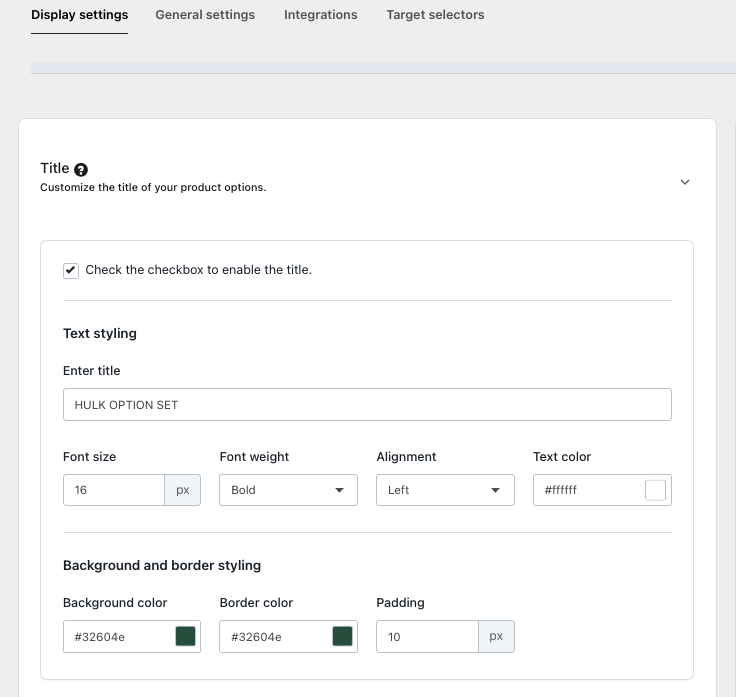
Text Styling Settings
Title: Enter the title of the option set.
Font Size: Adjust the size of the text.
Font Weight: Set the text to normal, bold, or other available weights.
Alignment: Choose the alignment of the text (left, center, right).
Text Color: Select the color of the text.
Background & Border StylingBackground Color: Set the background color for the option set.
Border Color: Choose the border color.
Padding: Adjust the space between the text and the border.
2. Options box appearance – Personalize the appearance of the product options section. Easily adjust the box styling to match your store’s design.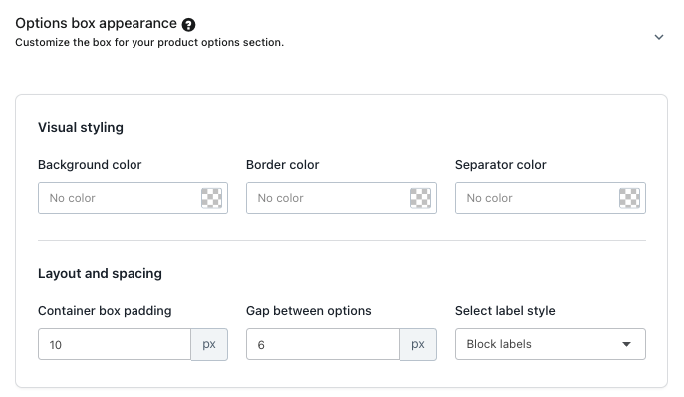
Visual Styling
Background Color: Set the background color of the option section.
Border Color: Set the border color of the option section.
Separator Color: Set the color of separators between options.
Layout and Spacing
Container Box Padding: Adjust the padding inside the container box.
Gap Between Options: Set the spacing between individual options.
Select Label Style: Customize the style of the option labels.
3. Option Display Text – Edit and personalize the text shown for your product options. Control how option labels appear to your customers on the product page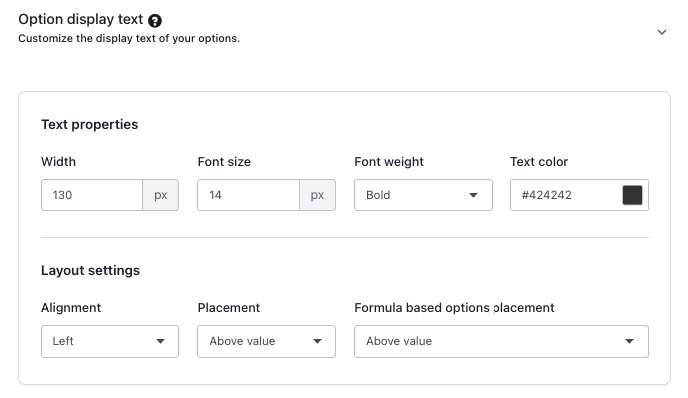
Text Properties
Width: Set the width of the text area.
Font Size: Adjust the size of the text.
Font Weight: Set the weight of the text (e.g., normal, bold).
Text Color: Choose the color of the text.
Layout Settings
Alignment: Set the alignment of the text (left, center, right).
Placement: Choose where the text appears relative to the value.
Formula-Based Options Placement: Control placement for formula-based options.
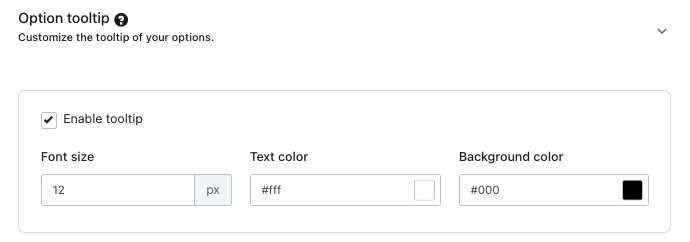
4. Option help text/tooltip - Customize the help text and tooltip for your product options to guide customers and provide clarity on each selection.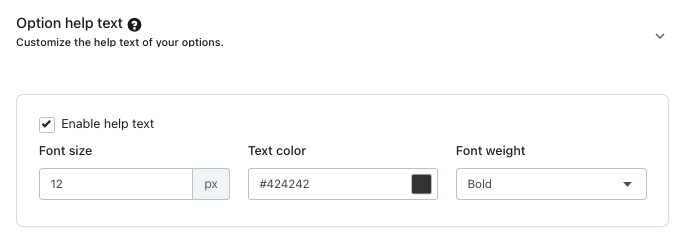
5. Option Values – Customize the display and appearance of your option values, including text styling, alignment, and layout.
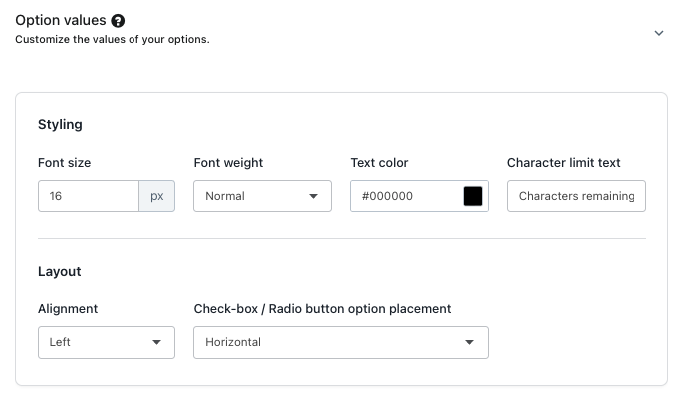
Styling
Font Size: Adjust the size of the option value text.
Font Weight: Set the weight of the text (e.g., normal, bold).
Text Color: Choose the color of the option value text.
Character Limit Text: Display the number of characters remaining.
Layout
Alignment: Set the alignment of the option values (left, center, right).
Check-box / Radio Button Option Placement: Define the layout orientation (horizontal or vertical) of selection controls.
6. Swatches – Customize the appearance and behavior of your swatches, including dimensions, selection indicators, tooltip display, and shape.
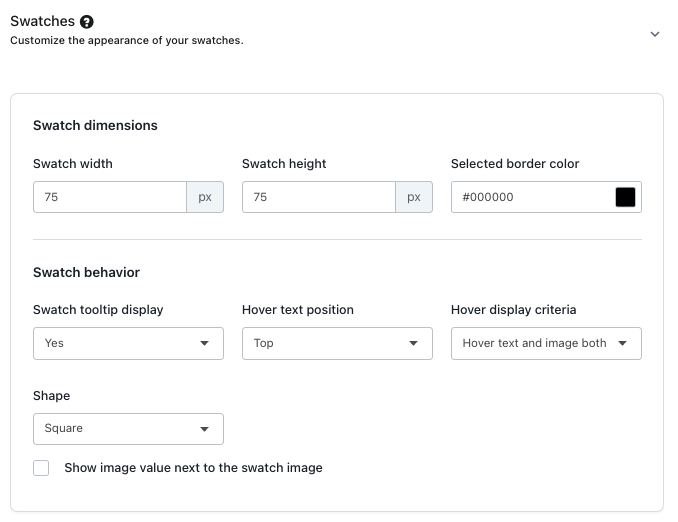
Swatch Dimensions
Swatch Width: Set the width of the swatch.
Swatch Height: Set the height of the swatch.
Selected Border Color: Define the border color when a swatch is selected.
Swatch Behavior
Swatch Tooltip Display: Enable or disable tooltip display on swatches.
Hover Text Position: Set the position of the tooltip text on hover.
Hover Display Criteria: Choose whether to show hover text, image, or both.
Shape: Define the shape of the swatch (e.g., square, round).
Show Image Value Next to the Swatch Image: Enable or disable displaying the image value next to the swatch.
7. Button - Customize the appearance of your buttons, including colors for default and selected states.
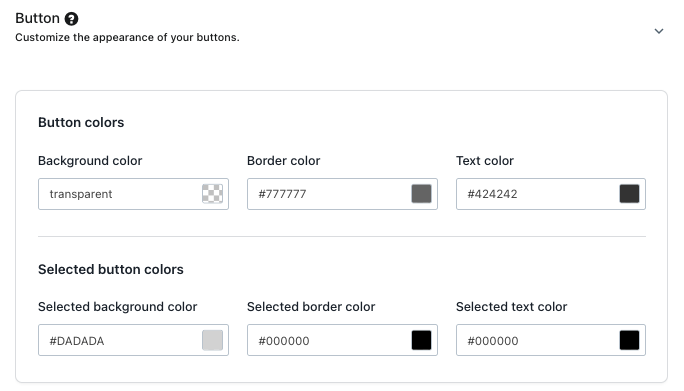
Button Colors
Background Color: Set the default background color of the button.
Border Color: Set the default border color of the button.
Text Color: Set the default text color of the button.
Selected Button Colors
Selected Background Color: Set the background color when the button is selected.
Selected Border Color: Set the border color when the button is selected.
Selected Text Color: Set the text color when the button is selected.
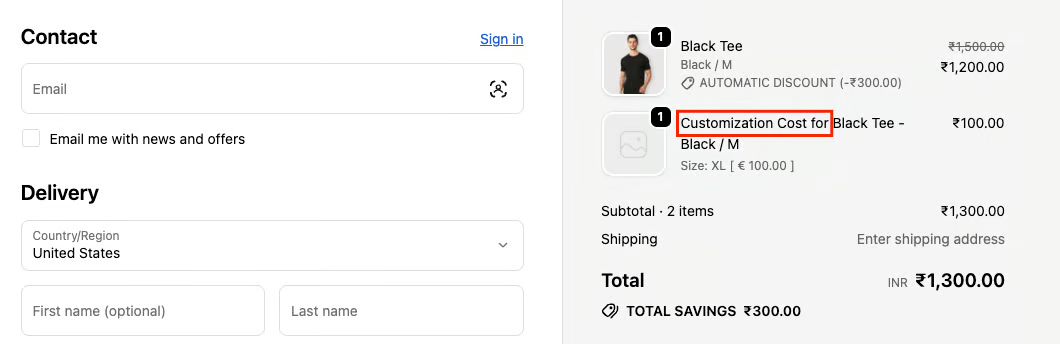
8. Advanced Styling – Enable advanced customization using code-embedded options, allowing custom JavaScript, CSS, and display text modifications on the checkout page instead of the Customization cost for text.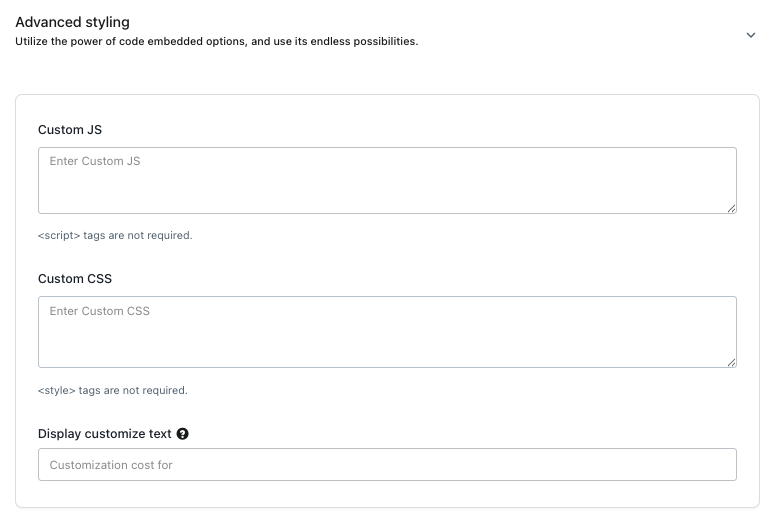
Custom JS
Add JavaScript: Embed custom scripts to modify or enhance option behavior.
Custom CSS
Style Overrides: Customize the appearance of option names, help text, or other elements.
Visibility Control: Show or hide specific elements.
Color & Layout: Adjust colors, fonts, and spacing of option elements.
Display Customize Text
Update the default display text for the Customization Cost shown on the checkout page.
9. Edit option button style - Customize the appearance of action buttons while editing product options on the cart page/drawer.
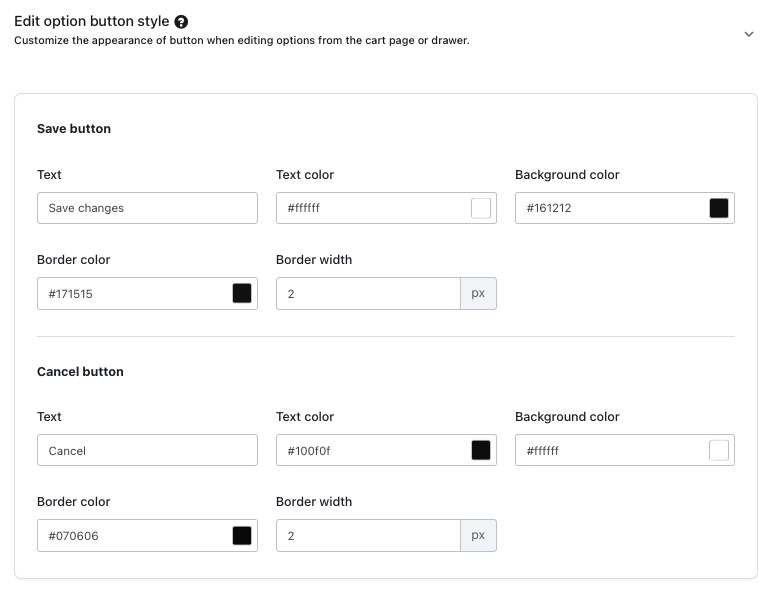
Save Button
Text: Set the label for the Save button.
Text Color: Define the color of the button text.
Background Color: Set the background color of the button.
Border Color: Choose the border color of the button.
Border Width: Set the thickness of the button border.
Cancel Button
Text: Set the label for the Cancel button.
Text Color: Define the color of the button text.
Background Color: Set the background color of the button.
Border Color: Choose the border color of the button.
Border Width: Set the thickness of the button border.
10. Price – Customize how the price for your product options is displayed, including visibility, placement, and styling of additional charges.
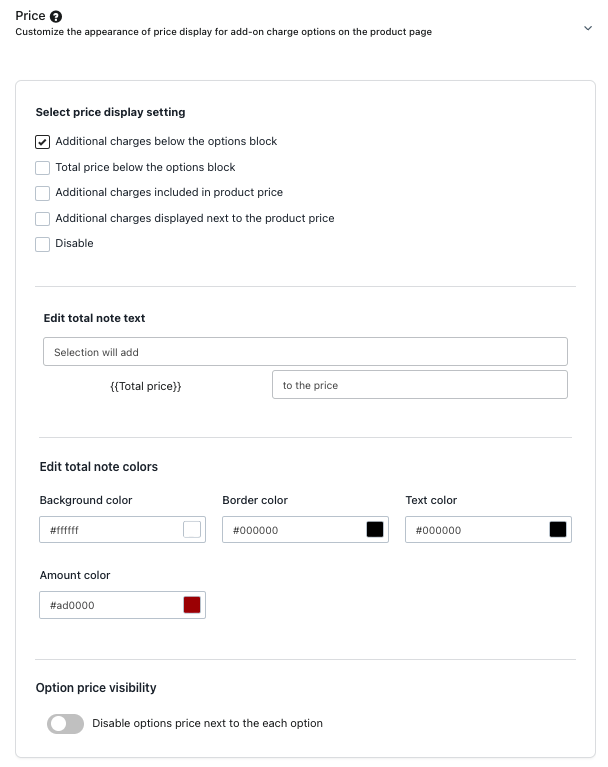
Price Display Settings
Select Price Display Setting: Choose how the price is shown (e.g., below options, included in product price, next to product price, or disabled).
Additional Charges Styling
Class/ID: Assign a class or ID for styling the price element.
Option Price Visibility: Control whether option prices are visible to customers.
11. Color/Image dropdown - Customize the appearance of color or image dropdown options, including display position and shape.
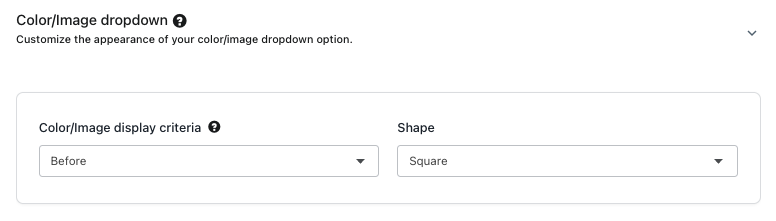
Color/Image Dropdown Settings
Color/Image Display Criteria: Set the placement or order of the color/image in the dropdown.
Shape: Define the shape of the color/image option (e.g., square, round).
12. Recommended option - Customize the appearance of recommended options, including the text, size, and color.
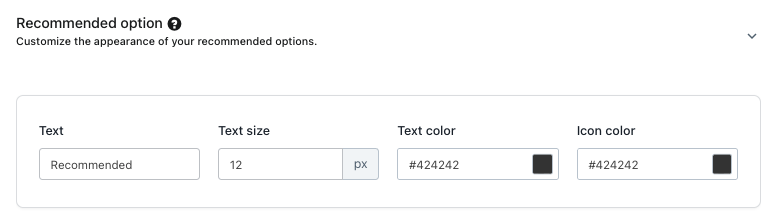
Recommended Options Settings
Text: Set the label for recommended options
Text Size: Adjust the size of the text
Text Color: Choose the color of the text
13. Multi-Quantity selector option - Set default values for multi-quantity options that are not linked to inventory management, including labels, pop-up text, and progress bar styling.
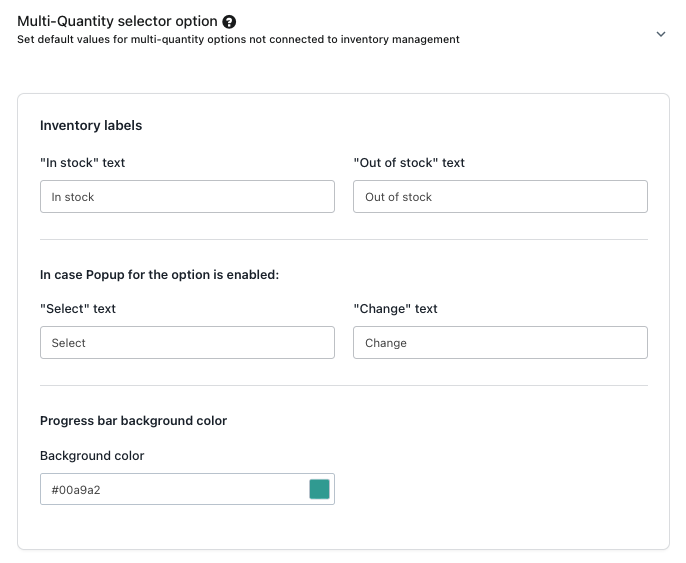
Progress Inventory Labels
In Stock Text: Set the label for available options
Out of Stock Text: Set the label for unavailable options
Popup Text (if enabled)
Select Text: Set the default text for the selection popup
Change Text: Set the text for changing the selection
Progress Bar Styling
Background Color: Customize the background color of the progress bar
14. Toggle Switch Style - Customize the appearance of toggle switches, including colors, border radius, and the placement of values.
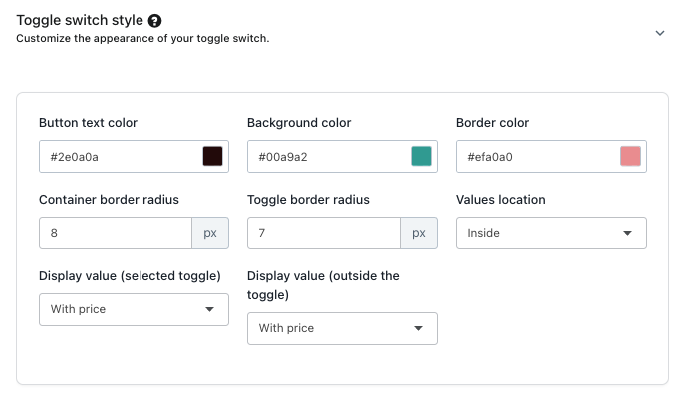
Toggle Switch Styling
Button Text Color: Set the color of the text on the toggle button
Background Color: Set the background color of the toggle switch
Border Color: Set the color of the toggle border
Container Border Radius: Adjust the border radius of the toggle container
Toggle Border Radius: Adjust the border radius of the toggle itself
Values Location
Inside: Display the value inside the toggle
Display Value (Selected Toggle): Show the selected value with price
Display Value (Outside the Toggle): Show the selected value outside the toggle
15. Free gift text - Customize the appearance and content of the free gift message displayed to customers.
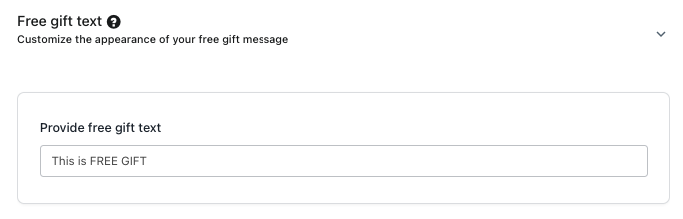
Free Gift Message
Provide Free Gift Text: Set the text to display for the free gift
Was this article helpful?
That’s Great!
Thank you for your feedback
Sorry! We couldn't be helpful
Thank you for your feedback
Feedback sent
We appreciate your effort and will try to fix the article