Changing Labels & Wording in the Offer
If you want to change the text shown inside your offer, go to:
Settings → Language Settings
This section allows you to customize all wording used in the offer.
Minimum & Maximum Labels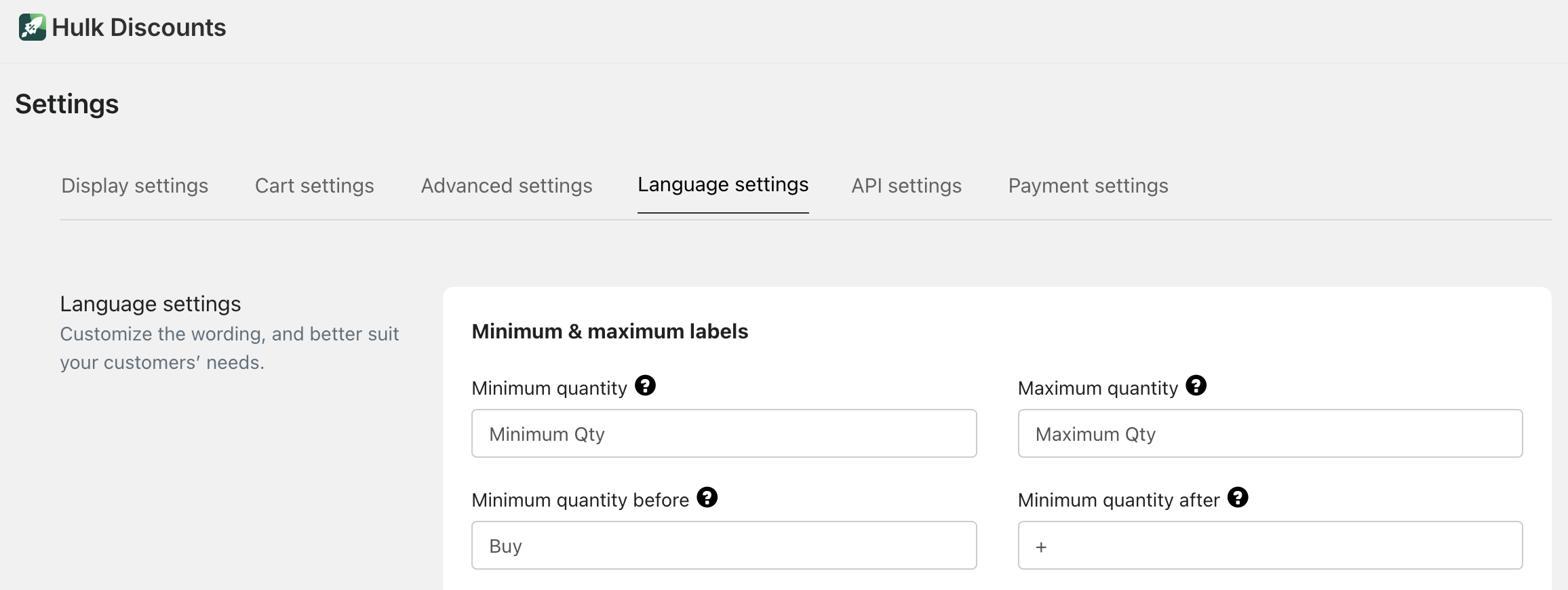
You can edit:
Minimum quantity
Minimum Qty
Maximum quantity
Maximum Qty
Minimum quantity before text (e.g., “Buy”)
Minimum quantity after text (e.g., “+”)
General Labels – Basic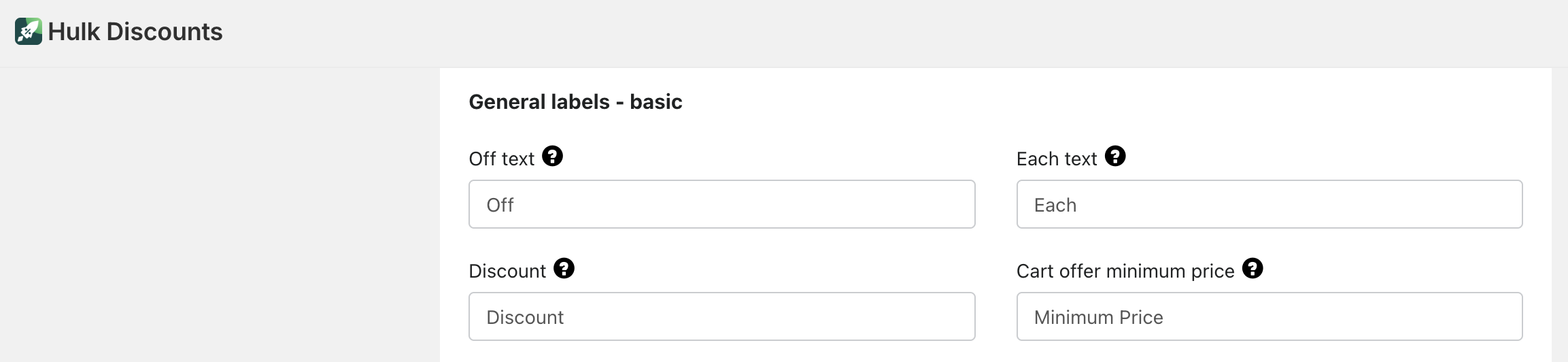
You can customize:
Off text (e.g., “Off”)
Each text (e.g., “Each”)
Discount
Cart offer minimum price
Minimum Price
General Labels – Advanced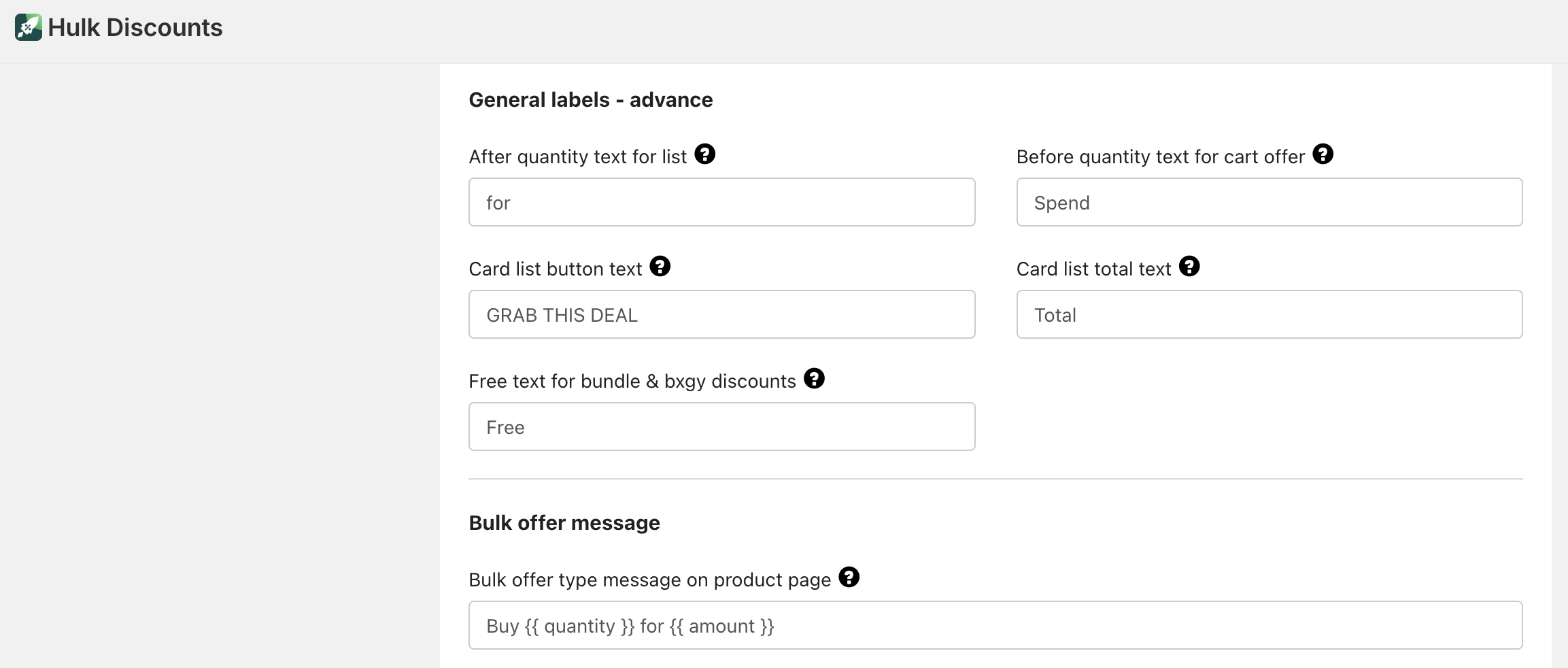
Advanced customization includes:
After quantity text for list (e.g., “for”)
Before quantity text for cart offer (e.g., “Spend”)
Card list button text (e.g., “GRAB THIS DEAL”)
Card list total text (e.g., “Total”)
Free text for bundle & BxGy discounts (e.g., “Free”)
Bulk offer message
Bulk offer type message on product page
Example:
Buy {{ quantity }} for {{ amount }}
Advanced Configuration
You can also configure:
Whether to display decimal values in the offer table

This is useful if you want cleaner pricing (e.g., 10 instead of 10.00).
Was this article helpful?
That’s Great!
Thank you for your feedback
Sorry! We couldn't be helpful
Thank you for your feedback
Feedback sent
We appreciate your effort and will try to fix the article