The Cart Settings tab allows you to add additional messages and features directly to your cart page to increase conversions and encourage higher order value.
To access it, go to:
Settings → Cart Settings
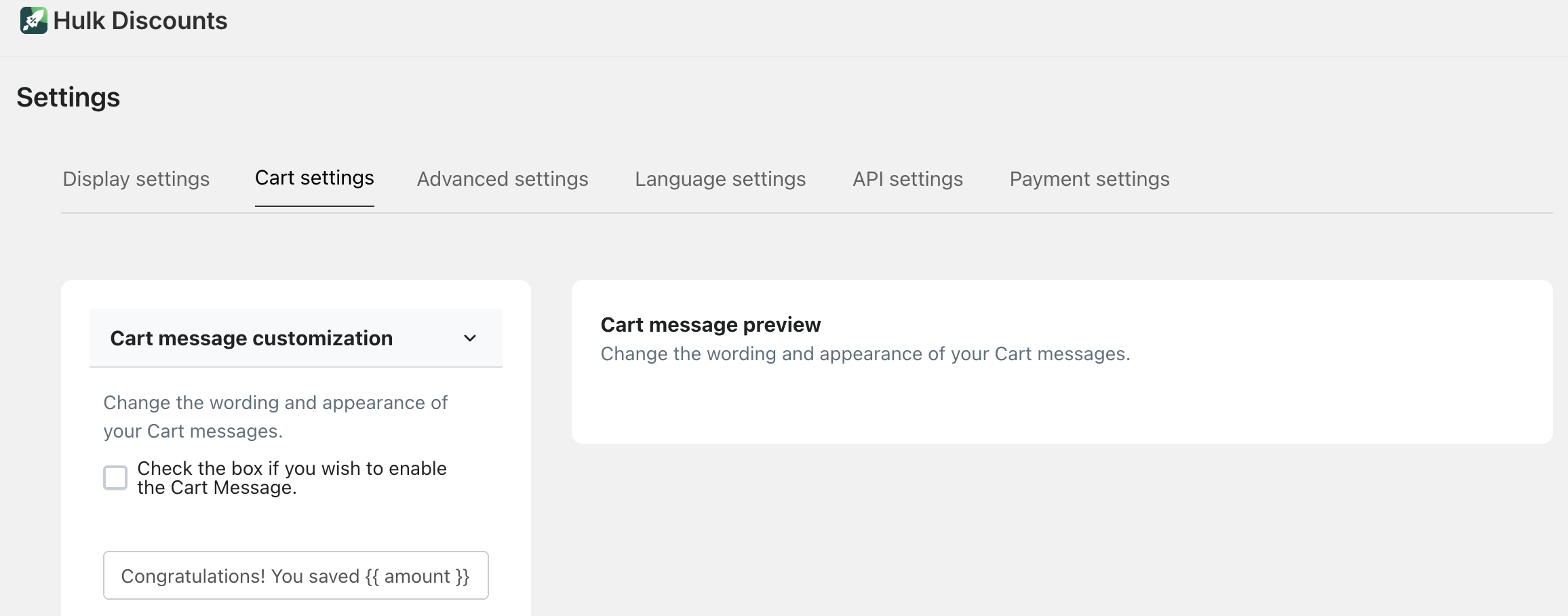
Here you can customize the following:
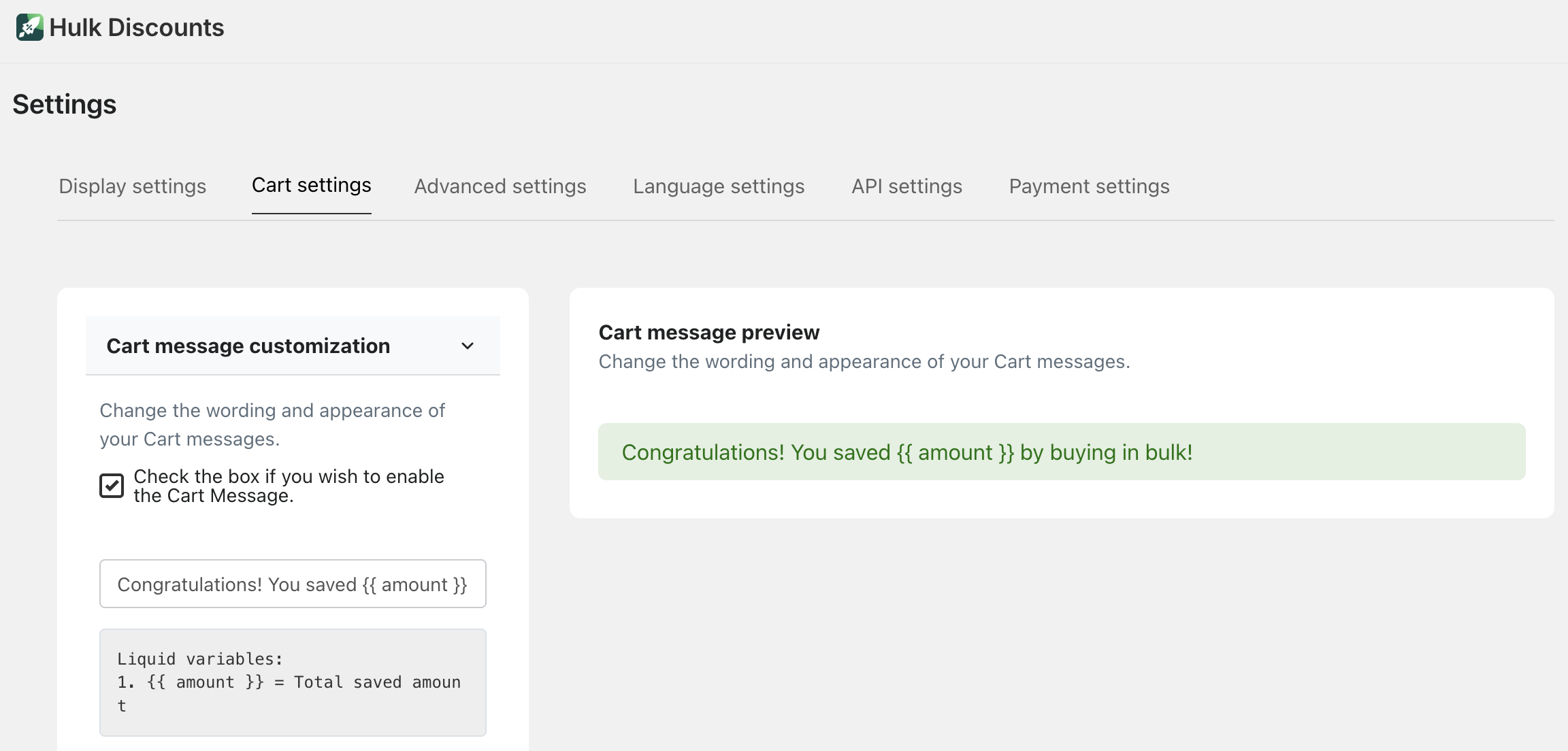
1. Cart Message Customization
This feature allows you to display a custom message inside the cart.
You can:
Enable or disable the cart message
Change the wording of the message
Customize its appearance (style, colors, etc.)
This is useful for:
Promoting an offer
Explaining a discount
Highlighting a special deal
Important
To display the cart message on your storefront, you must:
Copy the provided code
Paste it into your main-cart-items.liquid file
Follow the installation instructions provided in the app
Without adding the code, the cart message will not appear.
2. Cart Upsell Message
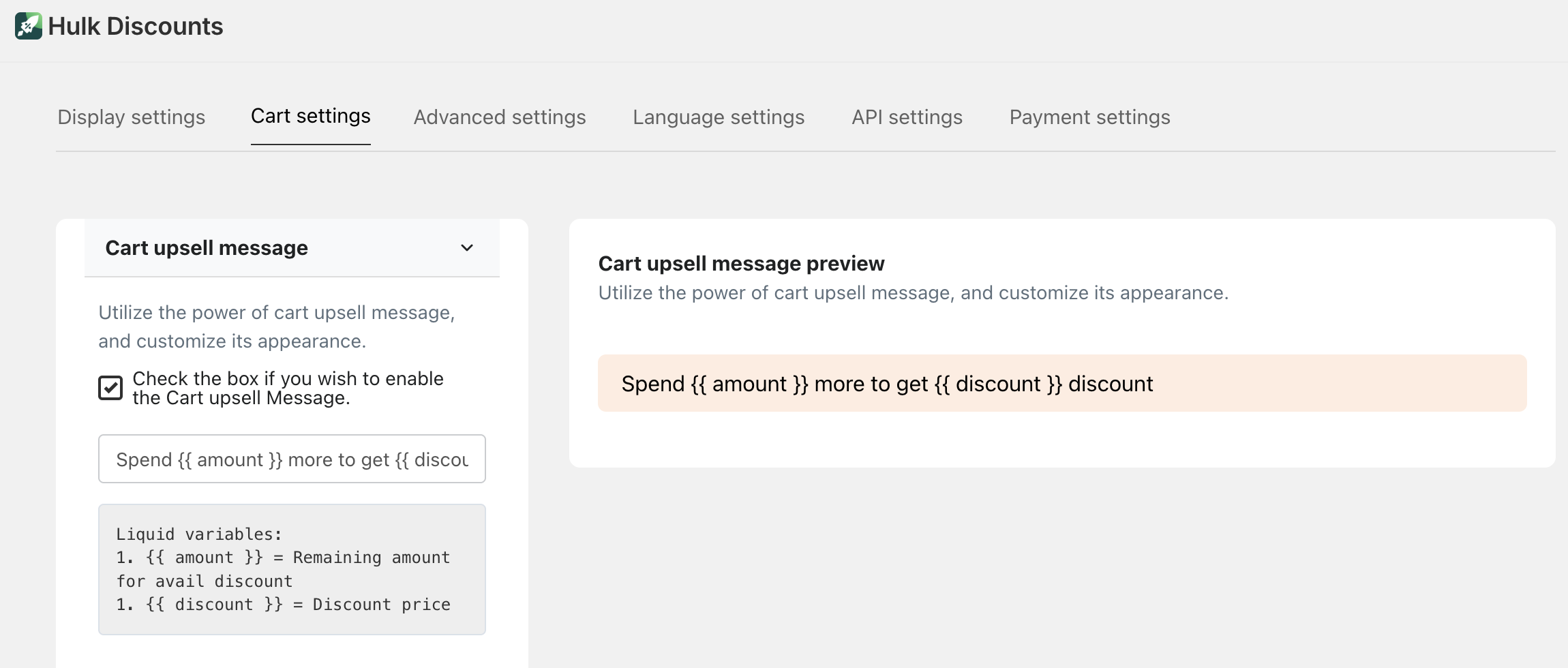
The Cart Upsell Message encourages customers to increase their cart value.
Example message:
Spend {{ amount }} more to get {{ discount }} discount
In simple terms:
This shows customers how much more they need to spend to unlock a discount.
You can customize:
The wording
The design and appearance
This is a great way to increase Average Order Value (AOV).
3. FOMO Message (Reminder Message)
FOMO stands for Fear of Missing Out.
This message motivates customers to add more items to qualify for a better discount.
You can customize both wording and appearance.
Per Item Discount Example:
Buy {{ quantity }} more and get {{ discount }} on each product
Bulk Discount Example:
Buy {{ quantity }} more and get {{ bulk_discount }} discount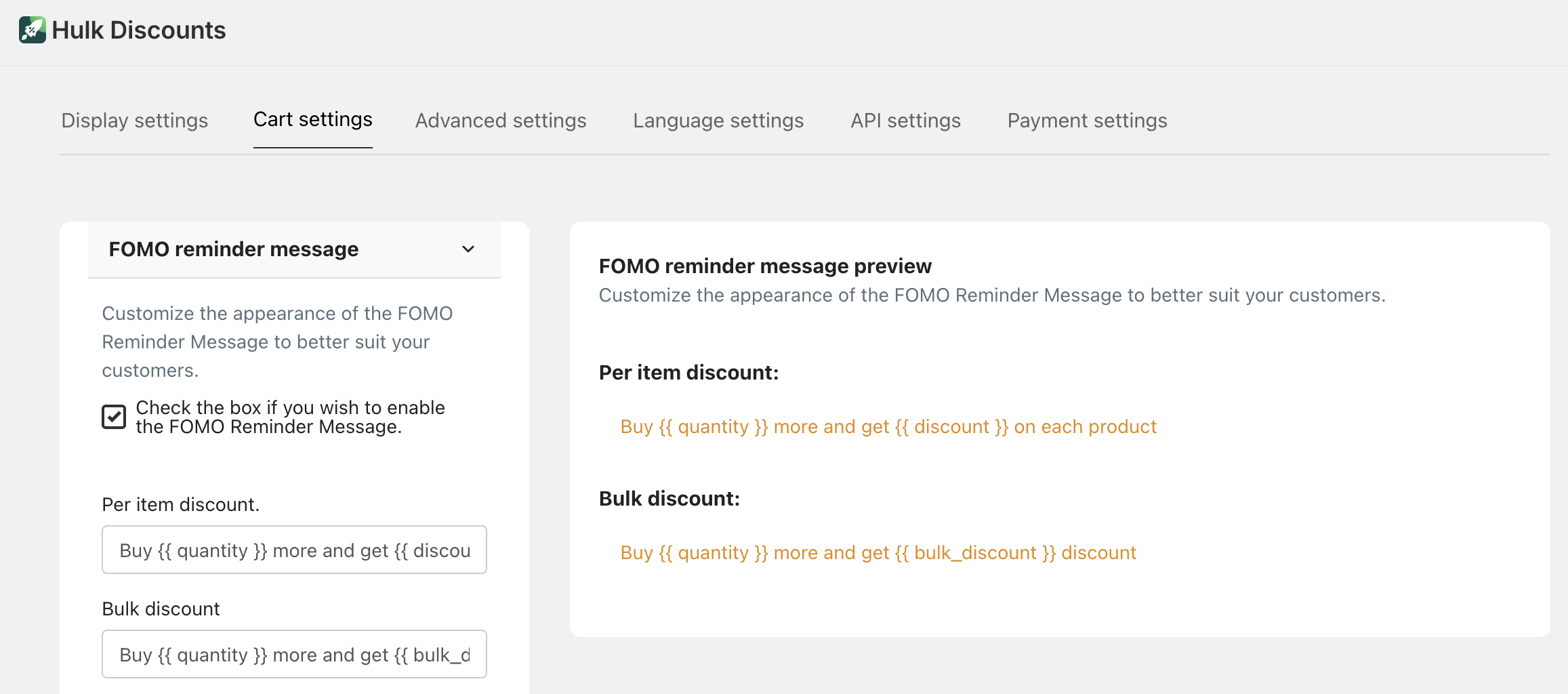
In simple terms:
It reminds customers how close they are to getting a better deal.
This helps push customers to complete higher-quantity purchases.
4. Discount Code Box
You can enable a Discount Code field directly on your cart page.
This allows customers to enter Shopify discount codes before checkout.
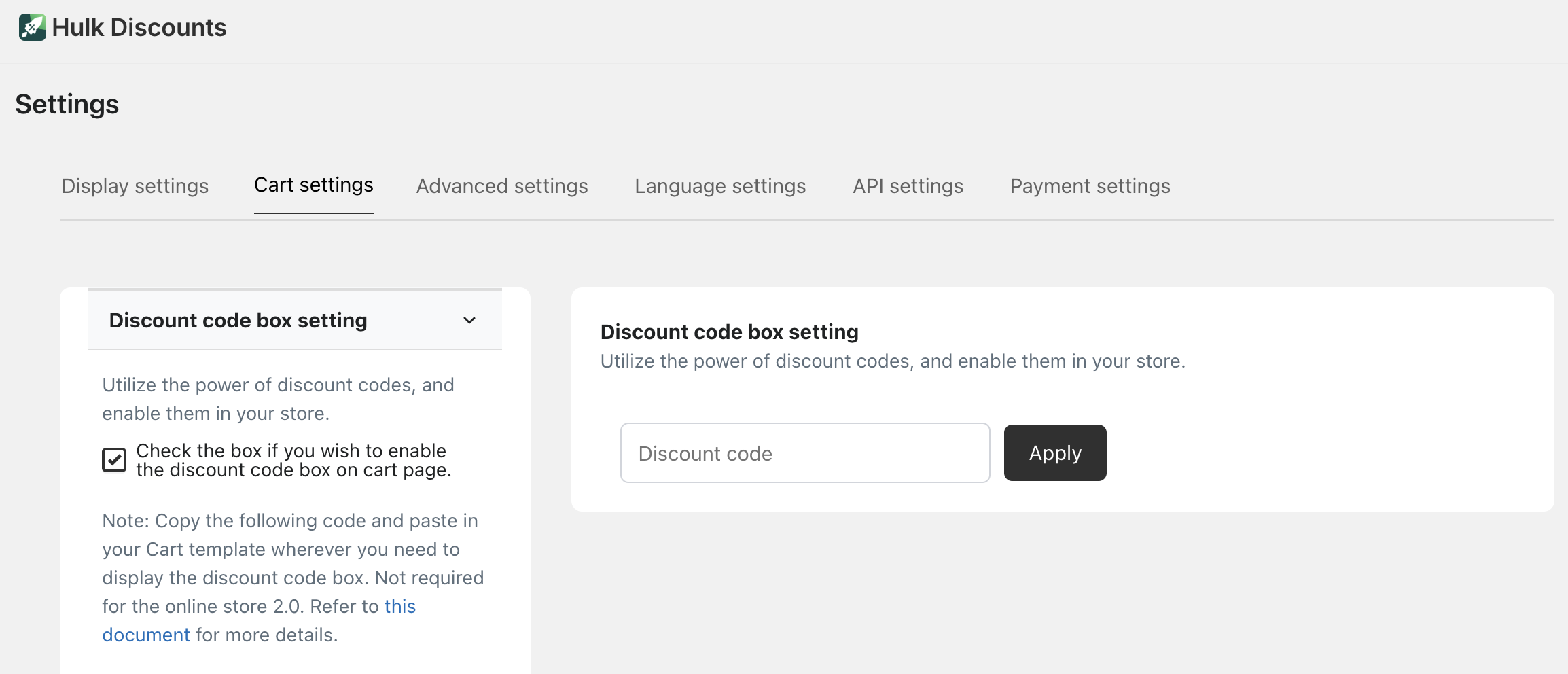
To enable it:
Check the box inside Cart Settings
Important
For some themes, you must:
Copy the provided code
Paste it into your Cart template where you want the discount box to appear
Note:
This is not required for Online Store 2.0 themes
Refer to the installation guide for detailed steps
Shopify Discount Code Behavior
You can also control how discount codes interact with your offers:
Apply discount before offer
Apply discount after offer
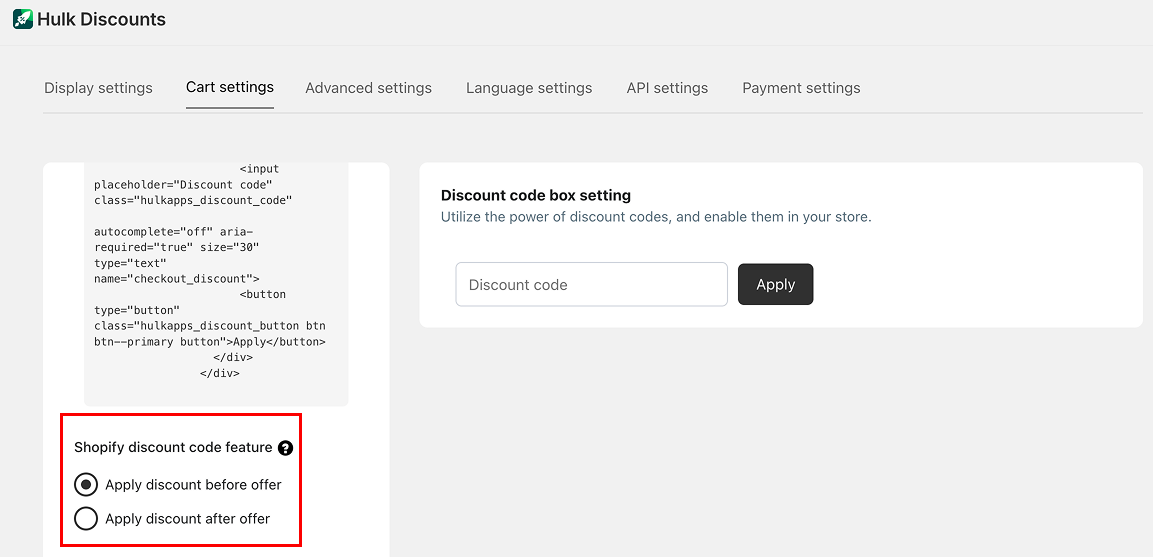
In simple terms:
Before offer → Shopify discount is applied first, then your app’s offer is calculated.
After offer → Your app’s offer is applied first, then Shopify discount is calculated on the updated total.
This gives you flexibility in how multiple discounts work together.
Was this article helpful?
That’s Great!
Thank you for your feedback
Sorry! We couldn't be helpful
Thank you for your feedback
Feedback sent
We appreciate your effort and will try to fix the article