1. Description of the Feature
The Notification Email Addresses setting allows you to receive an email notification every time a form is submitted. This ensures you and your team stay informed in real time without needing to log into the admin panel to check for new submissions.
You can add multiple email addresses to receive notifications. Simply separate the addresses with commas (e.g., example@gmail.com, example2@yahoo.com).
This feature is useful for:
Customer support teams monitoring incoming requests
Store owners who want direct alerts for new form activity
Collaboration, ensuring multiple team members get notified instantly
2. Steps to Configure Notification Email Addresses
Go to your form settings.
Select the Form Details tab.
Enable the checkbox Notification email addresses.
Enter one or more email addresses in the field provided.
To add multiple addresses, separate them with commas.
Example: support@yourstore.com, sales@yourstore.com.
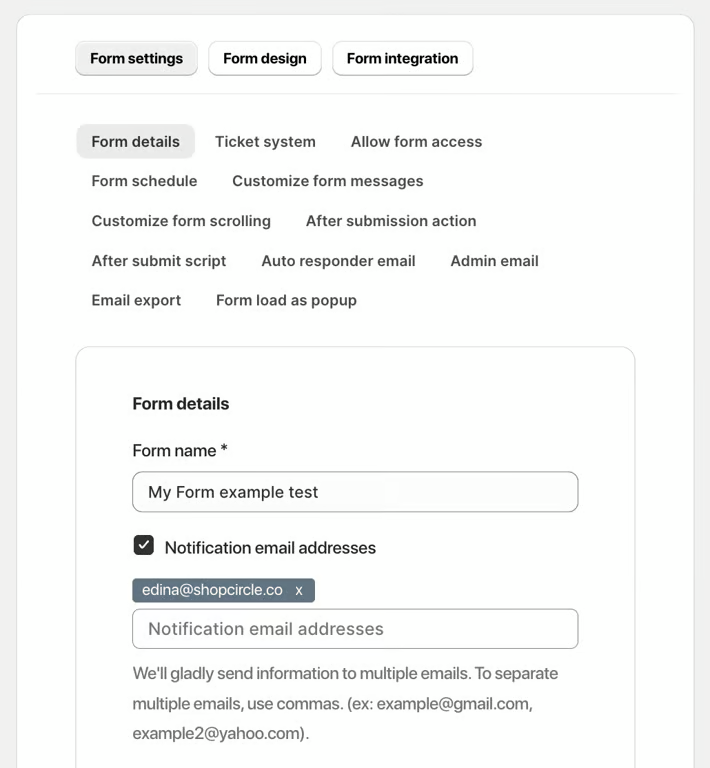
Save your changes.
3. How It Looks
On the Admin Side
Each time a form is submitted, the system will automatically send an email notification to the addresses you entered.
Submissions remain accessible in the admin panel regardless of notification settings.
On the Storefront (Customer Side)
Customers do not see or interact with notification emails.
This feature only affects internal communication for the store’s team.
Was this article helpful?
That’s Great!
Thank you for your feedback
Sorry! We couldn't be helpful
Thank you for your feedback
Feedback sent
We appreciate your effort and will try to fix the article