1. Click on “Form Design” to proceed and edit your form
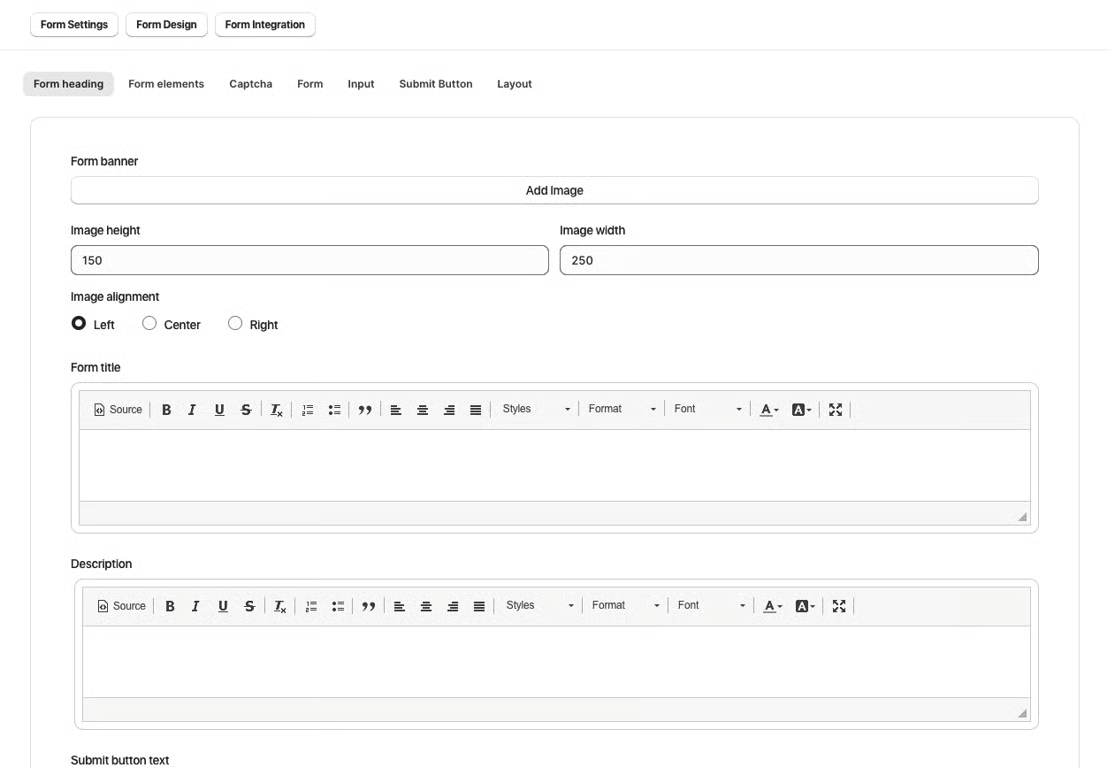
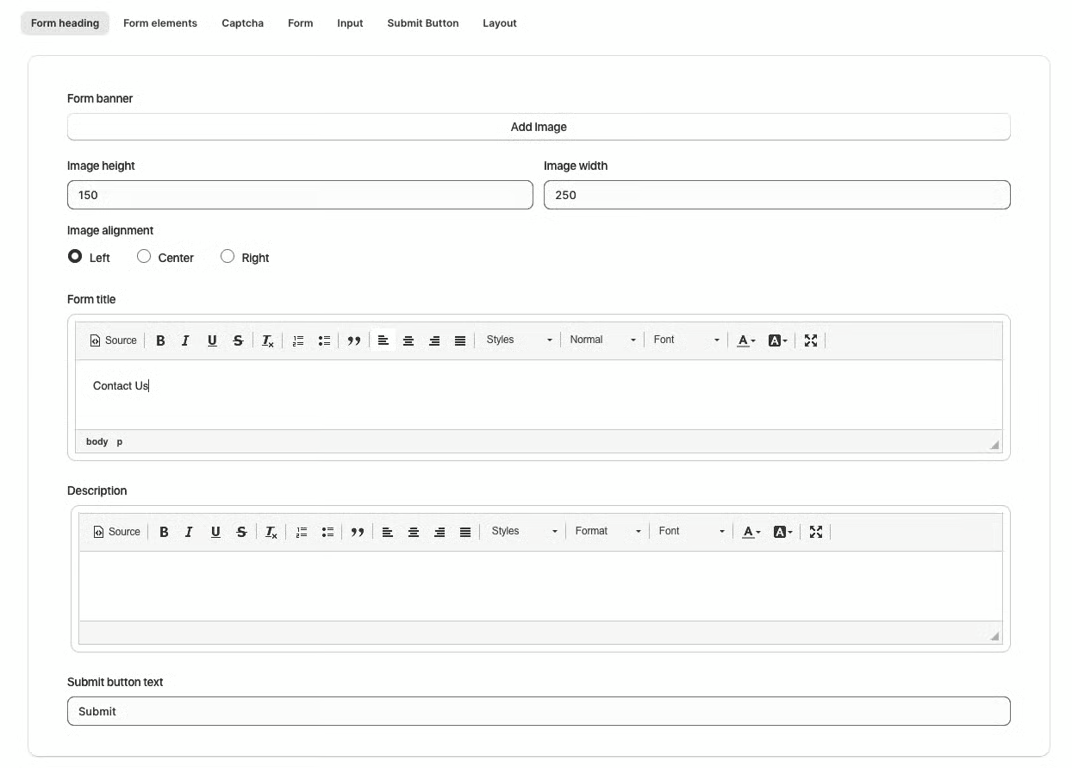
2. Edit the “Form Title”, “Description”, and “Submit Button Text” under “Form Heading”
3. Add, remove, or edit any form elements under “Form Element”
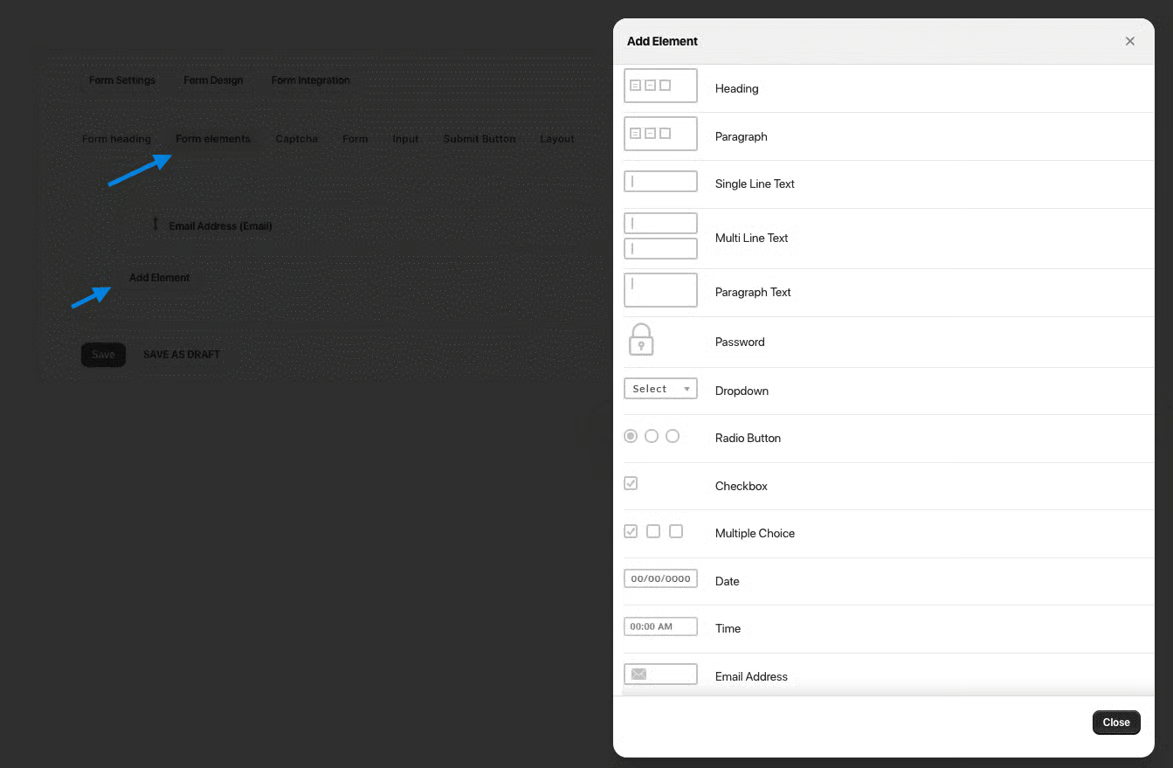
More advanced customization is presented once you enter your chosen element:

Additionally, changing the order of the elements can be achieved by simply dragging the element in question with the use of arrows:

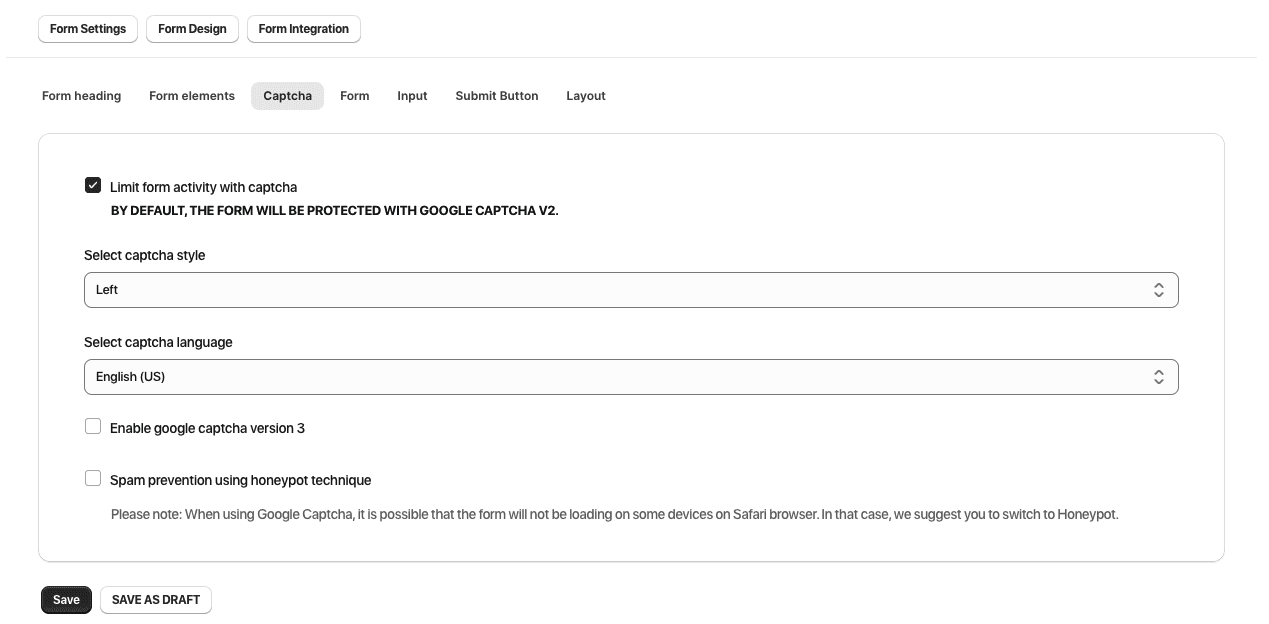
4. Toggle “Captcha” to prevent spam
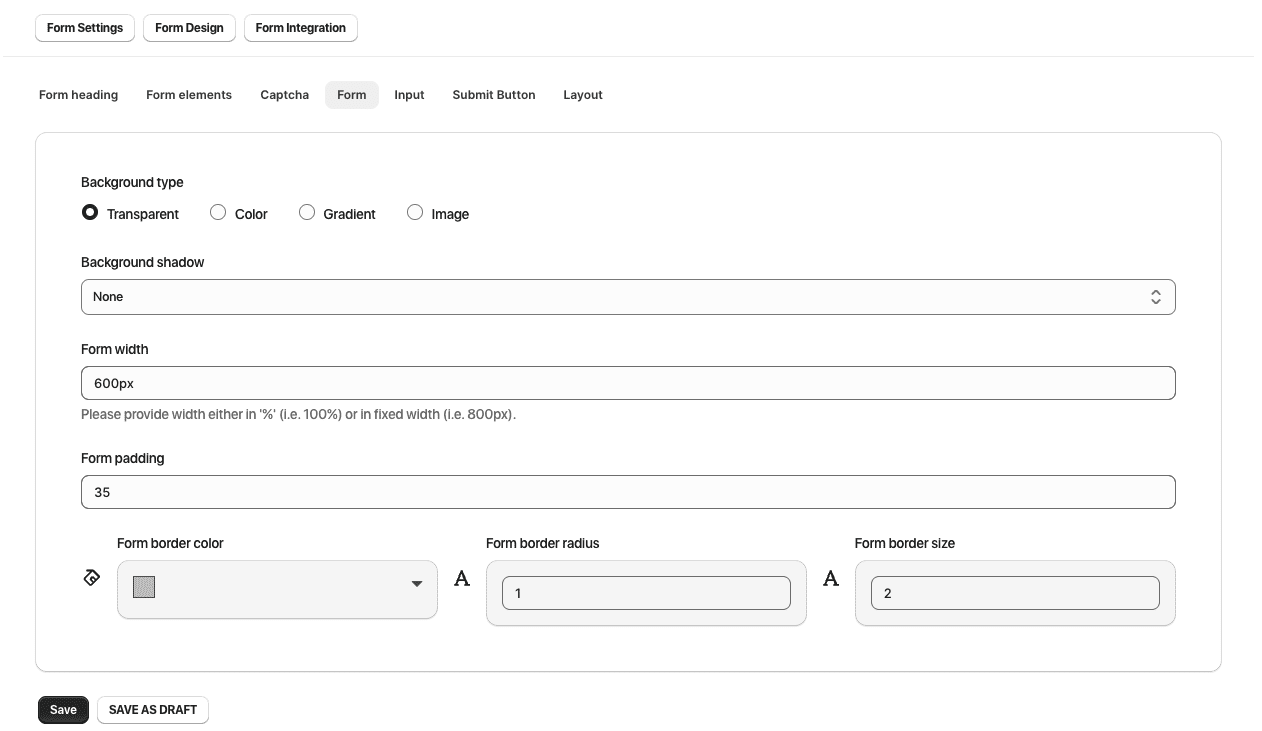
5. Under “Form” you can design the "Background Type & Shadow" along with "Form Padding", "Form Width" & "Form Border" options.
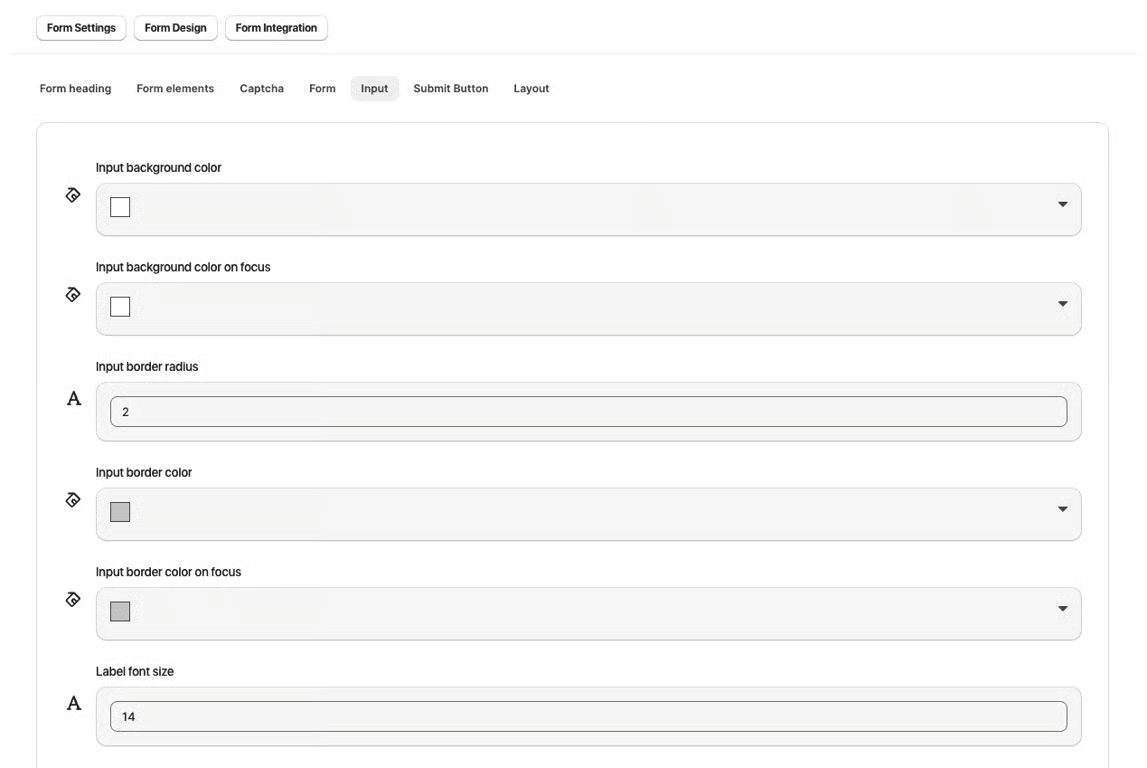
6. Under “Input”, you can customize the appearance of the input fields on the form as well as text size, color, and font of the “Label Text” and “Input Text”
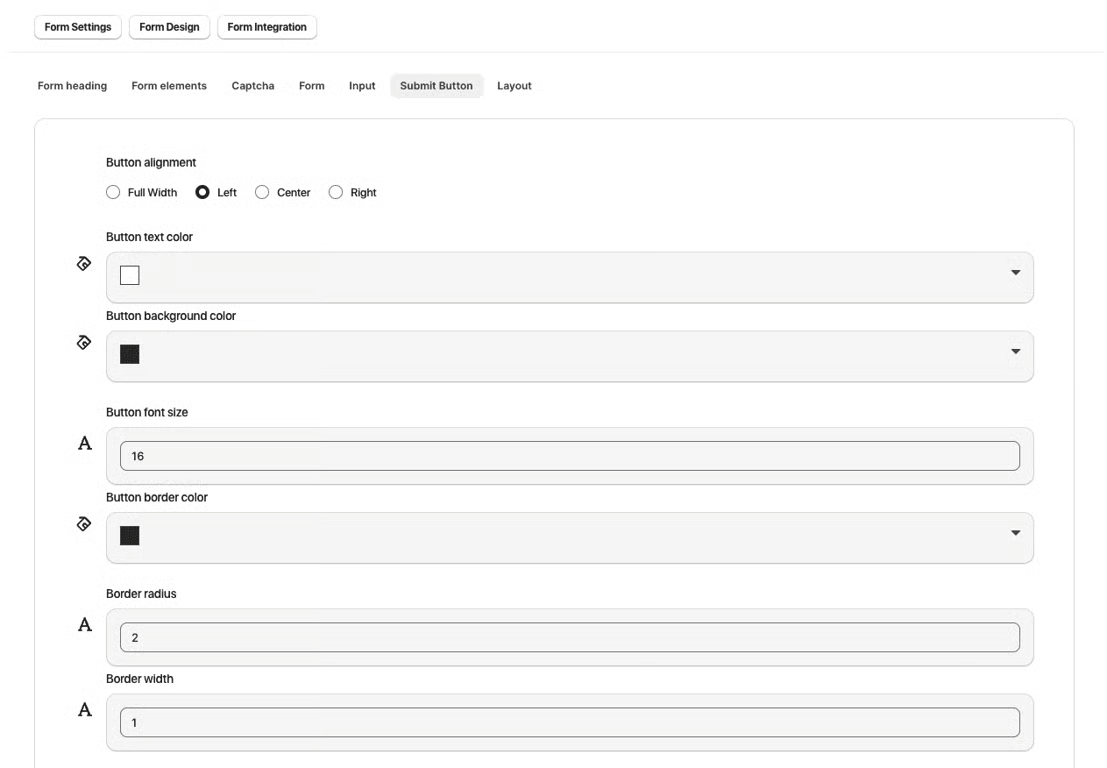
7. Customize the alignment, color, and border of the “Submit Button”
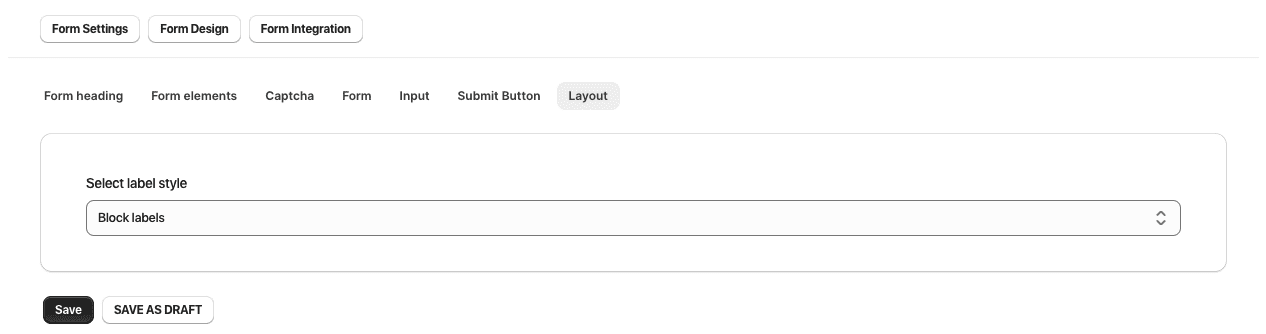
8. Select a label style under “Layout”
Was this article helpful?
That’s Great!
Thank you for your feedback
Sorry! We couldn't be helpful
Thank you for your feedback
Feedback sent
We appreciate your effort and will try to fix the article