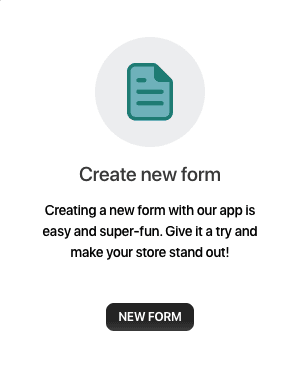
1. Select “New Form” under “Create New Form”
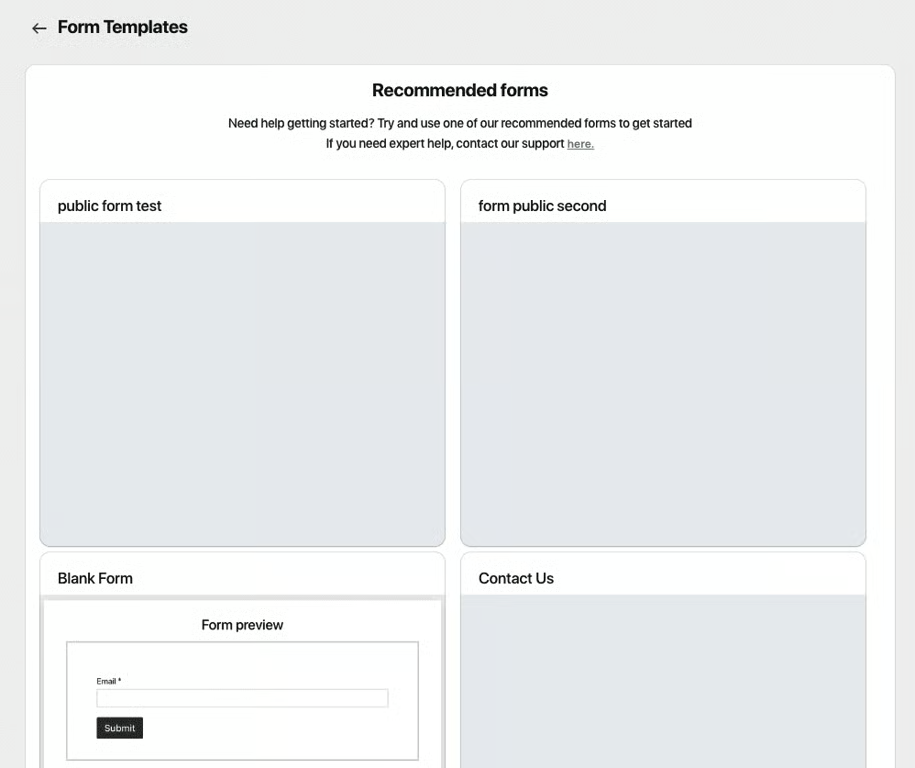
2. Select a form template or select “Blank Form” to start from scratch
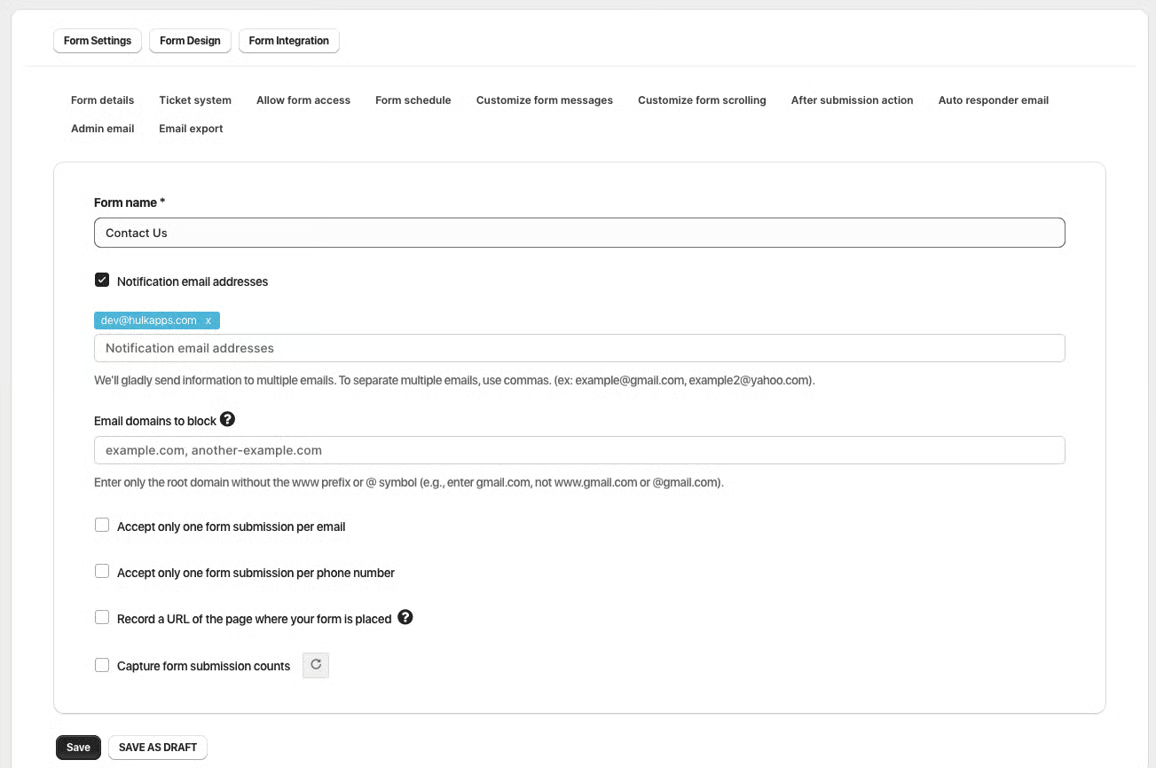
3. Enter “Form Name” and “Notification Email Addresses” under “Form Details”
4. Edit form messages under “Customize Form Messages”
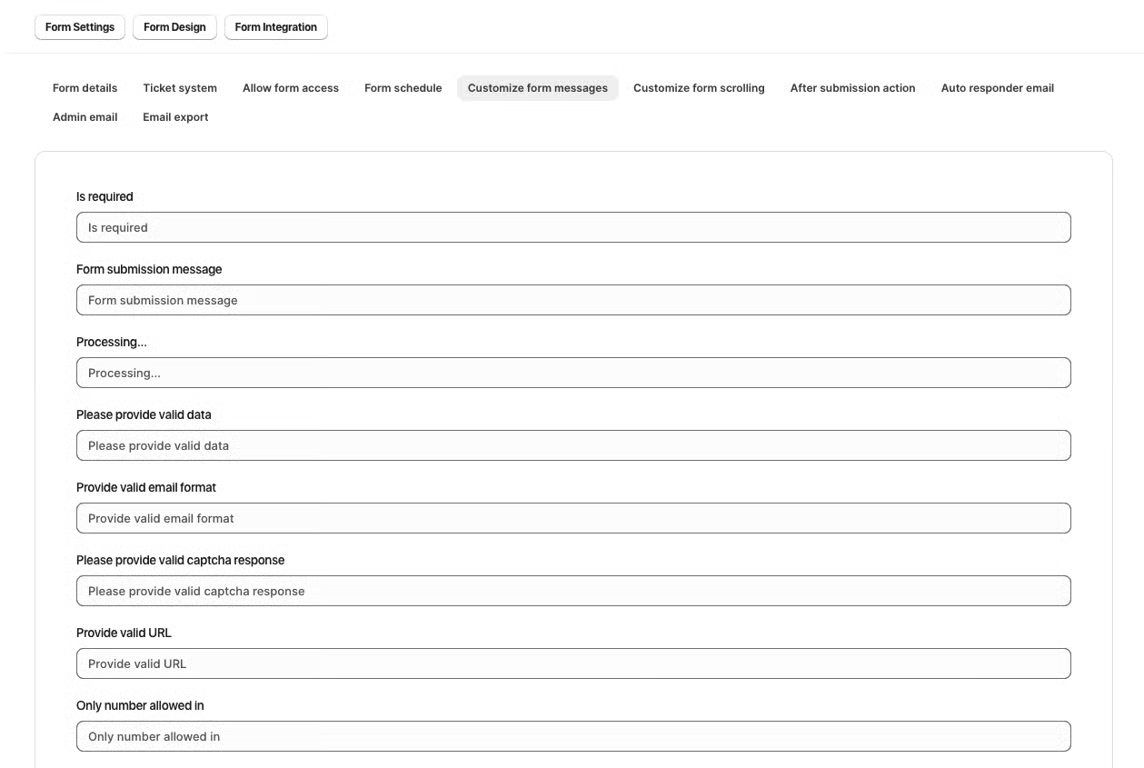
These are the error options that are displayed to the customers when they receive an error message if any mistake is made while submitting the form.
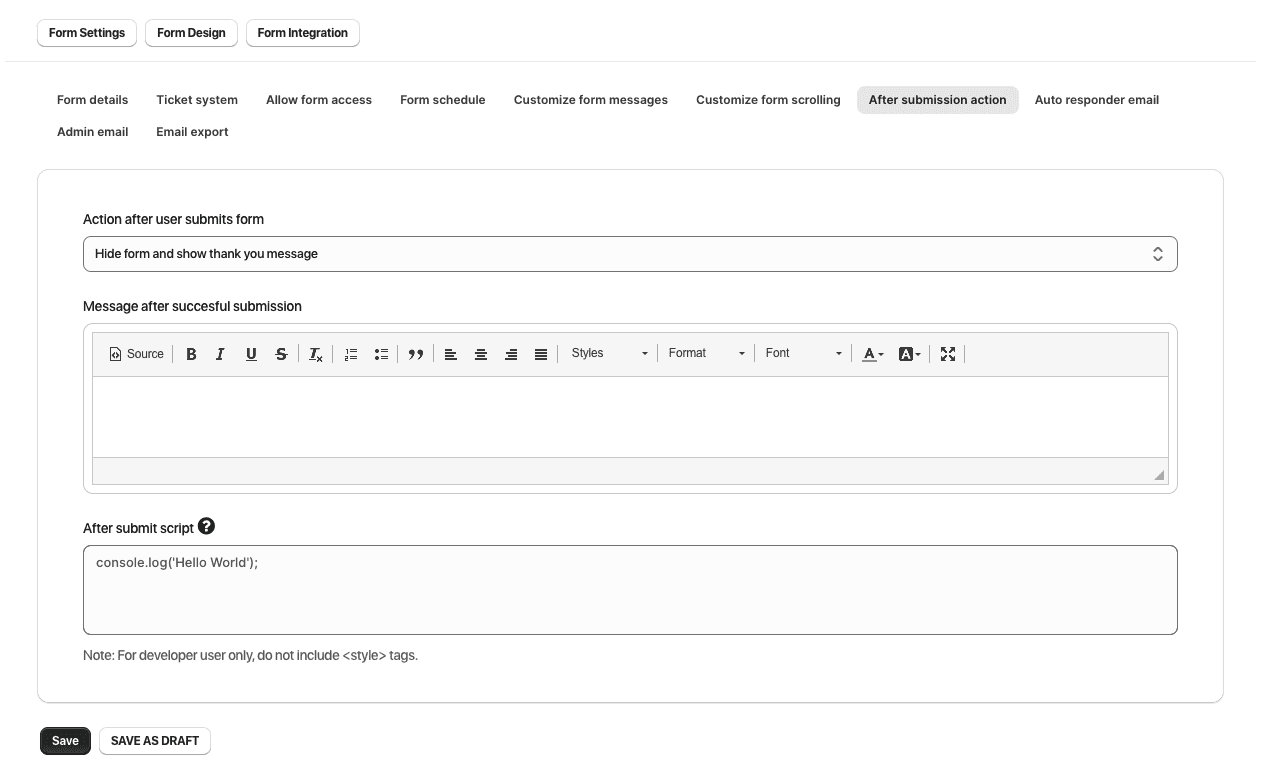
5. Under “After Submission Action” you can configure what happens after the form is submitted.
6. Create an auto-response to reply to the customer under “Auto Responder Email”
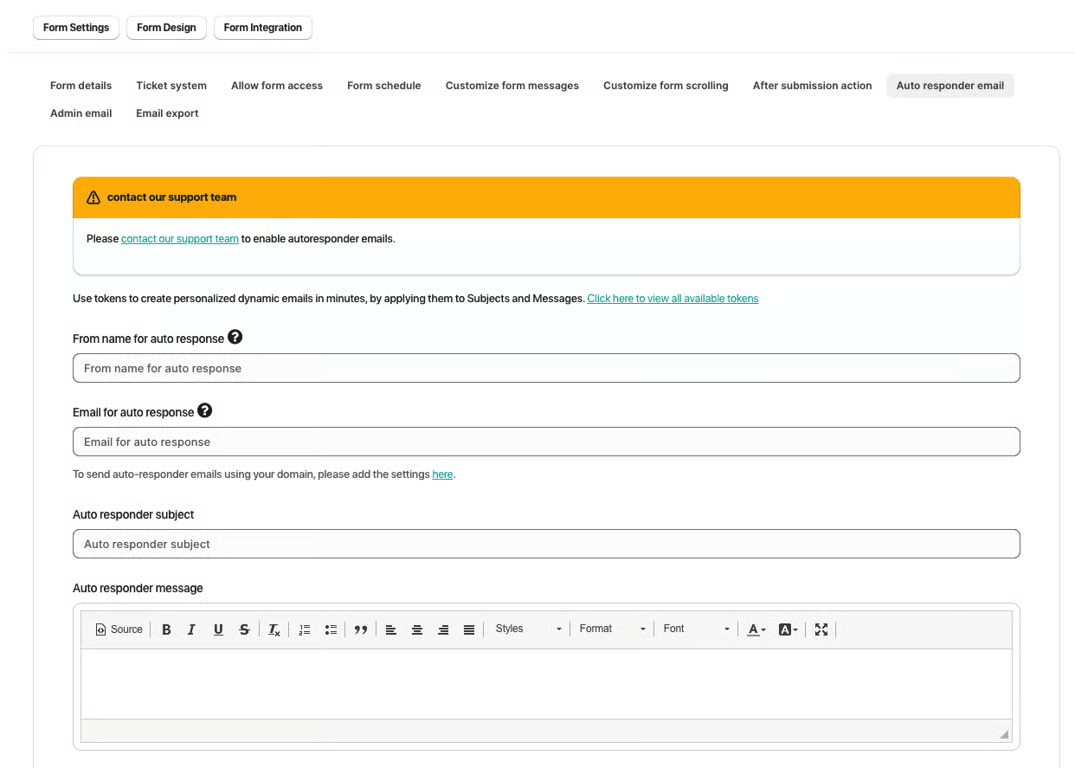
Users can add/edit the "Auto Responder" email address along with its "Subject", "Body Text" and "Footer Message". An additional option "Include user's response in auto-responder email" is also added here. By checking this option your customer will receive a copy of their submitted form.
Was this article helpful?
That’s Great!
Thank you for your feedback
Sorry! We couldn't be helpful
Thank you for your feedback
Feedback sent
We appreciate your effort and will try to fix the article