Push notifications are a powerful way to engage your mobile app users, promote products, announce offers, and drive customer retention. With the Hulk Mobile App Builder, you can send notifications instantly or schedule them for a future date and time.
Creating a New Push Notification
Open the Push Notifications tab from your Hulk Mobile App Builder dashboard.
Click New Notification.
A dialog box will appear where you can configure your notification.
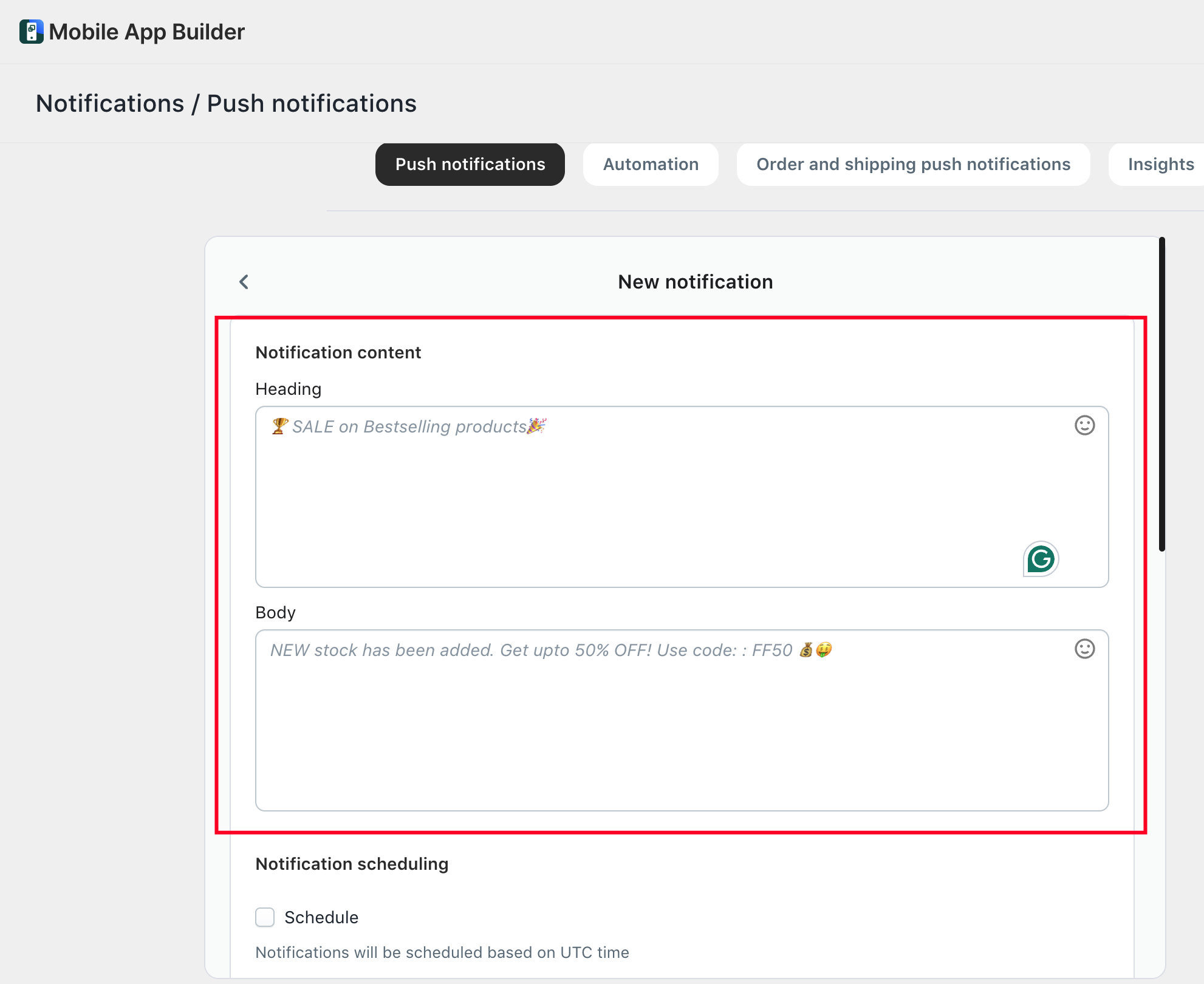
Add Notification Content
Enter the following details:
Heading
Add the title of your notification. This is the first text users will see when they receive the notification.
Body Text
Add the main message you want to deliver to your customers.
Send Instantly or Schedule
You can choose one of the following options:
Send Instantly
The notification will be sent immediately to the selected audience.
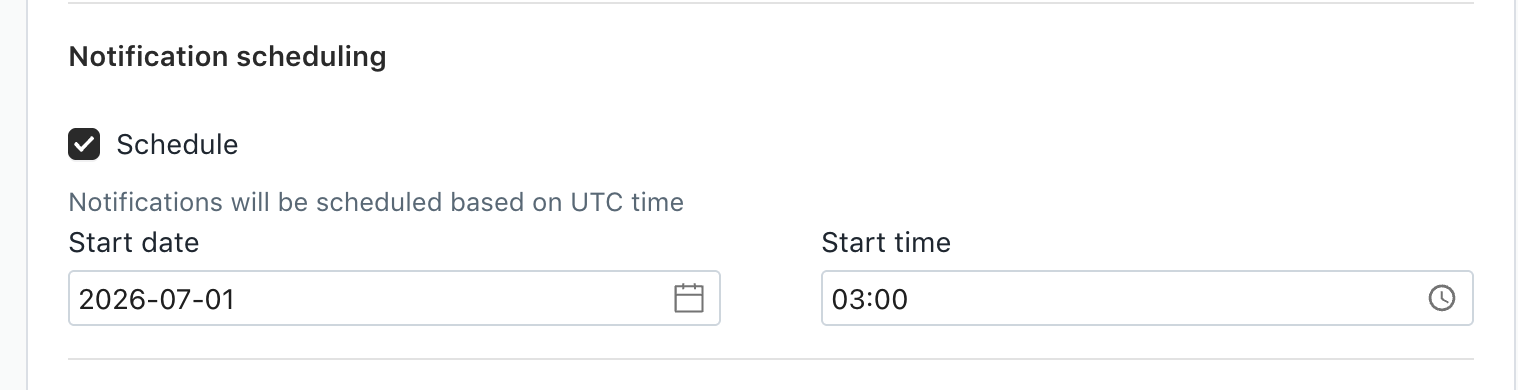
Schedule Notification
If you prefer to send the notification later, select the Schedule option and choose the desired date and time.
Important: Scheduled notifications must be configured using the UTC timezone. Please ensure the selected date and time are entered in UTC.
Select Device Type
Choose which devices should receive the notification:
iOS
Android
Both iOS and Android
Select Tags (Optional)
Tags allow you to target specific groups of customers.
If you want to send notifications only to customers associated with specific tags, select the desired tags from the list.
Configure Notification Action
Choose where users should be redirected when they tap the notification.
Available options include:
Product
Collection
Webpage
This helps drive users directly to relevant content within your app or store.
Choose Customer Segment
Select the audience that should receive the notification:
Subscribed Users
All users who have subscribed to receive push notifications.
Active Users
Users who have opened the app within the last 7 days.
Inactive Users
Users who have not opened the app within the last 7 days.
Regional Users
Send notifications to users from specific countries or regions.
This segmentation allows you to create highly targeted marketing campaigns and improve engagement.
Add an Image (Optional)
You can upload an image to make your notification more visually appealing and increase user engagement.
Save and Send
After reviewing all settings:
Click Save.
The notification will either be sent immediately or scheduled according to your selected settings.
Managing Scheduled Notifications
Any scheduled notification can be viewed and managed from the Push Notifications section.
If needed, scheduled notifications can be deleted before their scheduled delivery time.
By using audience segmentation, tags, custom actions, and scheduling options, you can deliver the right message to the right users at the right time, helping maximize engagement and conversions within your mobile app.
This format is suitable for your Help Center, knowledge base, or documentation portal.
Was this article helpful?
That’s Great!
Thank you for your feedback
Sorry! We couldn't be helpful
Thank you for your feedback
Feedback sent
We appreciate your effort and will try to fix the article