Create more visually engaging forms by adding layout images and choosing how they are displayed within your form.
You can configure layout images in:
Form Editor → Apperance → Form Layout
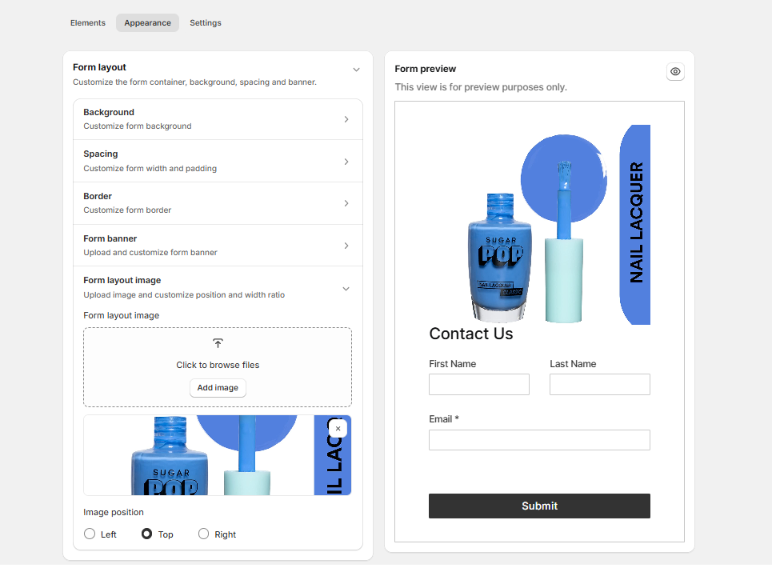
Add a Layout Image
Upload an image to enhance your form design and create a more branded, visually appealing experience for your customers.
Choose Image Placement
Select how the image is displayed within the form layout:
- Top
- Left
- Right
This gives you flexibility to create different form styles depending on your design preferences and content structure.
Adjust Image Size Ratio
When using left or right image placement, you can customize how much space the image takes compared to the form content.
Use the ratio control to:
- Create balanced split layouts
- Emphasize visuals
- Keep the form compact and clean
Select the Visible Image Area
Use the image position picker to choose which part of the image should be displayed within the layout.
This is useful for:
- Highlighting specific areas of an image
- Adjusting portrait or landscape images
- Improving image cropping and focus
Changes are reflected instantly in the form preview, allowing you to quickly fine-tune your form design.
Was this article helpful?
That’s Great!
Thank you for your feedback
Sorry! We couldn't be helpful
Thank you for your feedback
Feedback sent
We appreciate your effort and will try to fix the article