Data Sent to Shopify Flow
Order Information (All Order Data)
Order Label
Event Name
Customer Last Name
Customer First Name
Tracking Number
Carrier
Shipment Status
Tracking Page Link
Carrier Tracking Link
Pickup Location
Order Customer Link
Sub Status
Latest Shipment Address
Latest Shipment Message
This article explains how to complete each step successfully and ensure customer information appears correctly in Shopify Flow in real time. Please follow the steps carefully.
Event Names
Using this event name, we can set up a condition in shopify flow for different order statuses
order_created
shipment_label
pre_transit_for_Shipment
in_transit_shipment
out_for_delivery_for_shipment
pickup_ready_for_shipment
delivered_shipment
failed_shipment
expired_shipment
shipment_status_update
Step 1: Connect Order Status Tracker to Shopify Flow

Enable Shopify Slow integration.
Press Save.
Step 2: Install the Shopify flow App
Install the Shopify Flow app from the Shopify App Store
Create a new workflow
Select a Trigger and choose the Order Status Tracker app
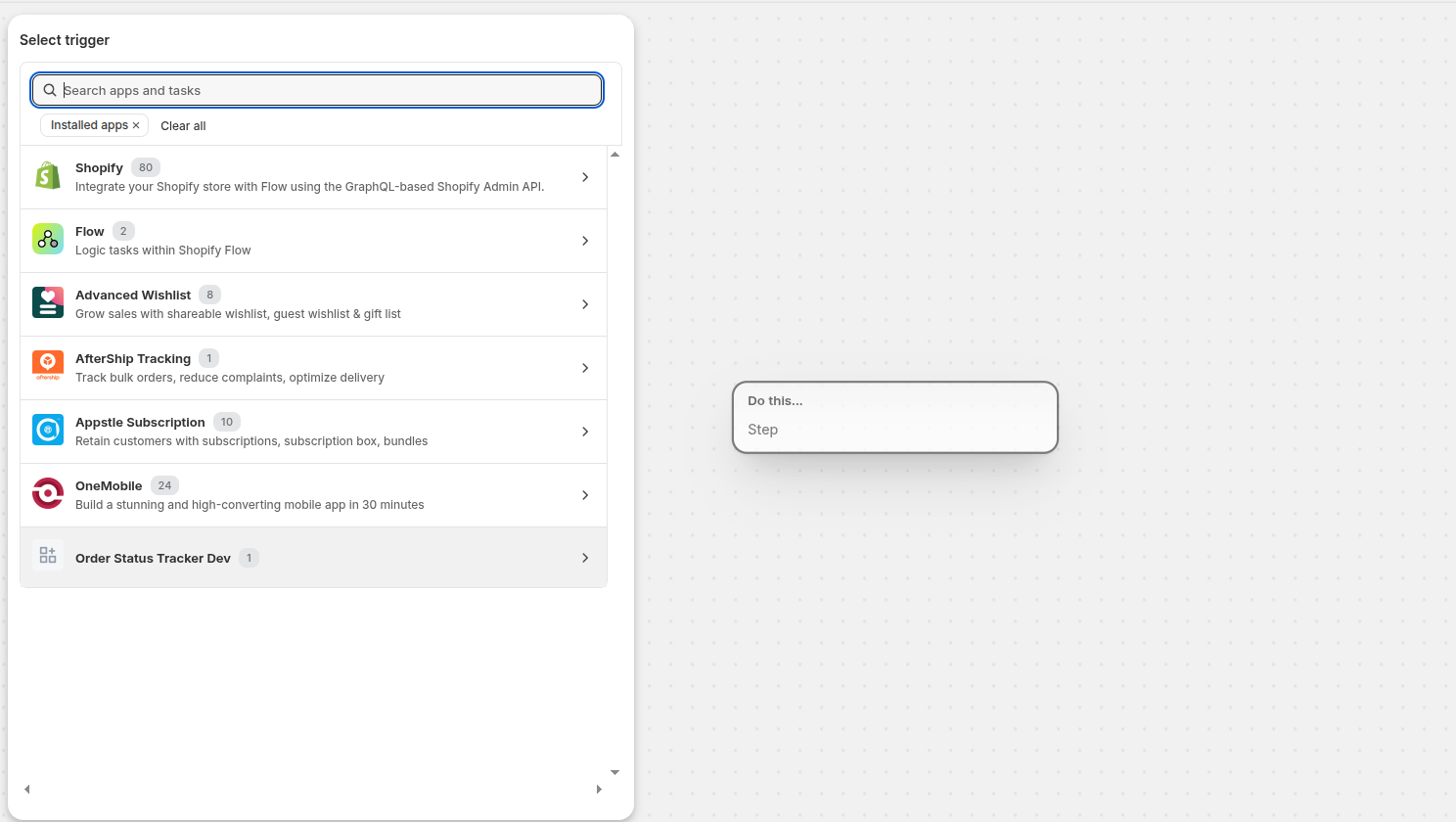
Step 3: Configure and Trigger
- Select the trigger
order-status-trigger. - Click the trigger and add an Action or Condition based on your requirements.
- (Example)
Action: Shopify Flow → Log
Add the required variables to the log.
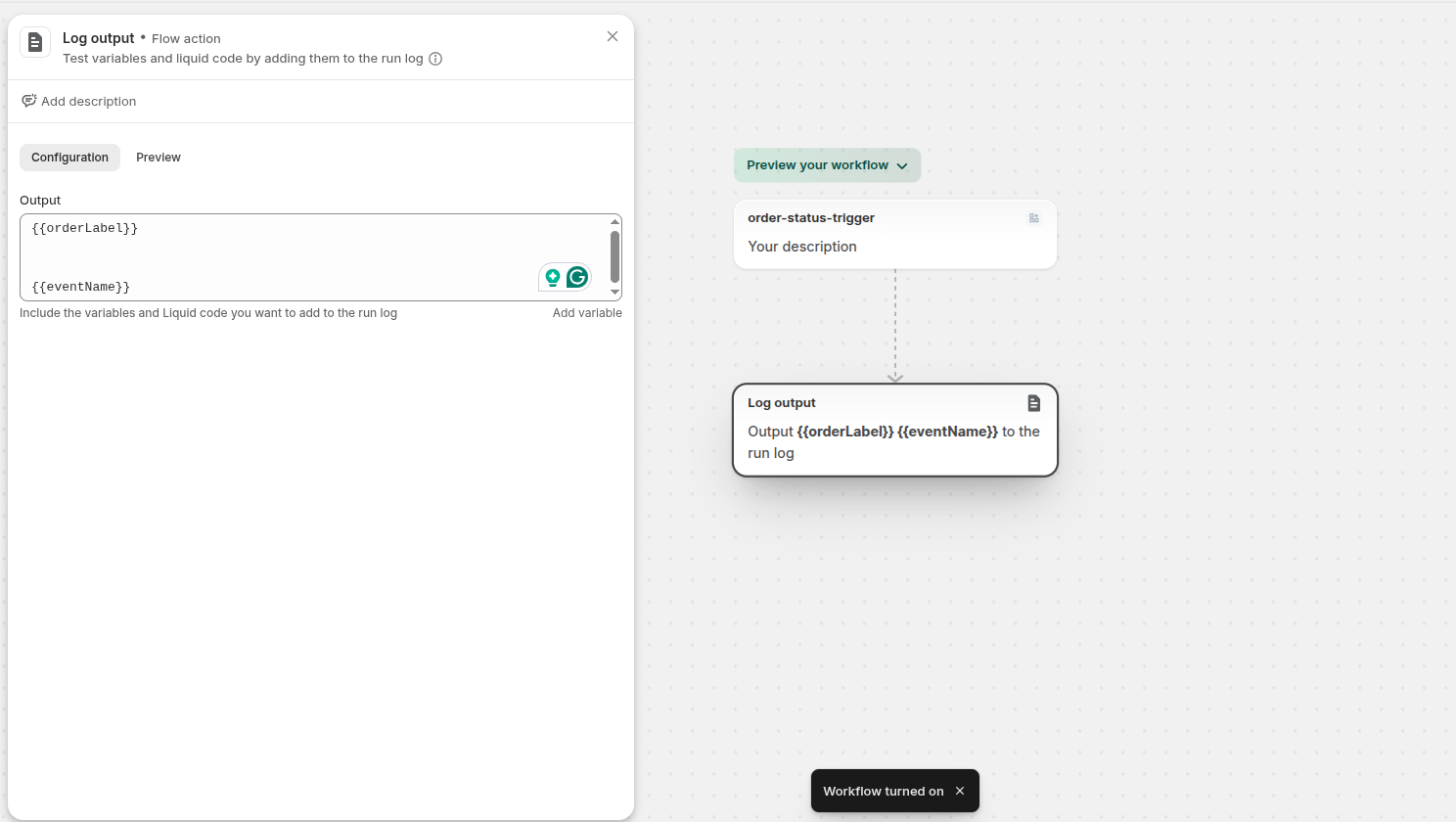
Step 4: Workflow Execution
When an order is created or a tracking status is updated, the workflow will run automatically.
Your Order Status Tracker and Shopify Flow are now connected.
Merchants can configure different actions based on the following event types:
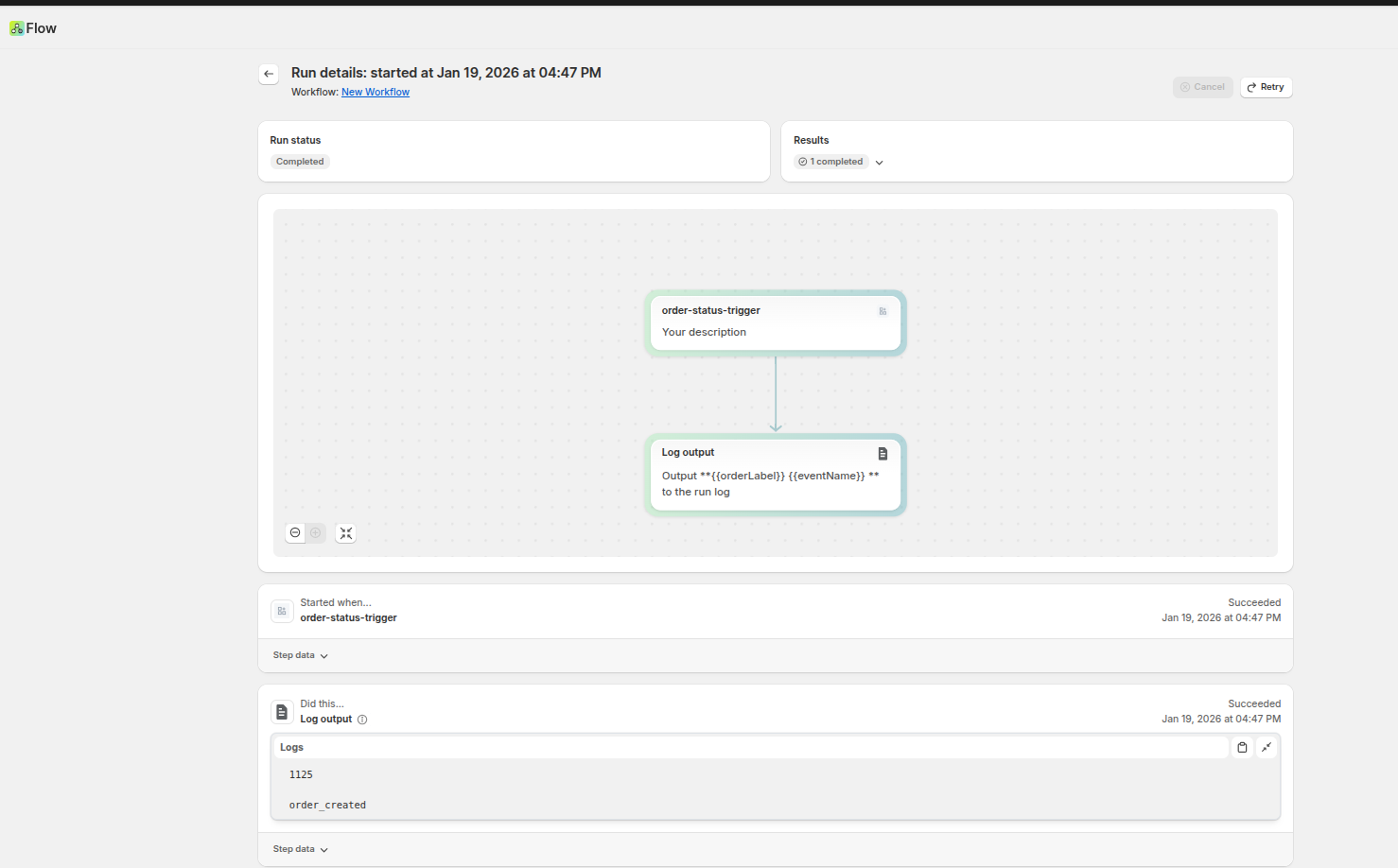
Your Order Status Tracker and Shopify Flow are now connected!
A merchant can set up different actions based on different event types.
Order_created
shipment_label
pre_transit_for_Shipment
in_transit_shipment
out_for_delivery_for_shipment
pickup_ready_for_shipment
delivered_shipmento
failed_shipment
expired_shipment
shipment_status_update
For any help, contact our customer support team!
Was this article helpful?
That’s Great!
Thank you for your feedback
Sorry! We couldn't be helpful
Thank you for your feedback
Feedback sent
We appreciate your effort and will try to fix the article
