What are Checkout Upsells?
Checkout Upsells allow you to present additional product offers to customers after they complete their payment - directly on the Thank You page, the Order Status page, or both.
Once a customer finalizes their purchase, they are shown a personalized offer encouraging them to add more items to their order. Merchants can fully customize the messaging displayed alongside the offer.
To further increase conversions, you can apply either manual discounts or dynamic discounts to the upsell products, providing customers with an additional incentive to purchase.
How to Set Up a Checkout Upsell
Step 1: Create a New Upsell Offer
Navigate to the Checkout Upsells page.
Click Add New.
You will be redirected to the offer creation and editing page.
Step 2: Configure the Offer Details
1. Offer Name
Enter a name for your checkout upsell.
This name will be displayed on the Thank You and/or Order Status page when the upsell appears.
2. Select the Trigger Conditions
Choose what will trigger the upsell to appear. The offer can be triggered based on:
Product
Variant
Collection
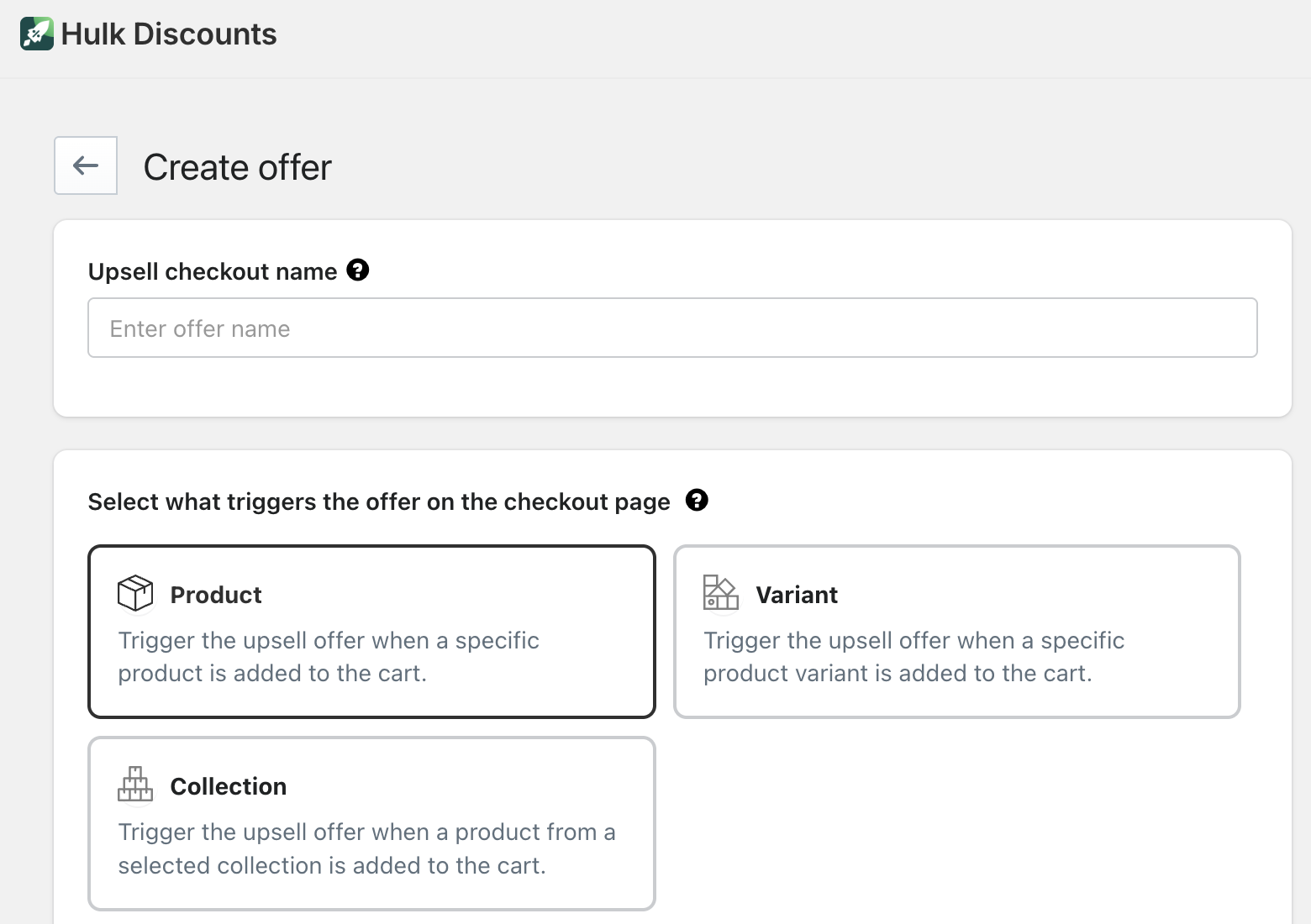
If you select Product, you can define triggers in one of the following ways:
Select All
The upsell will appear regardless of which product the customer purchased.Custom Selection
Choose specific product(s) that will trigger the upsell.Product Tags
Enter product tags (separated by commas). Any purchased product with those tags will trigger the upsell.
Once the trigger conditions are defined, proceed to select which product(s) will be offered as the upsell.
3. Choose the Upsell Product(s)
Select what you want to offer when the trigger conditions are met:
Specific product(s)
Specific variant(s)
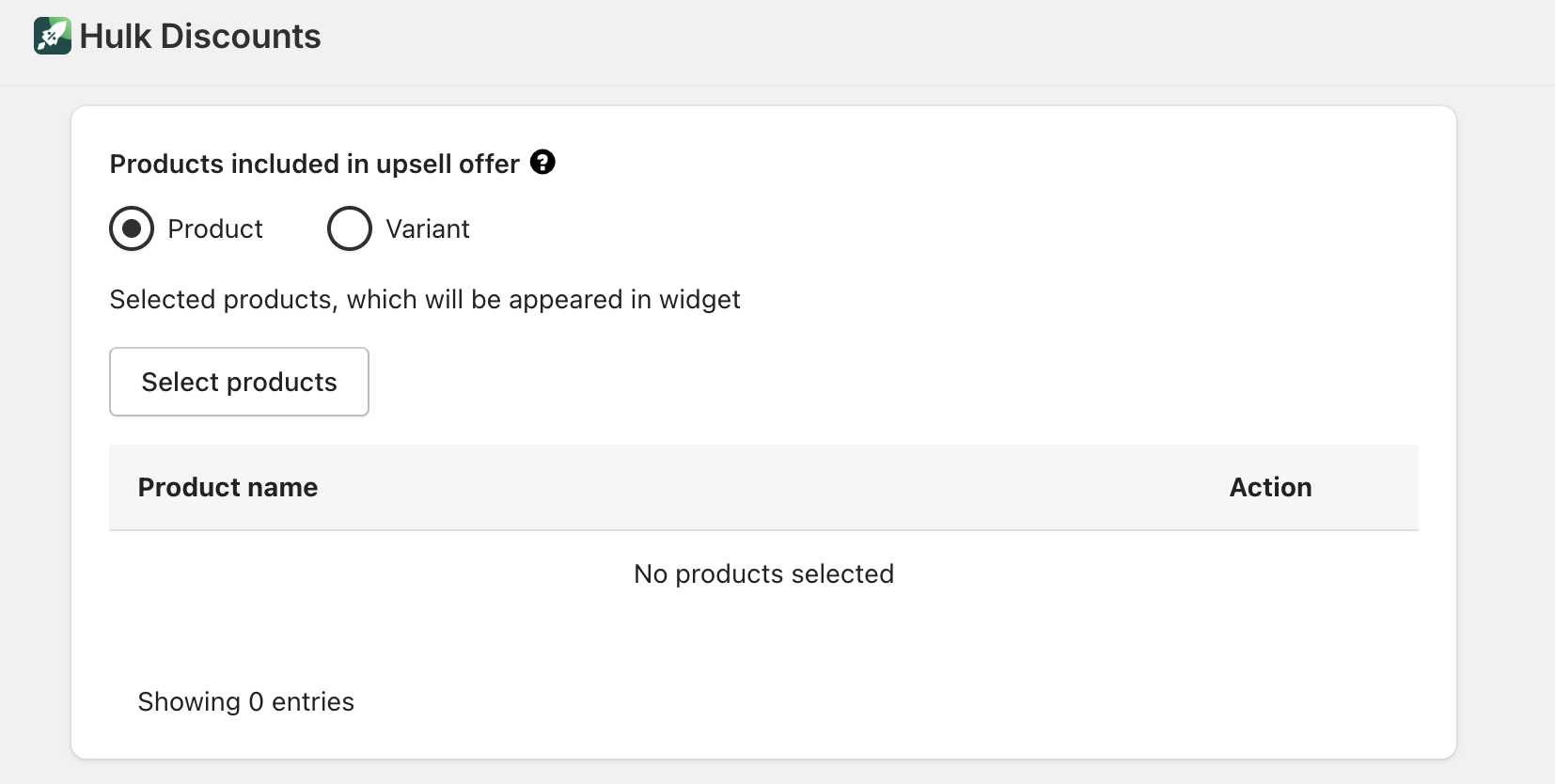
Example:
If a customer purchases a green skirt, you can offer the same skirt in blue as an additional option; encouraging them to complete their look with another color variation.
4. Select Where the Upsell Will Appear
Choose the display location: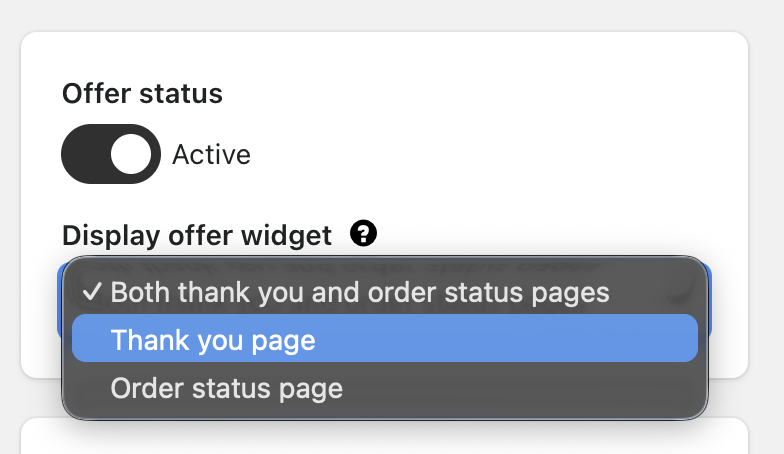
Both Thank You and Order Status pages
Only the Thank You page
Only the Order Status page
Step 3: Customize the Offer Content
You can personalize the text displayed with the upsell offer.
Available fields include:
Offer Title
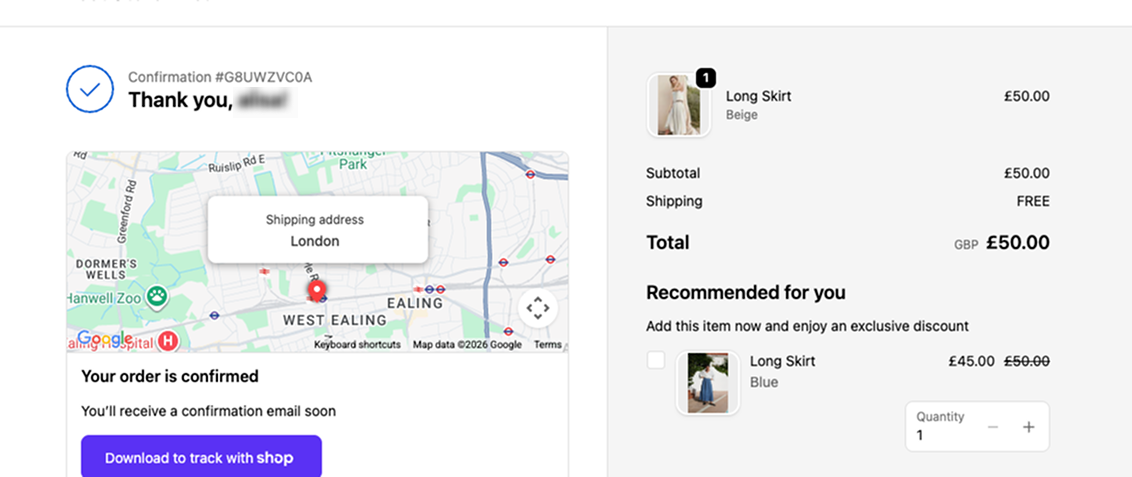
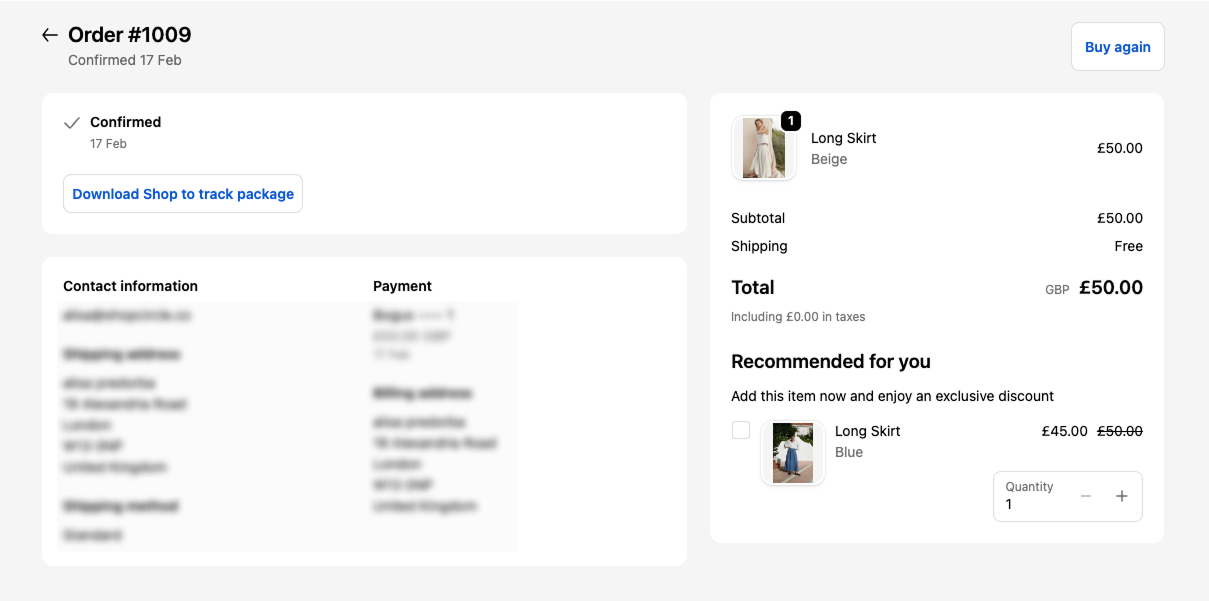
Example: Recommended for YouOffer Description
Example: Add this item now and enjoy an exclusive discount.
These fields allow you to tailor messaging to match your brand tone and promotional strategy.
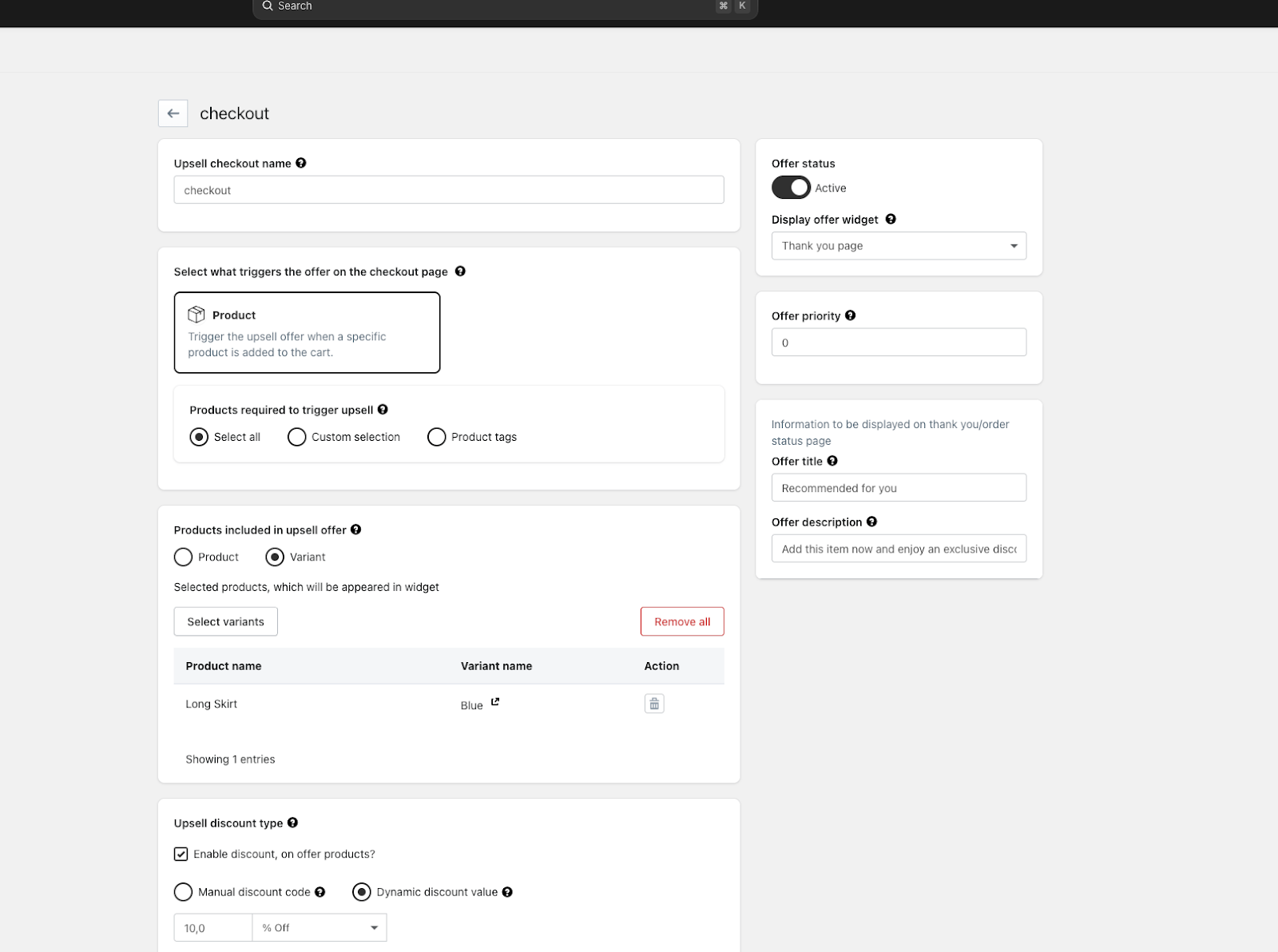
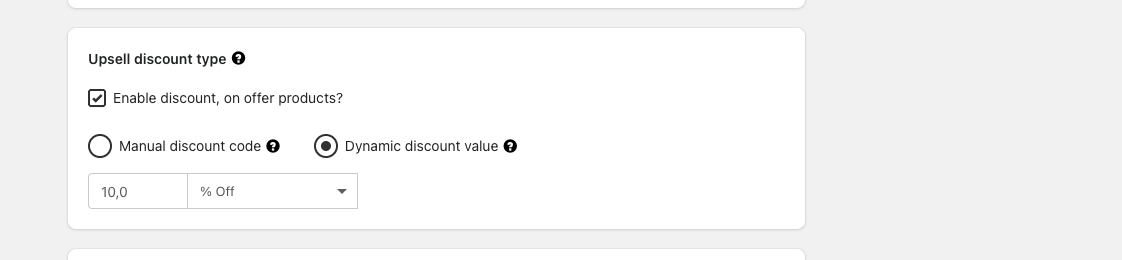
Step 4: Apply Discounts (Optional)
To increase conversion rates, you can offer the upsell product at a discounted price by applying:
Manual Discount – Set a fixed discount amount or percentage.
Dynamic Discount – Automatically calculated based on predefined rules.
Step 5: Additional Settings
You can further configure the offer with the following options:
Allow multiple quantities
Customers can add more than one unit of the upsell product.Allow adding the same item already purchased
Customers can add the same product that is already included in their original order.
Important: Activate the Upsell
For the upsell to appear on your store, you must complete both of the following steps:
1. Activate the Offer
Ensure the offer status is set to Active within the offer settings.
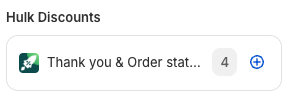
2. Enable the App Block in Your Theme
Go to the Checkout Upsells Dashboard.
Click Enable App.
You will be redirected to your theme customization settings.
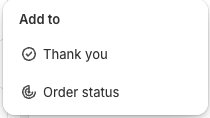
Add the app block to:
Thank You page
Order Status page
Or both

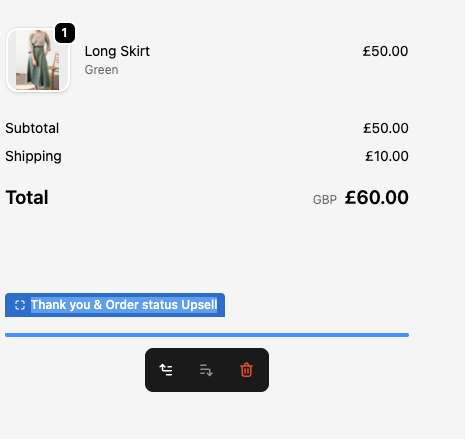
Click Save.
The upsell will only be displayed once the app block is properly added and saved in your theme.
Sample of thank you page upsell on storefront:
Sample of order status page upsell on storefront:
Was this article helpful?
That’s Great!
Thank you for your feedback
Sorry! We couldn't be helpful
Thank you for your feedback
Feedback sent
We appreciate your effort and will try to fix the article