Tired of exporting your collected responses?
We have amazing news for you! Our Form Builder app offers Google Sheet Integration.
Follow these simple steps to integrate Google Sheets with your forms using our Form Builder app:
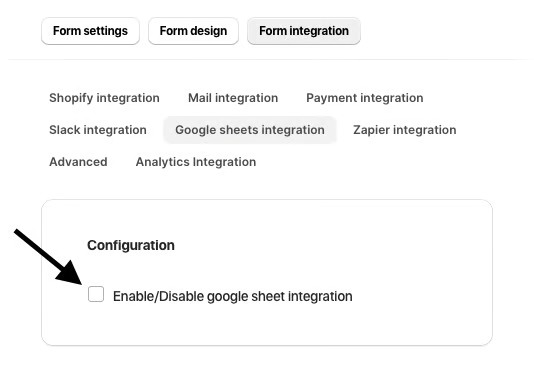
1. Enable Google Sheets Integration
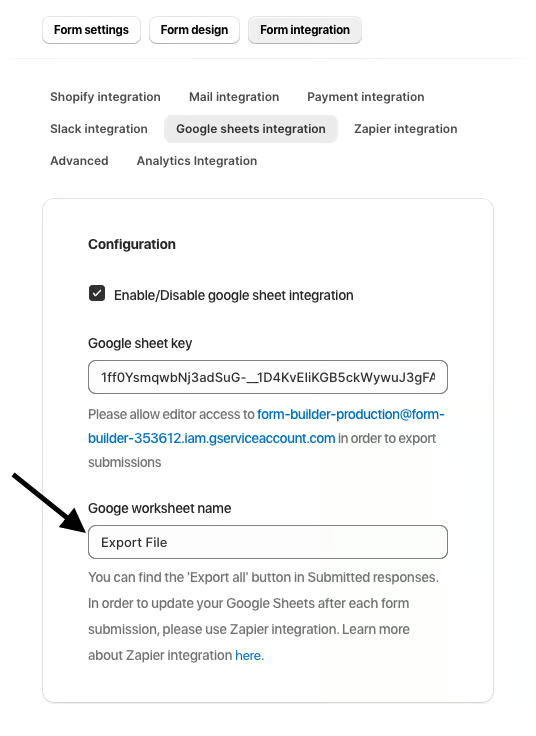
Navigate to Form Integration > Google Sheets Integration in the app to get started.
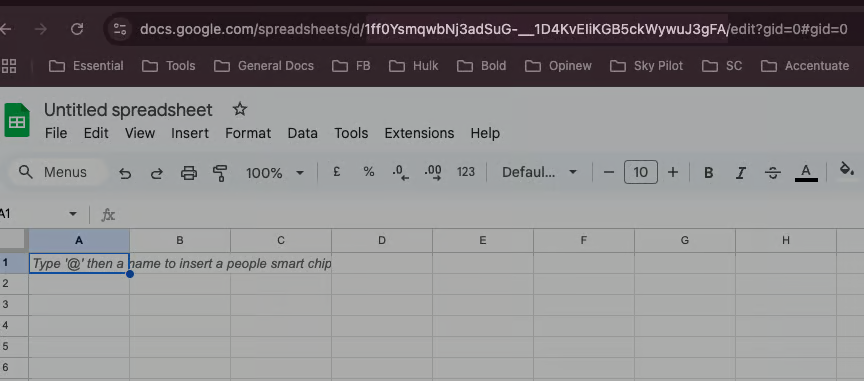
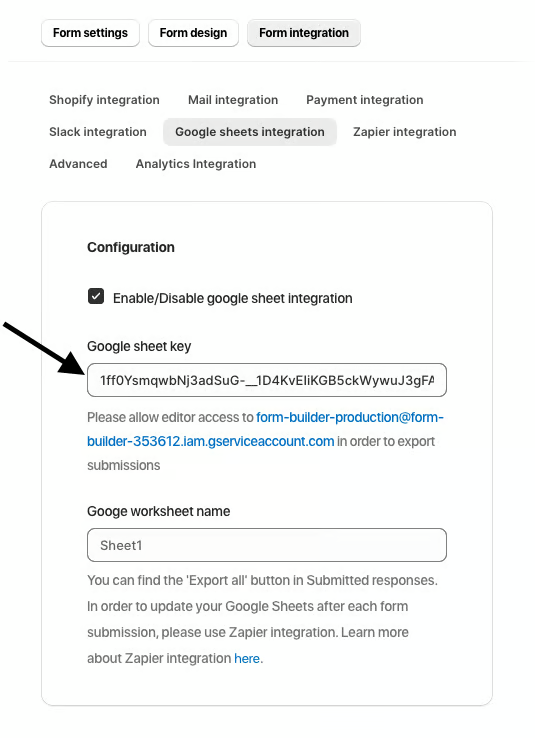
2. Add Your Google Sheets Key
Enter the unique key for your Google Sheet to establish the connection.
 3. Provide Editor Access to the Service Account
Grant editor access to the service account form-builder-production@form-builder-353612.iam.gserviceaccount.com in your Google Sheet.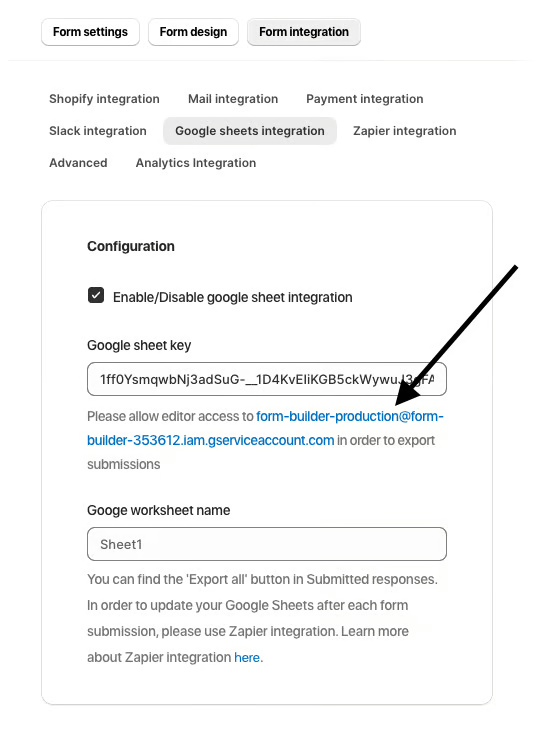
4. Specify the Worksheet Name
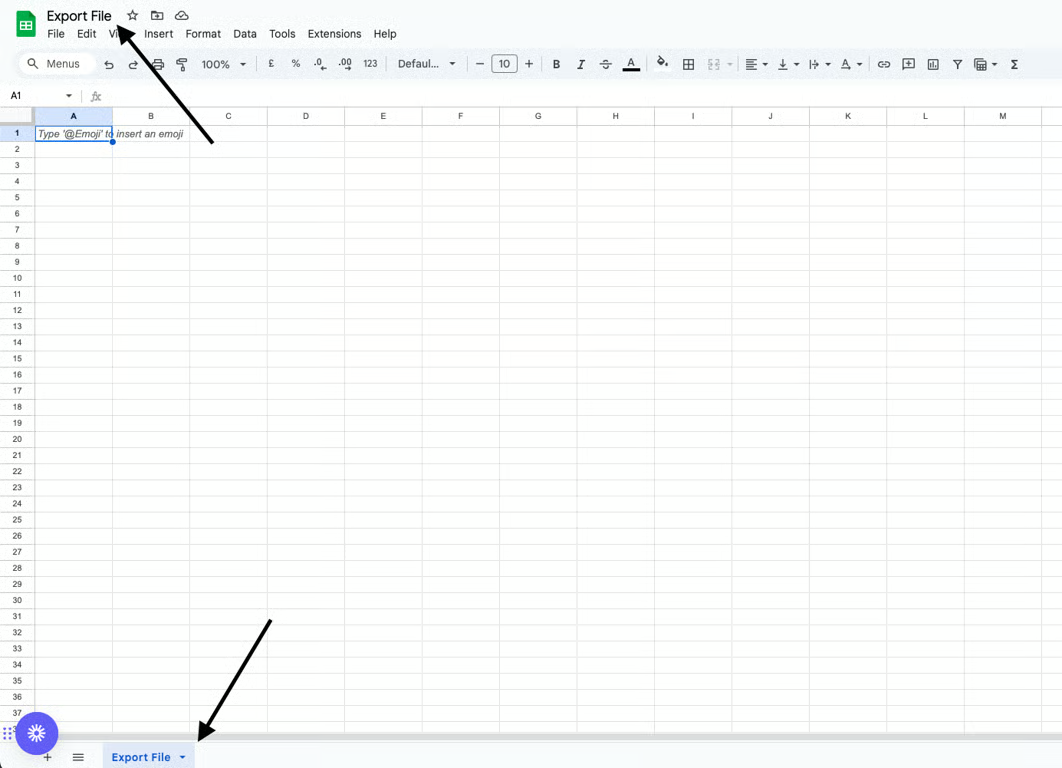
Provide the name of the worksheet where you want the form submissions to be stored (Google Worksheet name and file tab name fields).
5. Export Submissions to Google Sheets
Choose whether to update submissions one by one or all at once.

With this integration, you can easily sync and manage your form data directly in Google Sheets!
Was this article helpful?
That’s Great!
Thank you for your feedback
Sorry! We couldn't be helpful
Thank you for your feedback
Feedback sent
We appreciate your effort and will try to fix the article