Add or update your wishlist users whenever a new row is added to your Google Sheets spreadsheet, ensuring your member information is always up to date.
This guide will walk you through the process of integrating Hulk Advanced Wishlist with Google Sheets.
1. Enable integration inside Settings > Integration > Google Sheets integration
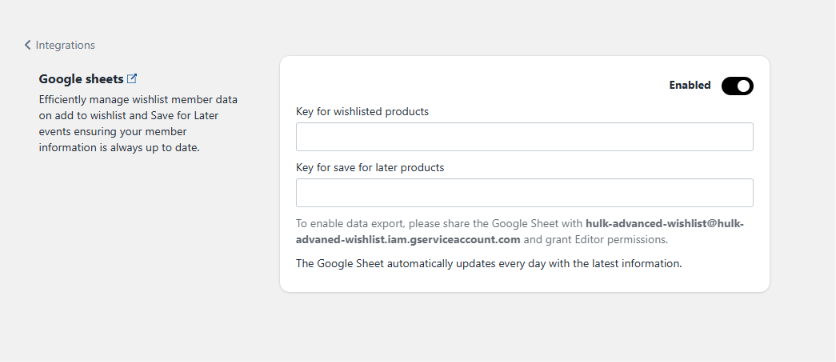
2. As an example, we are going to create a Google Sheet spreadsheet for wishlisted products
3. Create a new Google Sheet and copy the key
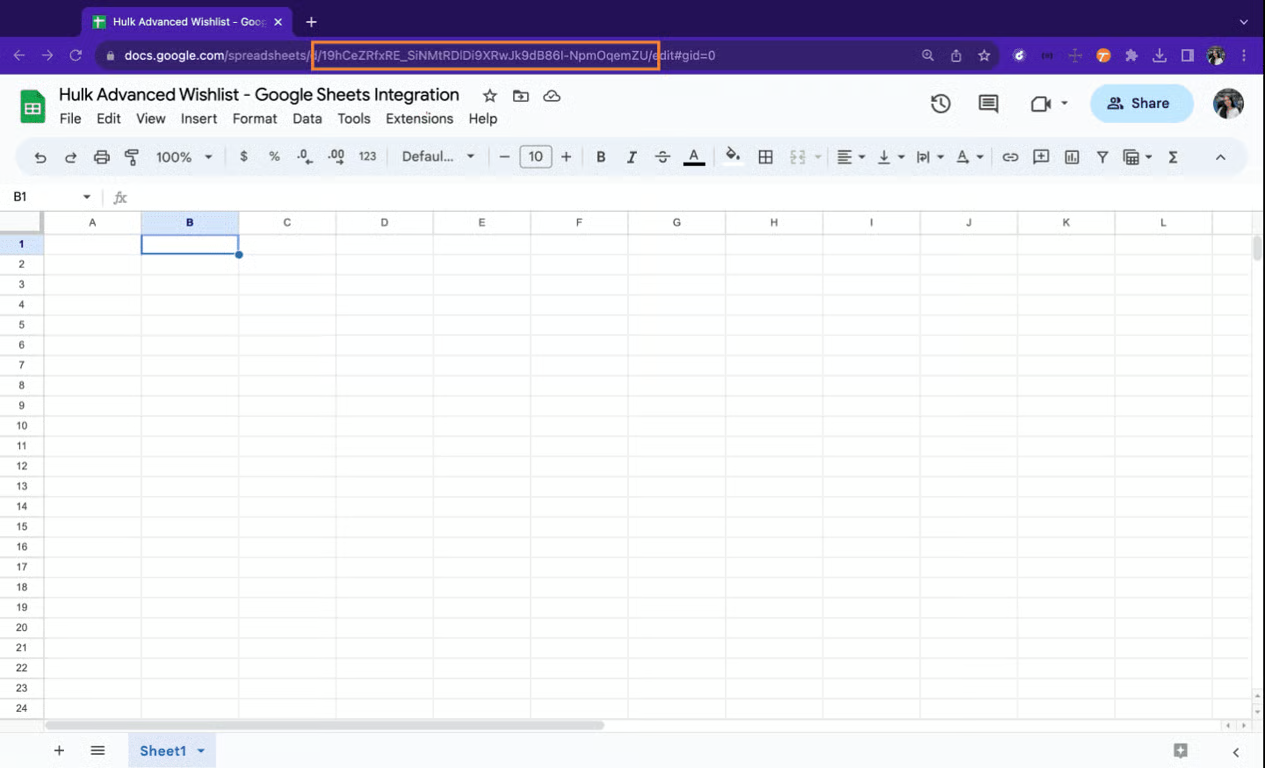
4. Paste the Google Sheets key and save changes
5. Copy link titled "hulk-advanced-wishlist@hulk-advaned-wishlist.iam.gserviceaccount.com"
6. Click on Share on your Google Sheet
7. Paste the link and click on Send
Was this article helpful?
That’s Great!
Thank you for your feedback
Sorry! We couldn't be helpful
Thank you for your feedback
Feedback sent
We appreciate your effort and will try to fix the article