The Pro members of the app can leverage this metafield type to insert Date as the value of this metafield & display it in the storefront.
Here’s how you display a date in your storefront using the Metafields app:
- Go to the app dashboard
- Select the resource where you want to display the additional information in your storefront.
- For instance, click on the product to display the additional information on the product page.
- Select the product on which you want to display the additional information using the metafields.
- You’ll be taken to the app dashboard. Simply click on the Create New button
- Fill in the following details:
- Namespace: Category of the metafield
- Key: Name of the metafield
- Description: Brief about the metafield you’re creating
- Type: Select the type of metafield as Date Picker
- Select the date from the Date Picker & also select the format from Format Options to display the date in your storefront.
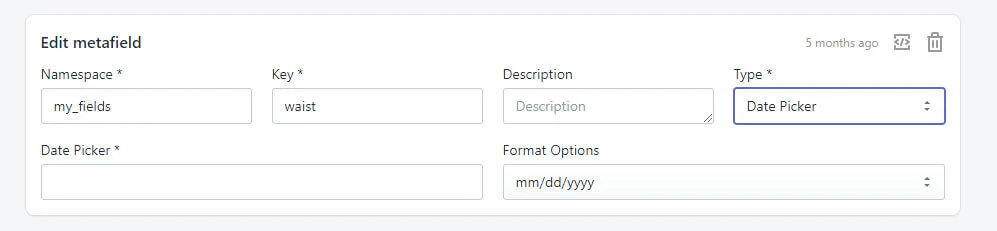 Click on Save & view the product in your storefront on which you’ve created the metafields.
Was this article helpful?
That’s Great!
Thank you for your feedback
Sorry! We couldn't be helpful
Thank you for your feedback
Feedback sent
We appreciate your effort and will try to fix the article