The Booking element allows users to schedule appointments or reservations directly through the form. It is useful for service bookings, consultations, or event scheduling.
Available Options:
Field label – sets the visible name of the booking field.
Additional message – optional helper text displayed below the field.
Booking Settings:
Slot duration – define the length of each booking slot (e.g., 30 minutes, 1 hour).
Buffer minutes – add extra time between bookings to prevent overlap and allow preparation (e.g., 15 minutes buffer).
Allow multiple bookings per slot – option to allow more than one user to book the same slot.
Timezone – set the default timezone for booking times (e.g., UTC).
Maximum days allowed for early booking – limit how far in advance users can book (e.g., 30 days).
Booking preview type – select how slots are displayed (Radio, Dropdown, etc.).
Choose date field title – text for the date selection field.
Choose time slot field title – text for the time slot selection field.
No slot available text – message displayed when no booking slots are available.
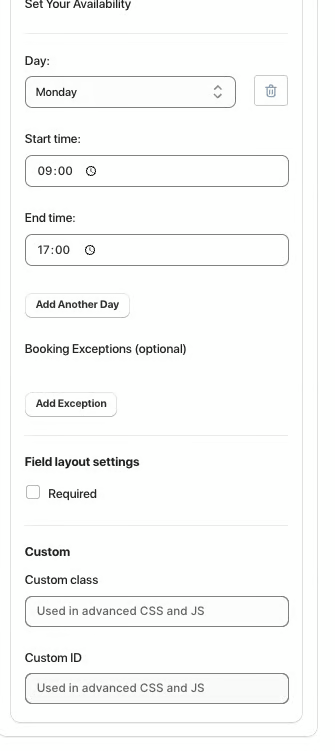
Set Your Availability:
Day – select the day(s) when bookings are available.
Start time / End time – define the time range for available slots.
Booking Exceptions (optional) – add dates or times when booking is not available.
Field Layout Settings:
Required – makes booking mandatory.
Custom class – used for advanced styling or JavaScript.
Custom ID – unique identifier for targeting the field with CSS or JS.
Was this article helpful?
That’s Great!
Thank you for your feedback
Sorry! We couldn't be helpful
Thank you for your feedback
Feedback sent
We appreciate your effort and will try to fix the article