Shoppable Videos are one of the most engaging ways to showcase products inside your mobile app. With the new Shoppable Video feature in Hulk Mobile App Builder, merchants can display interactive videos and directly link products to them, creating a seamless shopping experience for customers.
This guide will walk you through the complete setup process.
What are Shoppable Videos?
Shoppable Videos allow you to:
Showcase products using engaging video content
Link products directly within videos
Improve customer engagement and conversions
Create a modern TikTok/Reels-style shopping experience inside your mobile app
Step 1: Open the Hulk Mobile App Builder
From your Shopify admin:
Open Hulk Mobile App Builder
Go to Customize
Navigate to Settings
Locate the Shoppable Video option
Step 2: Configure Shoppable Videos
Once you open the Shoppable Video section, you’ll find fields to:
Add video URLs
Link products with videos
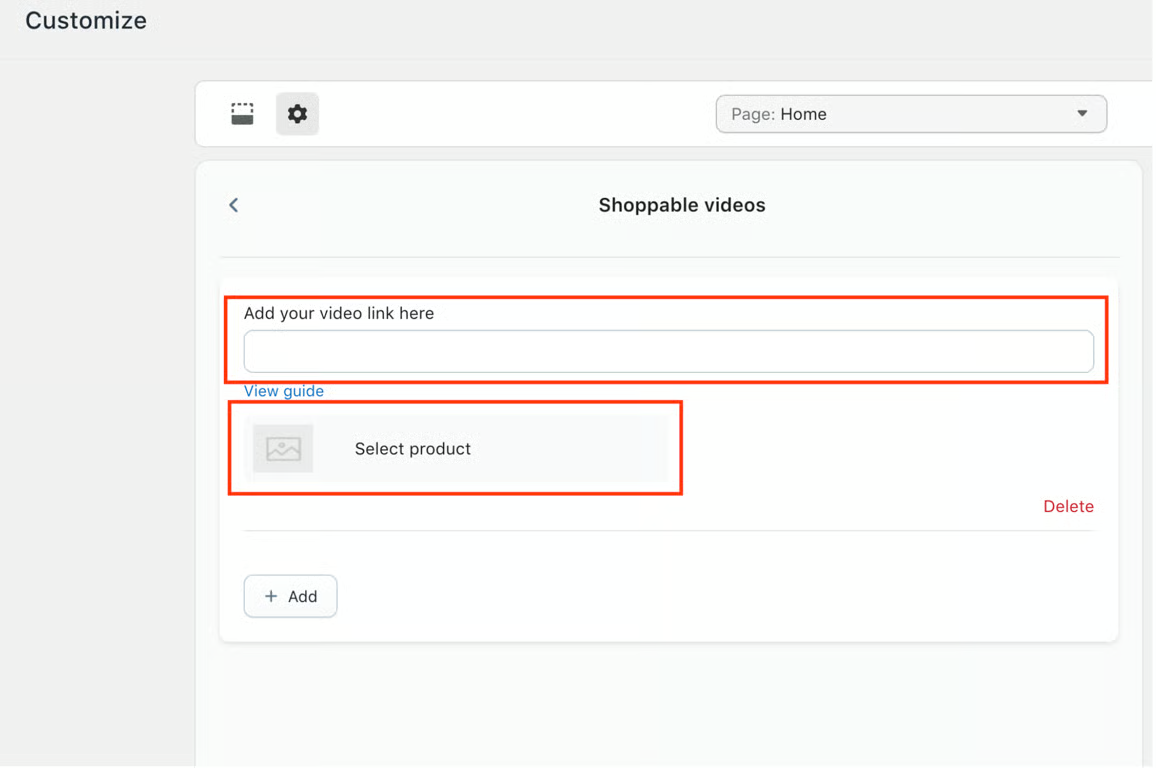
Add Multiple Videos
You can add multiple shoppable videos by clicking the + Add button
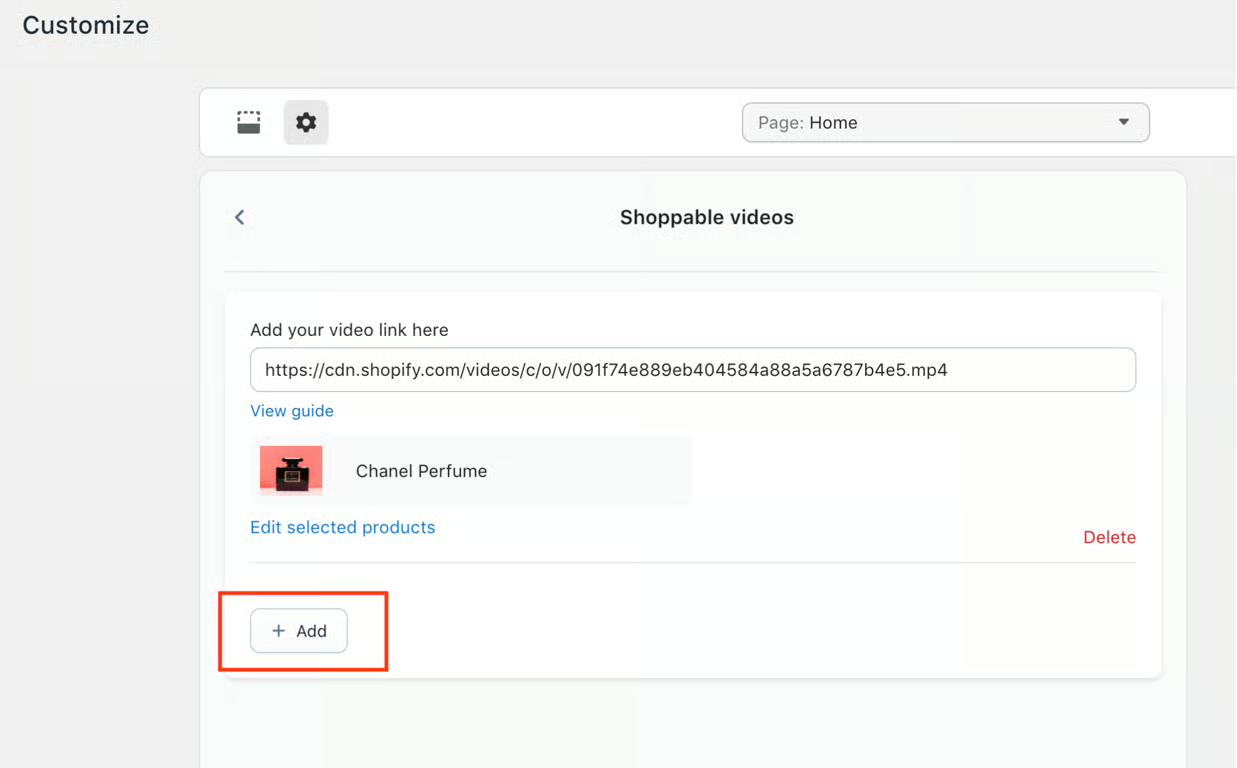
This allows you to create an entire feed of interactive shopping videos.
Step 3: Upload Videos to Shopify Files
Before adding the video URL to the app, you first need to upload your videos to Shopify.
Follow these steps:
Open your Shopify Admin
Go to Content → Files
Upload your video file
Copy the uploaded video URL
Step 4: Paste the Video URL
After uploading:
Return to the Shoppable Video settings
Paste the copied Shopify video link into the input field
Step 5: Link Products to the Video
Simply click on Select Product, choose the product or multiple products you would like to associate with the video, and save the configuration.
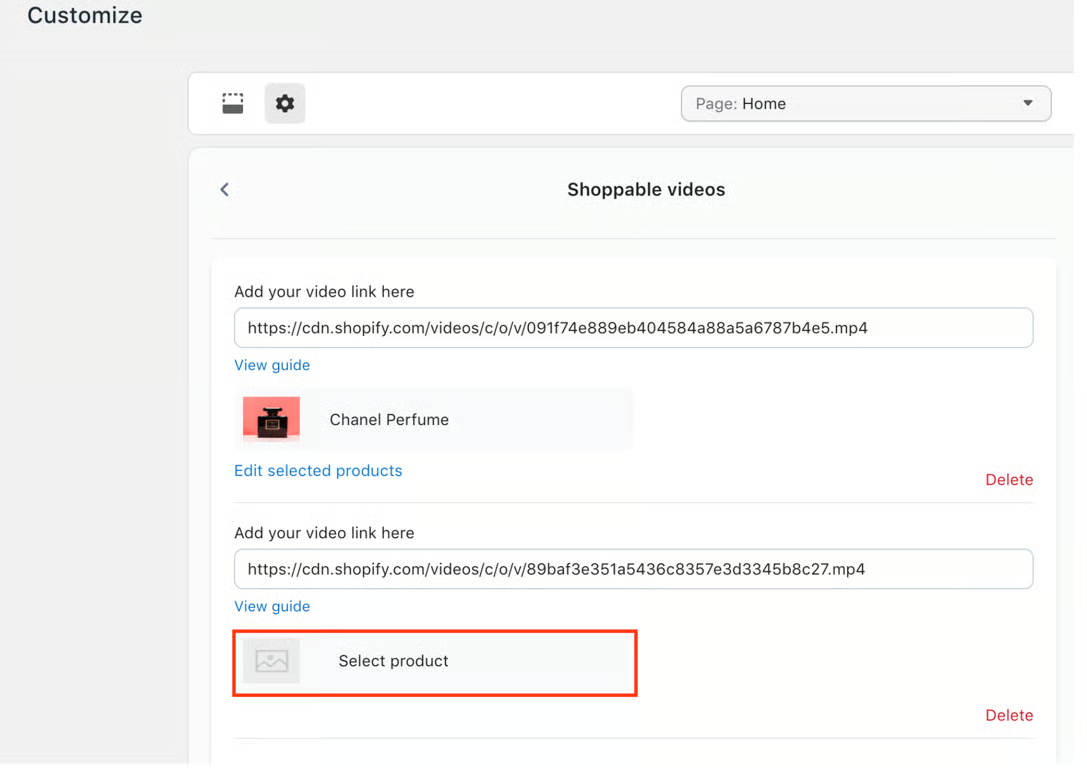
Customers will now be able to interact with the video and directly access the linked products.
Please note that if any product details are updated in Shopify, the changes will automatically reflect in the Shoppable Videos setup.
However, if a product is deleted from Shopify, it must be manually removed from the Shoppable Videos configuration to avoid displaying unavailable products within the mobile app.
Step 6: Save the Settings
Once all videos and products are configured:
Click Save
Your Shoppable Video setup is now complete
Step 7: Add Shoppable Videos to Your Mobile App Navigation
After setup, the final step is adding the Shoppable Video section inside your mobile app.
You can place it in:
Side Menu
Bottom Navigation Menu (Recommended)
⭐ Recommended Placement: Bottom Menu
For better visibility and engagement, we highly recommend adding Shoppable Videos to the Bottom Menu.
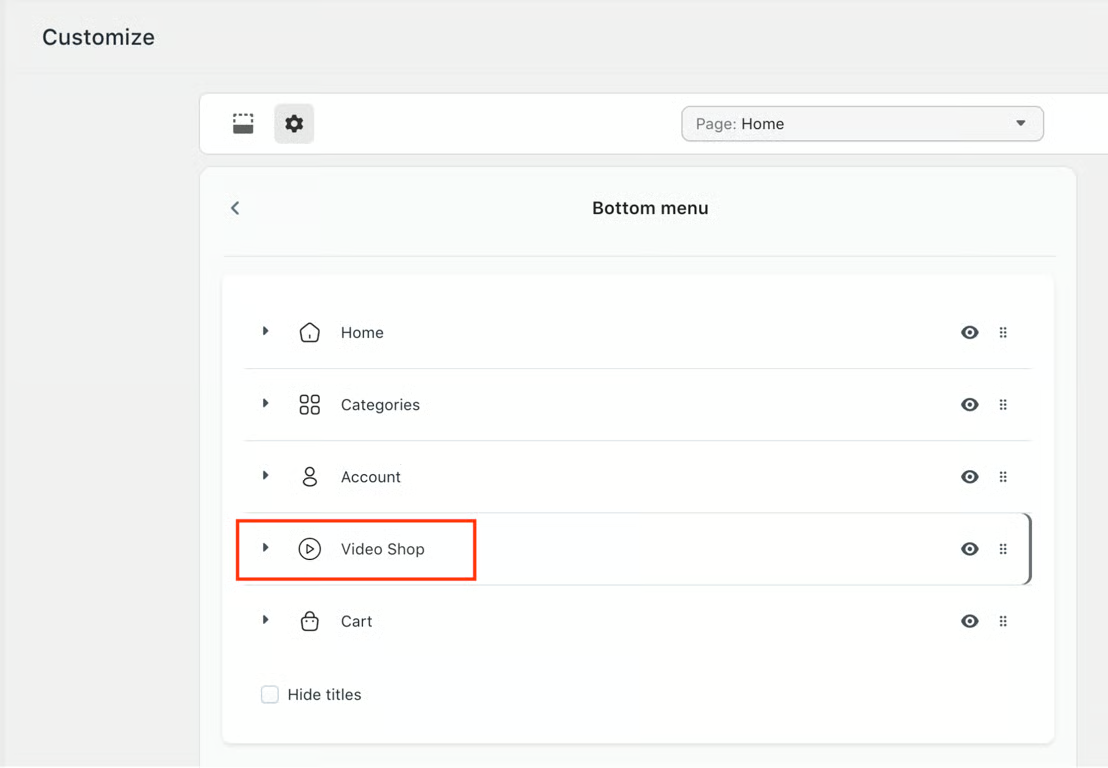
To do this:
Open Bottom Menu Settings
Edit a menu item
Select Shoppable Video
Save the changes
That’s it — the Shoppable Video section will now appear inside your mobile app. Here is the full video tutorial you can follow to set up the Shoppable videos in your App. This is how the feature will look on an actual mobile device.
Benefits of Using Shoppable Videos
Increase customer engagement
Improve product discovery
Boost mobile conversions
Create a modern shopping experience
Highlight featured or trending products
Need Help?
If you need any assistance setting up Shoppable Videos, feel free to schedule a call with our experts. Our team will be happy to help you with the setup, customization, and best practices for your mobile app experience.
FAQs
1. How do I add Shoppable Videos to my mobile app?
You can add Shoppable Videos by navigating to: Hulk Mobile App Builder → Customize → Settings → Shoppable Videos. From there, you can simply paste the video links that you already uploaded into the Shopify files.
2. Where should I upload my video files?
You should upload your videos to the Shopify Content → Files section and use the generated Shopify file URL inside the Shoppable Video settings.
3. Can I add multiple Shoppable Videos?
Yes, you can add multiple videos using the + Add button inside the Shoppable Video settings.
4. Can I link multiple products to a single video?
Yes, multiple products can be linked to a single Shoppable Video.
5. What video formats are supported?
Most standard Shopify-supported video formats work properly. For the best experience, we recommend using optimized MP4 videos.
6. Can customers purchase products directly from the video?
Yes, customers can tap linked products directly from the Shoppable Video and proceed to purchase them.
7. Where is the best place to display Shoppable Videos in the app?
We highly recommend adding Shoppable Videos to the Bottom Navigation Menu for maximum visibility and engagement. However, it can be added into the Side menu as well.
8. Can I update or replace videos later?
Absolutely. You can edit, remove, or replace videos anytime from the Shoppable Video settings section.
Was this article helpful?
That’s Great!
Thank you for your feedback
Sorry! We couldn't be helpful
Thank you for your feedback
Feedback sent
We appreciate your effort and will try to fix the article